
How to Enable / Disable SMS Appointment Notifications
Overview
In CoachVantage, both coaches and clients can receive appointment notifications, updates, and reminders via SMS text message. This feature helps ensure that no one ever misses an upcoming session, cancellation, or reschedule. In this guide, you’ll learn how SMS notifications work, who receives them, how to customize your notification preferences, and how to manage your SMS credits and usage. Whether you’re a coach or a client, setting up text message reminders is quick and easy — and keeps everyone connected and on time.
📱 How SMS Notifications Work
Who receives notifications?
- You can configure SMS notification settings so that you (as coach) and / or your clients will receive SMS notifications.
- For you (as coach) to receive SMS notifications, you must have a valid mobile phone number saved in the settings.
- For clients to receive SMS notifications:
- A valid mobile phone number must be saved in the client profile in CoachVantage, and
- Clients must consent to receive notifications, and
- The mobile number is not registered in a country where the SMS service is not available or in a country deemed high risk
Types of notifications
You can decide what type of notification SMS messages to send by toggling Yes/No for each option in the settings as described here -
The available SMS notification options are:
- Appointment creation - SMS is sent when an appointment is booked by your clients or created by you as coach.
- Appointment cancellation - SMS is sent when an appointment is cancelled by you or your clients.
- Appointment changes/rescheduling - SMS is sent when an appointment is rescheduled or the details are changed (for eg, meeting location) by you or your clients.
- Appointment reminders (48 hours, 24 hours, or 1 hour before the appointment) - SMS is sent to remind of upcoming appointments.
Setting Up SMS Notifications
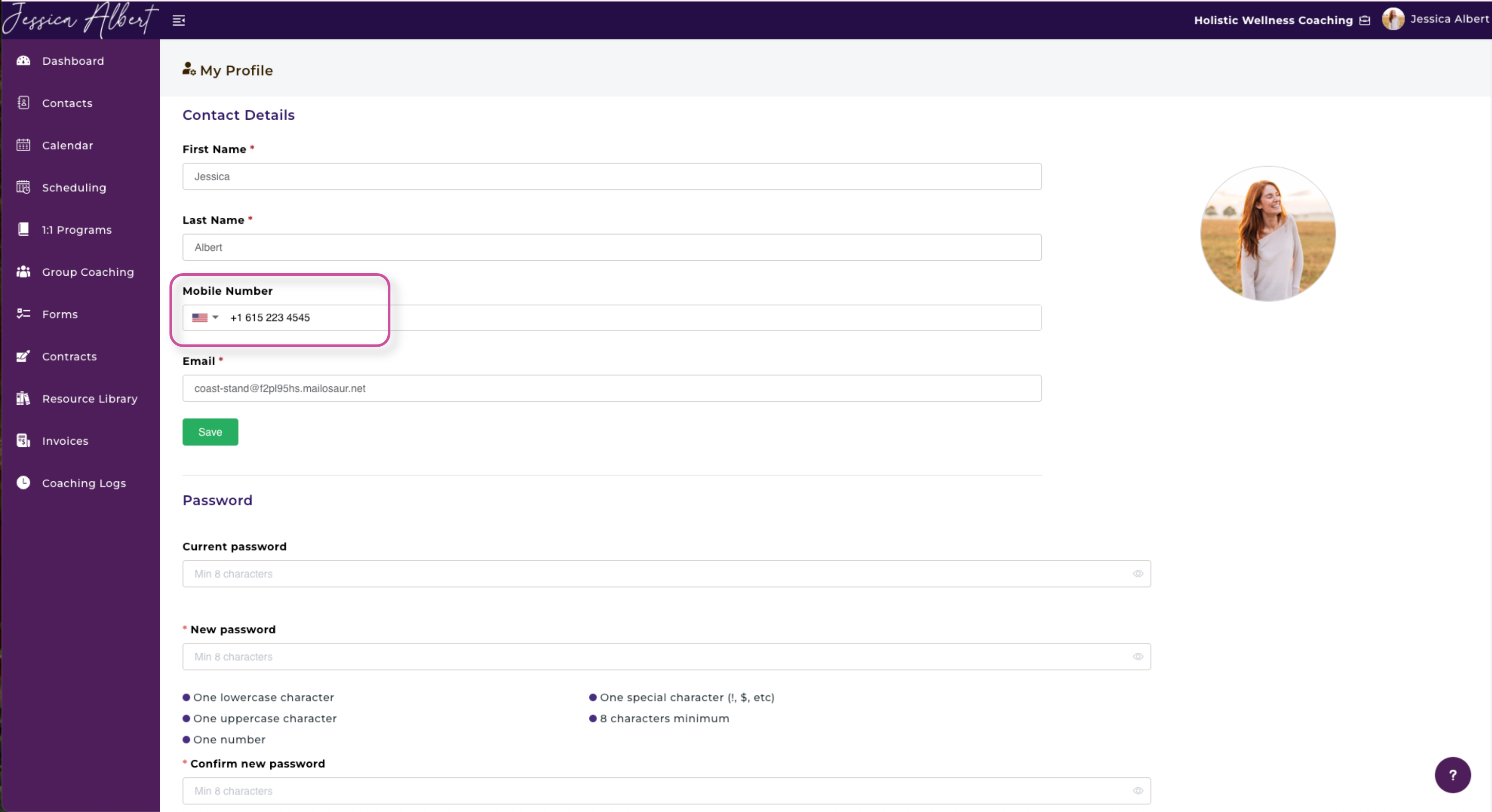
For Yourself as Coach - Update Your Phone Number
- Go to your name on the top right-hand corner.
- Select My Profile.
- Ensure your mobile phone number is entered correctly.
Configure SMS Notifications for Yourself
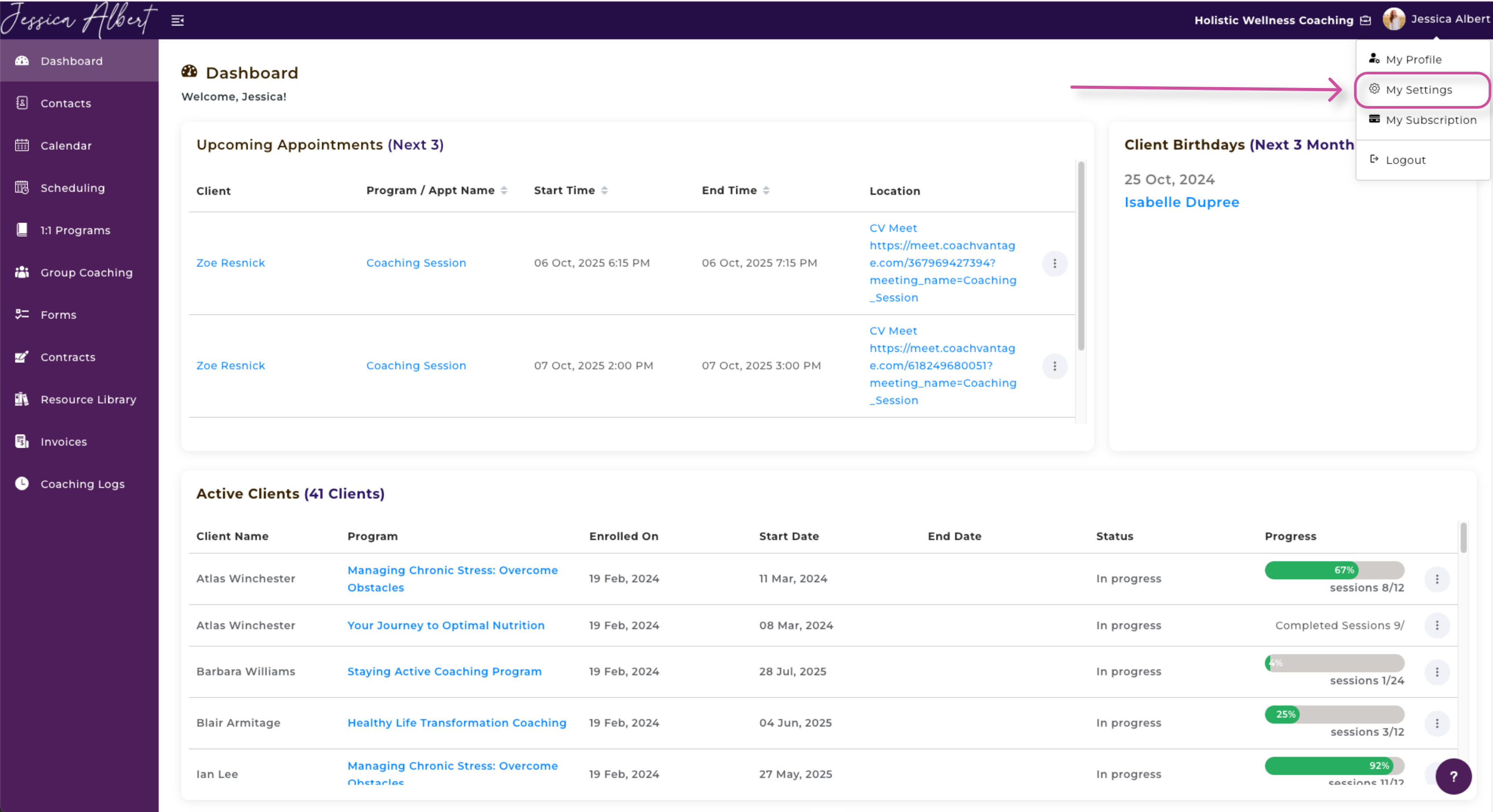
- Go to your name on the top right-hand corner.
- Select My Settings > Appointment and Calendar tab, and scroll down the page to Appointment Notifications:
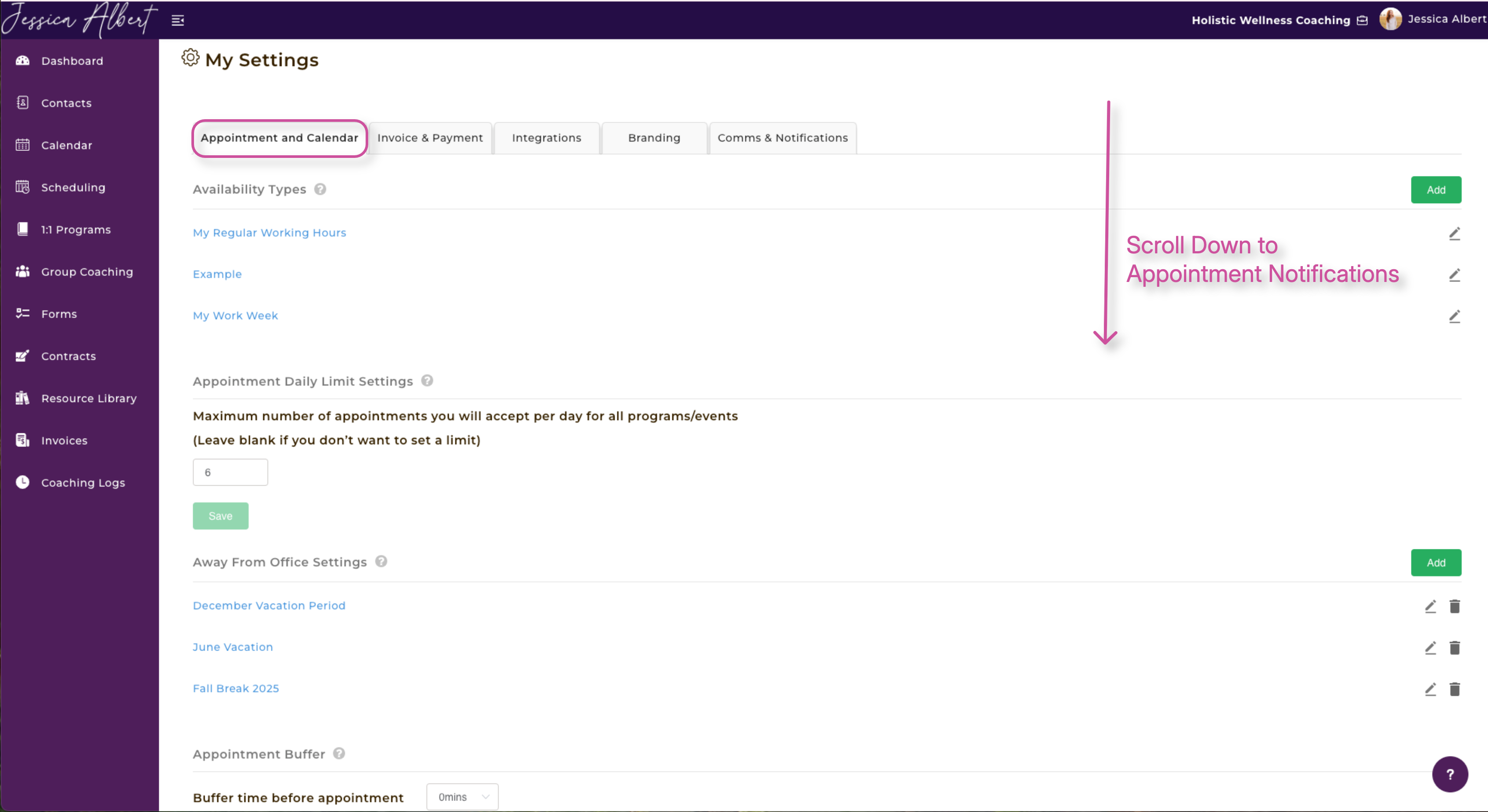
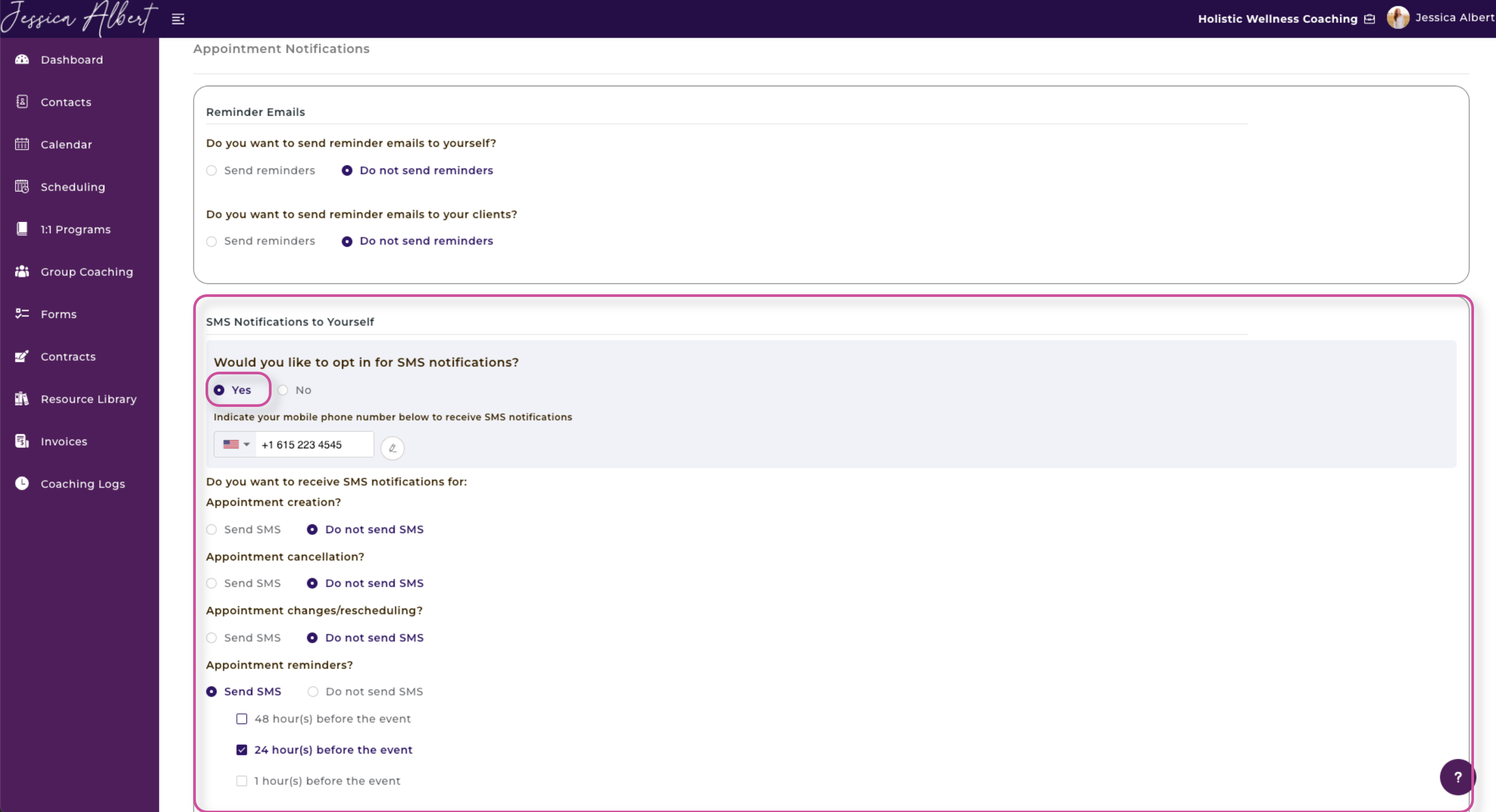
Under Appointment Notifications, you can customize the SMS settings to your liking.
If you would like to receive SMS notifications:
1. Select Yes to the question: "Would you like to opt in for SMS notifications?"
The mobile phone number that's saved in your My Profile page appears by default. However, if you would like to change the mobile phone number that receives the SMS notifications, click the Edit icon and enter the desired number and click Save.
Note: The mobile phone number in the My Profile page does not change when you update the phone number for your SMS notification settings.
2. Next, select the desired SMS notifications you'd like to receive.
For example, to receive SMS notifications whenever an appointment is booked or created, select Send SMS for the Appointment Creation option.
Remember to scroll down and press Save when finished.
Configure SMS Notifications for Your Clients
You can enable or disable SMS Notifications to Clients, as shown below:
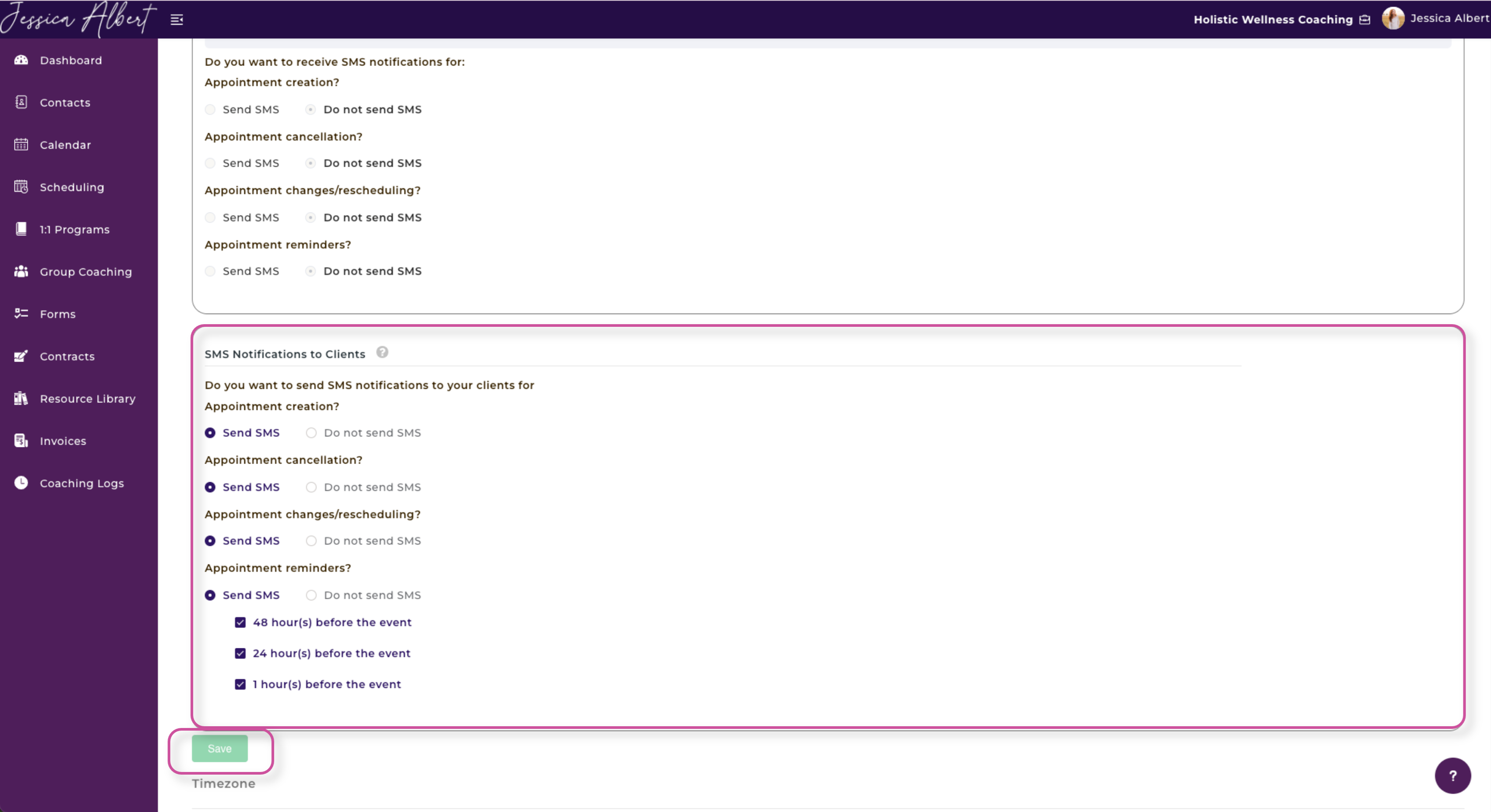
1. Select Send SMS for the notification options that are available such as Appointment Creation, Appointment Cancellation, Appointment Changes / Rescheduling and Reminders.
2. Select Do Not Send SMS to stop sending SMS notifications to clients for the various options. This is a global setting that will stop SMS notifications from being sent to ALL clients.
Remember to scroll down and press Save when finished.
Pre-Requisites For Clients To Receive SMS Notifications:
For clients to be able to receive SMS notifications, the following pre-requisites must be met:
- A valid mobile phone number exist in the client record, and
- They have opted in or given consent to receive SMS notifications, and
- Their mobile phone number is not registered with a country where the SMS service is unavailable or deemed to be high risk (as deemed by the third party service provider we use for SMS notification service).
Add Your Contact's Phone Number
During Client Creation Process
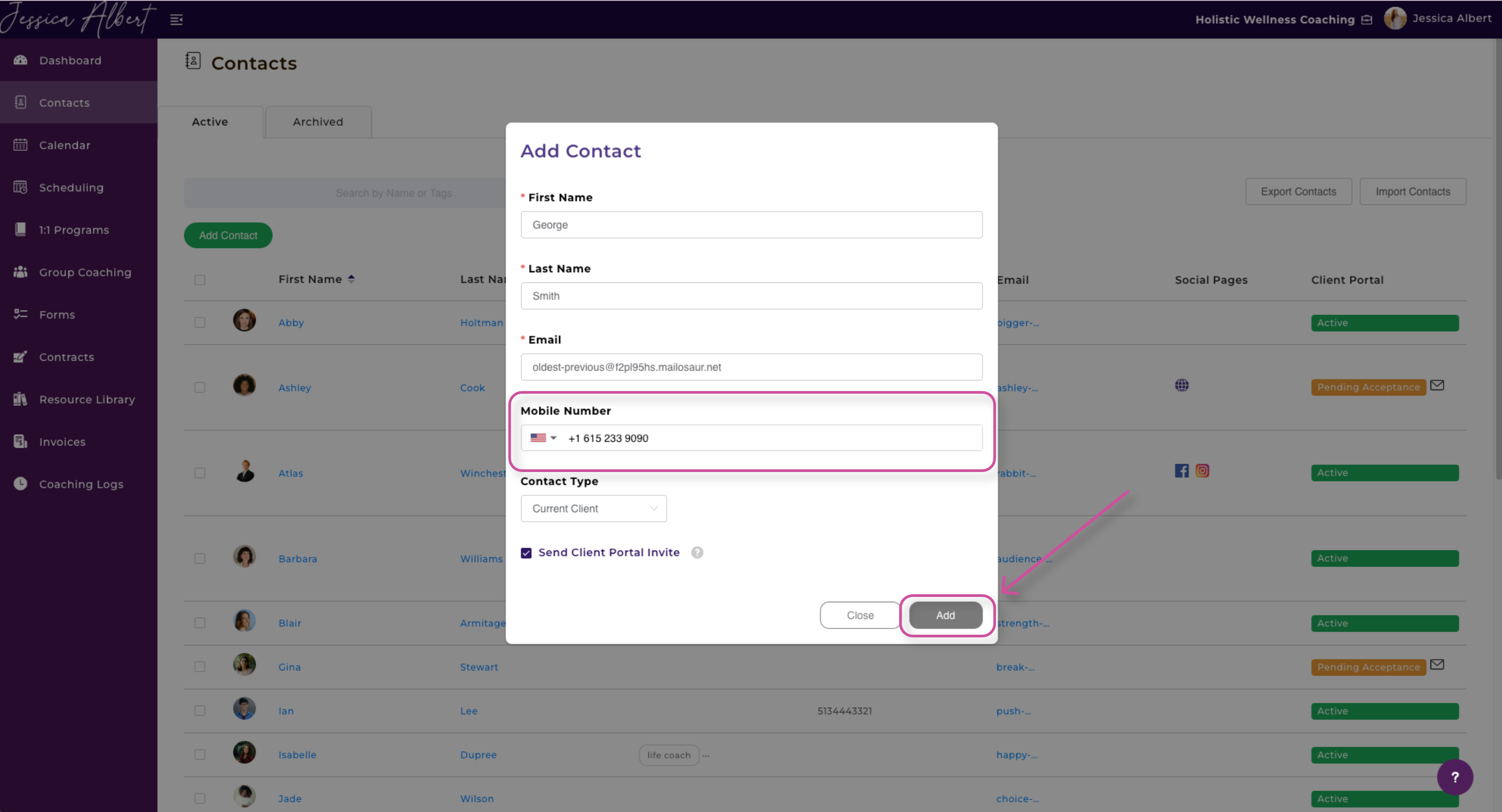
- Select Contacts from the left-hand menu.
- Click the green Add Contact button.
- A pop-up window will appear where you can easily add a contact's Mobile Number.
When a Client Record Is Already Created
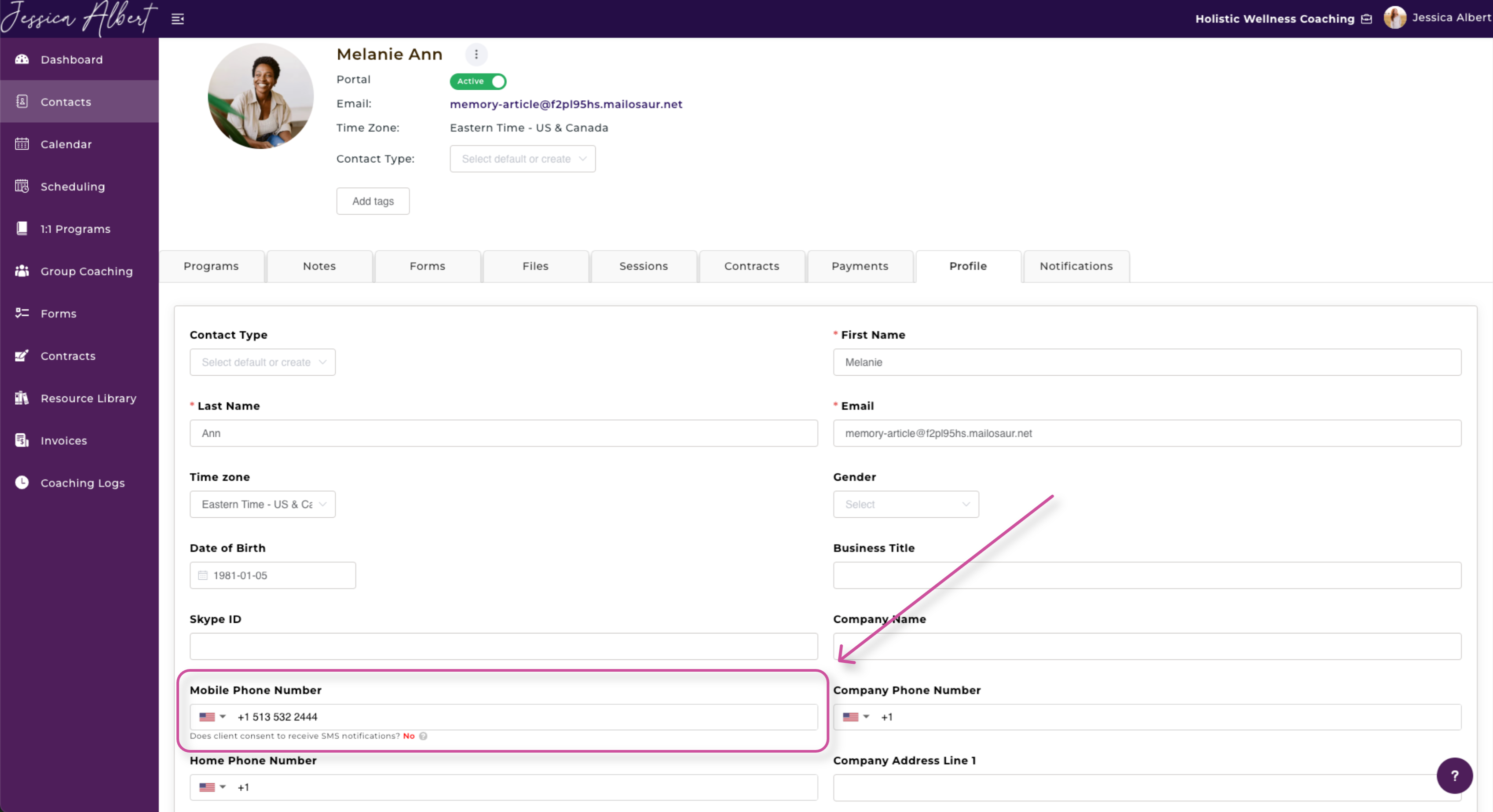
- Select Contacts from the left-hand menu.
- Click on the name of a contact.
- Navigate to the Profile tab.
- Under the Mobile Number field, write-in their phone number
You will see this question underneath the phone number: Does client consent to receive SMS notifications?
Clients can control their notification preferences from the client portal, whether they consent to receiving SMS notifications or not.
Note: Only your clients can control their SMS opt-in or opt-out preferences. You as coach will not be able to do this.
Tip: If your client would like to opt-in to receive SMS appointment notifications, please ask them to log into their client portal and opt-in from the My Profile page (see section below).
How to Disable Specific Clients From Receiving SMS Notifications
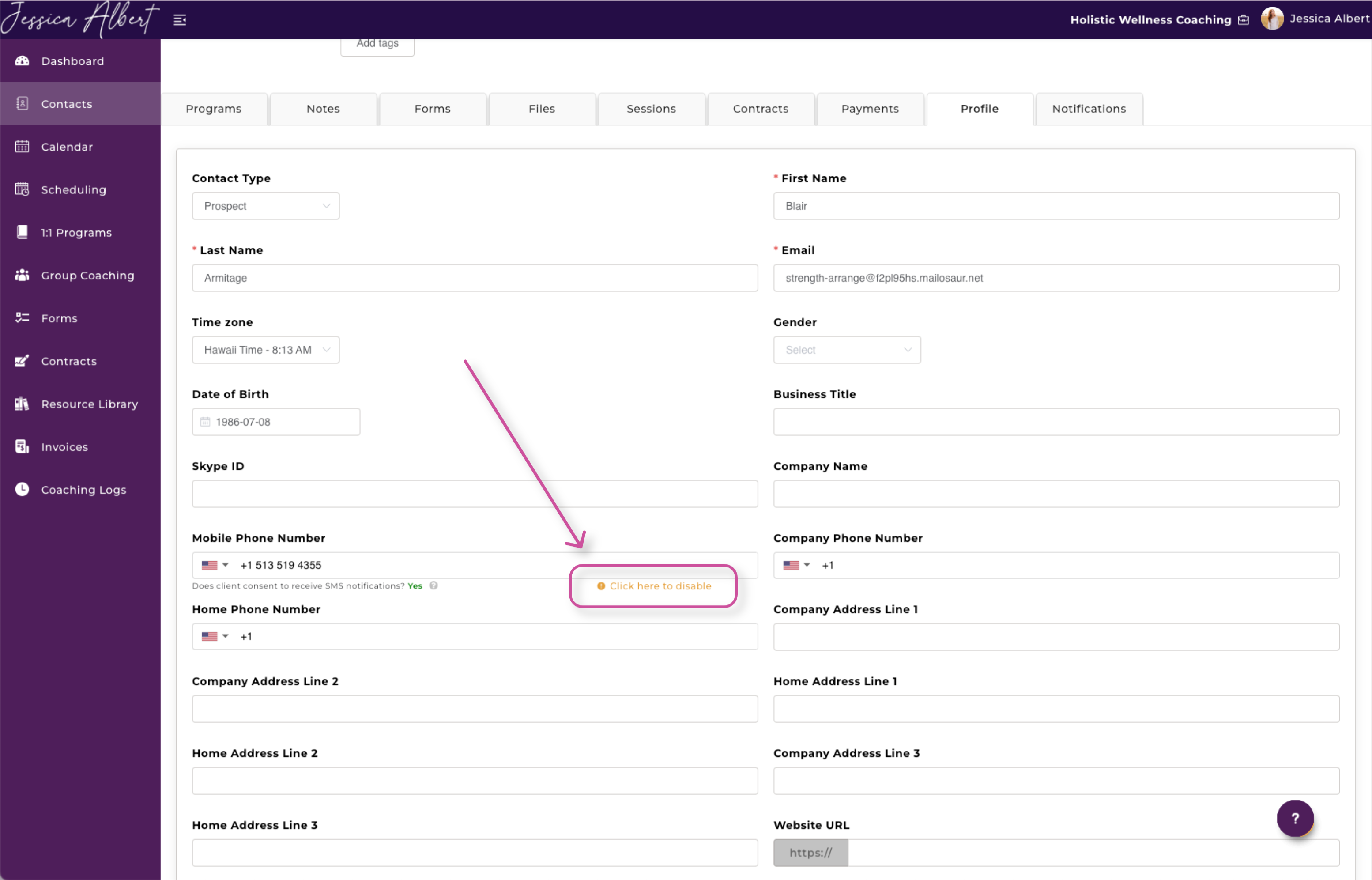
As a coach, you can disable sending SMS notifications to a specific client by following these steps.
- Select Contacts from the left-hand menu.
- Click on a contact.
- Click on the Profile tab.
- Under the Mobile Phone Number field, select Click here to disable.
5. A pop-up window will appear. Click the Yes, Disable purple button to finalize your change.
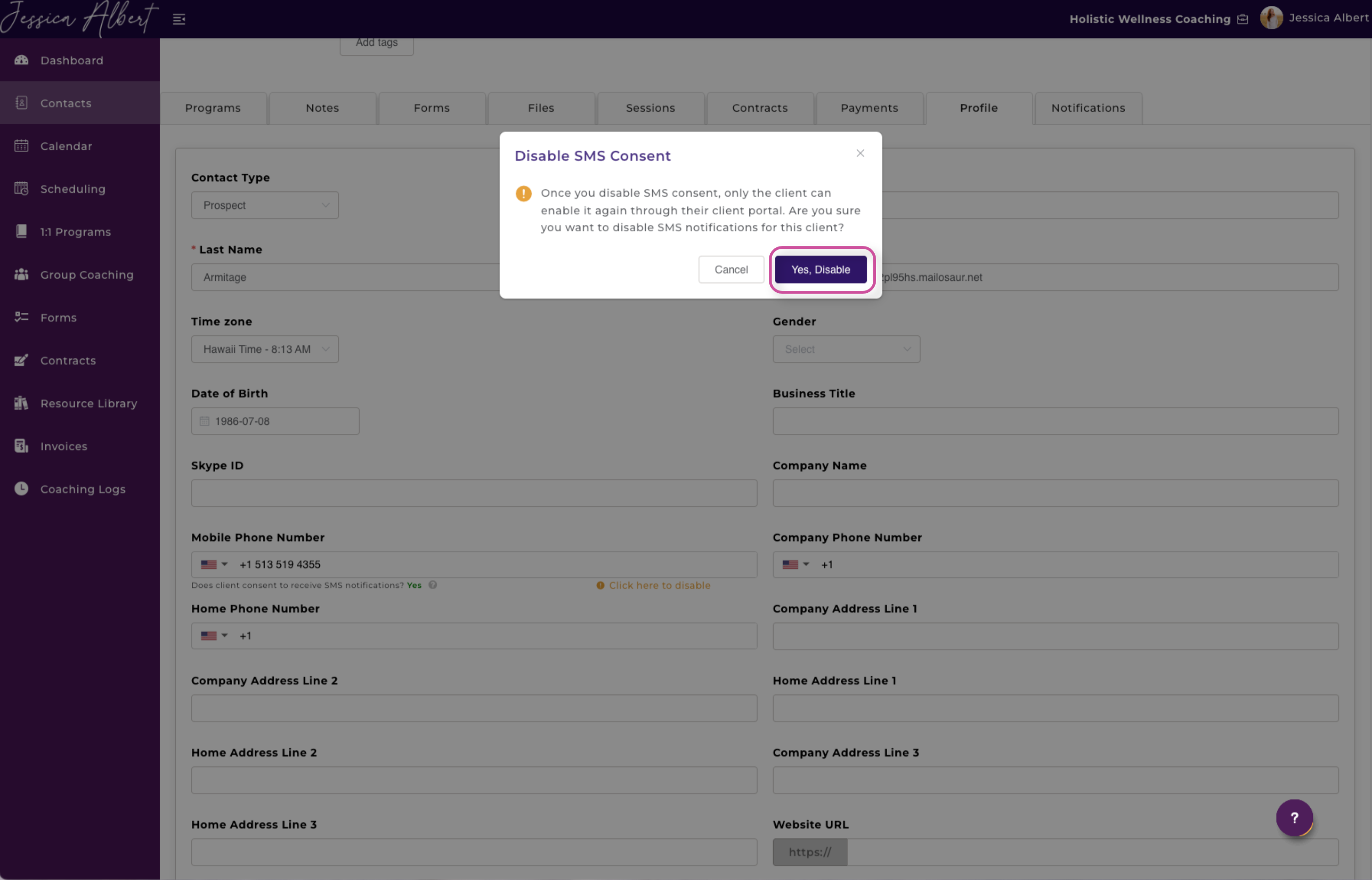
Success! You have disabled sending SMS notifications for this specific client.
Tip: This feature is useful if a client is unable to log into their client portal to opt-out of receiving SMS notifications, or has asked you to specifically stop sending SMS notifications to them.
FAQ's
1. Can my clients or I reply to the SMS notification?
No. SMS notifications are one-way only.
2. What if I (as Coach) don’t want to receive SMS notifications?
You can disable notifications in your profile under My Settings > Appointment Notifications by selecting No for all options.
3. Will I still get email notifications?
Yes. Email notifications can be configured separately. You can choose whether to keep both email and SMS notifications, or just one.
4. Can I send and receive SMS notifications for free?
As part of your CoachVantage paid plan, you'll receive free SMS credits every billing cycle. Clarity Plan subscribers receive 25 free SMS credits per monthly billing cycle, or 300 SMS credits per yearly billing cycle. Aha! Plan subscribers receive 50 free SMS credits per monthly billing cycle, or 600 SMS credits per annual billing cycle. Any unused free credits do not get rolled over to the next billing cycle (i.e. use or lose). 1 SMS credit = 1 SMS notification sent.
5. What happens if I run out of free SMS credits?
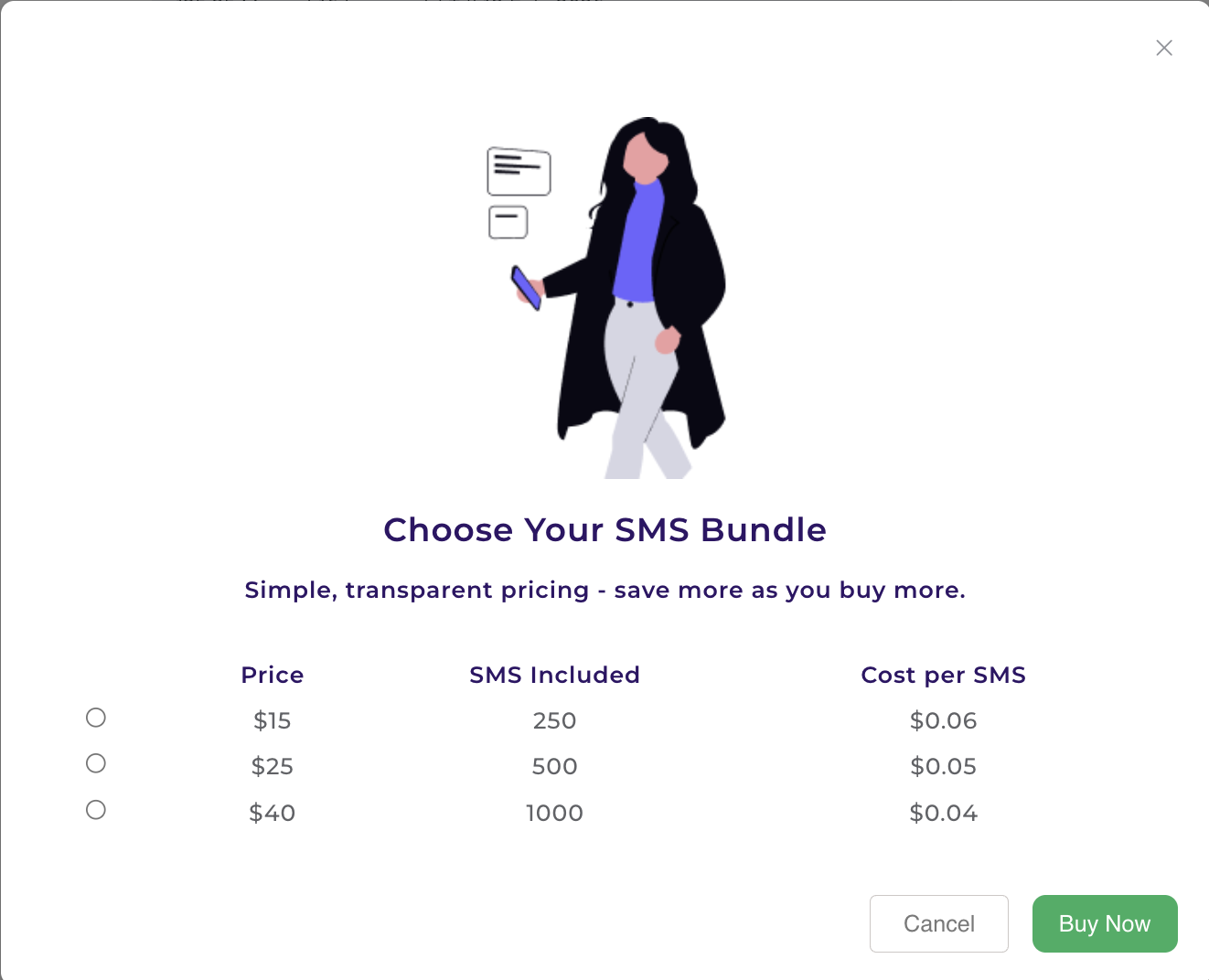
You can purchase additional SMS credits. Simply go to My Subscription > SMS Notifications and click Top Up Credits. You can select the desired quantity of SMS credits you wish to purchase. The more credits you buy, the cheaper the unit cost per SMS, as shown below:
6. Will I be notified if I'm running low on SMS credits?
Yes! We'll notify you by email when you're account is running low on SMS credits so that you can take action to purchase more credits.
7. Can I automatically top up SMS credits before they run out?
Yes! To ensure continued SMS notification service for you and your clients, we highly recommend that you enable auto top-up of SMS credits. You can do this by clicking Set Auto Top-Up as shown below. Please refer to this article for more information on this topic.
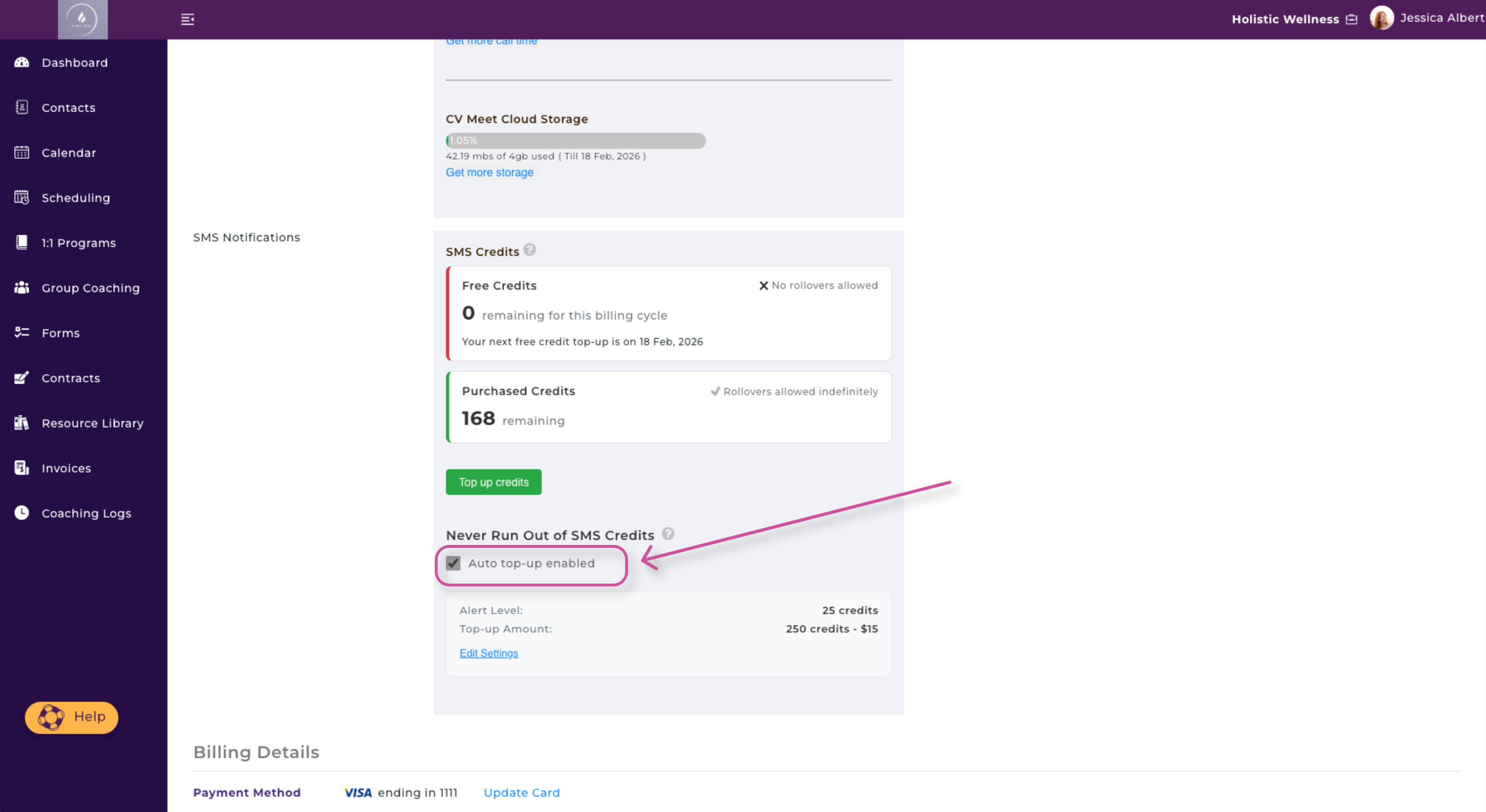
Next, select the Alert Level to trigger the automatic top up of SMS credits. Your credit card on file will be automatically charged for the purchase so that you won't have to purchase credits manually and run the risk of unexpected SMS service interruption.
8. What number are SMS messages sent from, and can I send them from my own number?
SMS messages are sent from one of the following CoachVantage numbers:
- United States and other countries: +1 866-896-7489
- United Kingdom: +44 7462 181867
At this time, you cannot configure SMS messages to be sent from your personal mobile number.