
How to Configure SMS Notifications for Events and Individual Programs?
Overview
In CoachVantage, you can easily enable SMS notifications for your events so that both you and your clients receive timely text reminders about upcoming sessions. This feature helps reduce no-shows, improves communication, and keeps everyone on the same page.
Depending on the type of appointment you’re managing—Events or 1:1 Programs—you can control whether SMS notifications are sent when sessions are booked. For Events and 1:1 Programs, you can enable or disable SMS notifications directly within each event or program’s scheduling settings, respectively.
Currently, SMS notifications for Group Coaching Programs are managed based on your global notification preferences in My Settings, rather than at the individual program level.
This article walks you through how to configure SMS notifications for Events and 1:1 Programs in your CoachVantage account, ensuring you have granular control about whether to send SMS notifications for individual events and programs.
IMPORTANT: SMS notification settings at the individual Event and 1:1 Program level take precedence over your global SMS settings.
For example: if your global setting is configured to send SMS notifications to clients but your setting at the individual Event level is not to send SMS notifications, then clients who have signed up for this specific event will not receive the SMS notification for appointments relating to this event booking.
Events
To enable SMS notifications for an Event, simply follow these steps:
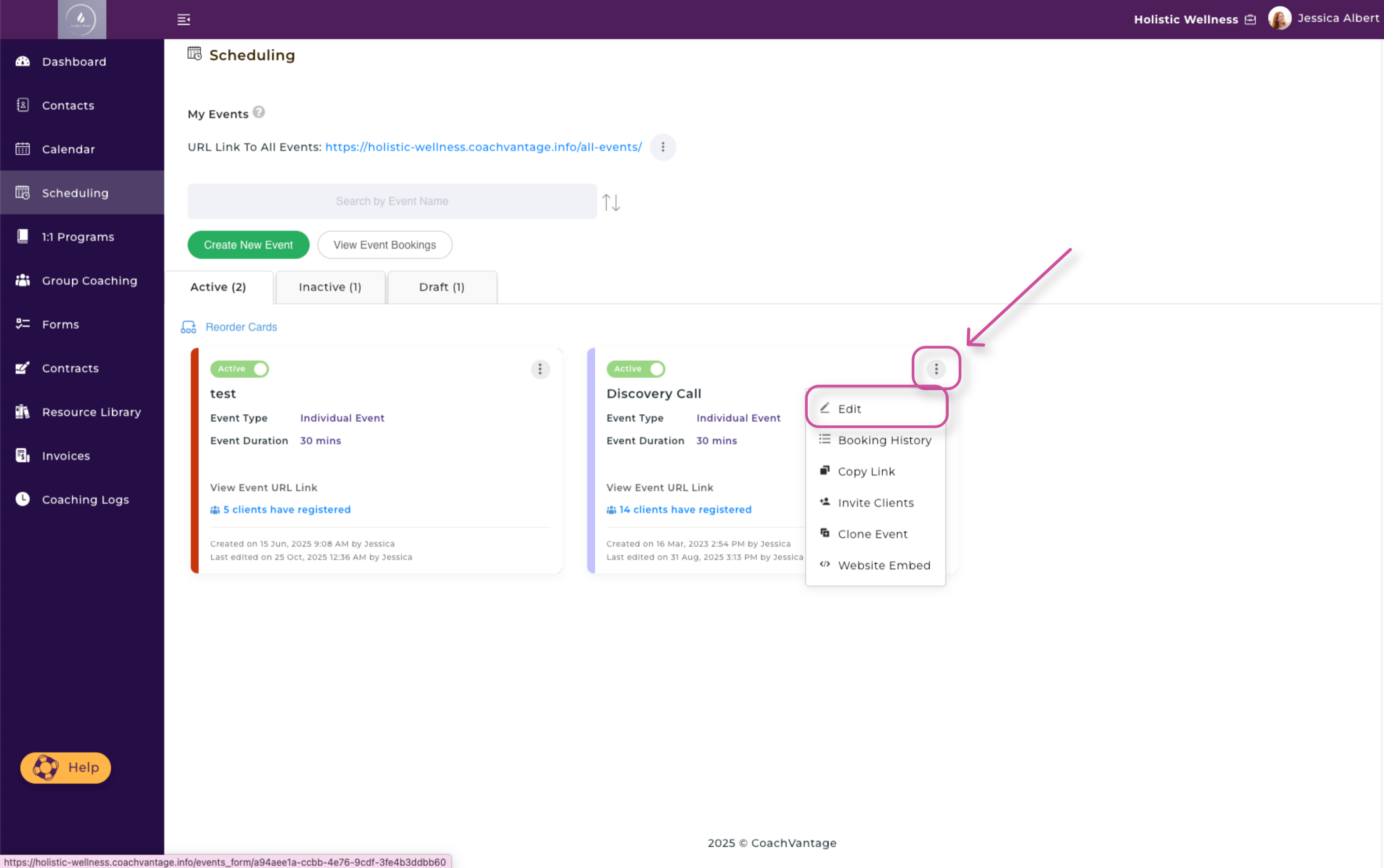
- Select Scheduling from the left-hand menu.
- Click the 3-dot button menu on a specific Event card.
- Next, select Edit.
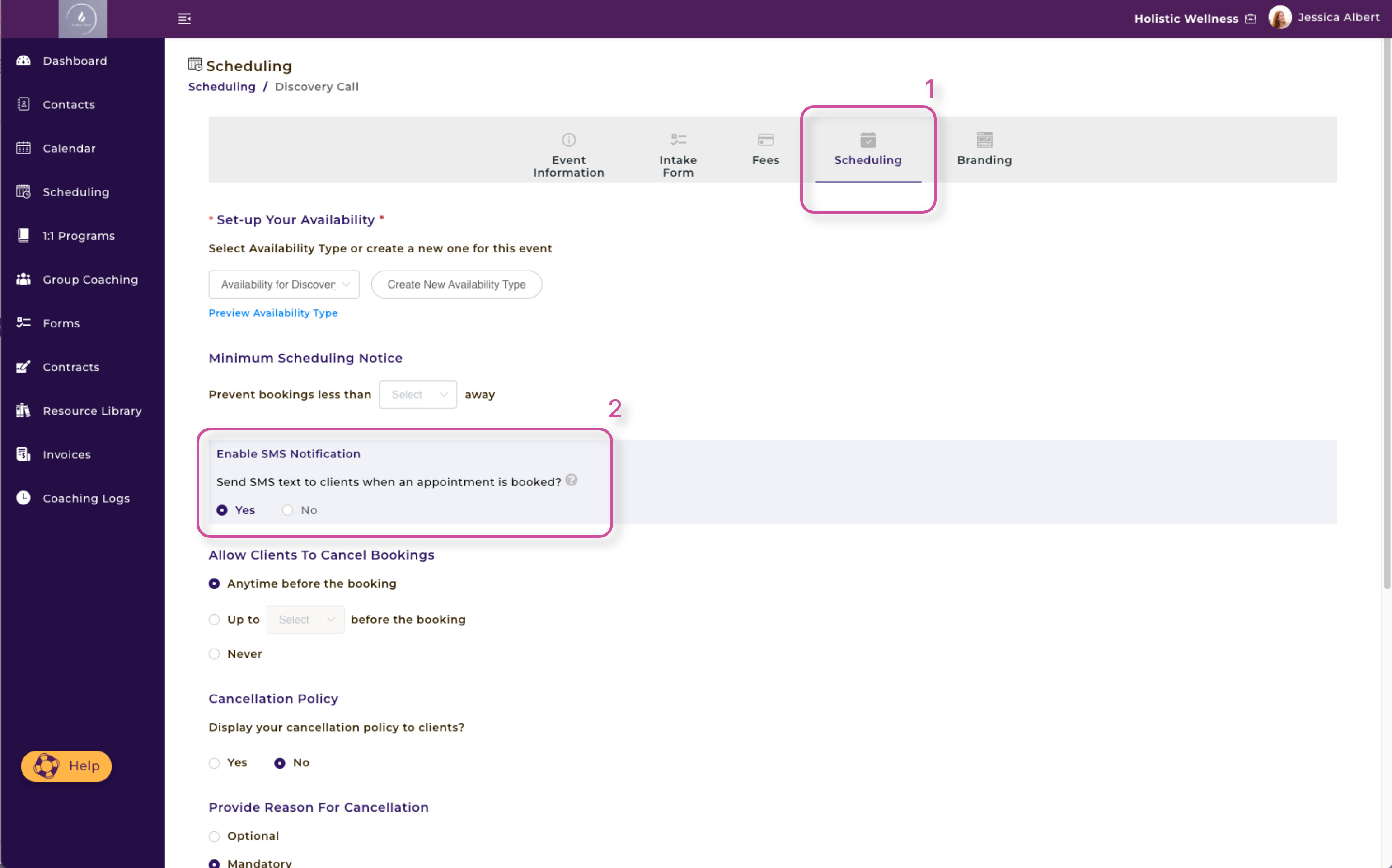
4. Click the Scheduling tab at the top of your screen.
5. Under Minimum Scheduling Notice, you will see the option to Enable SMS Notification. Select Yes or No accordingly.
6. Remember to scroll down and press the green Next button to save your changes.
1:1 Program
To enable SMS notifications for a 1:1 Program, simply follow these steps:
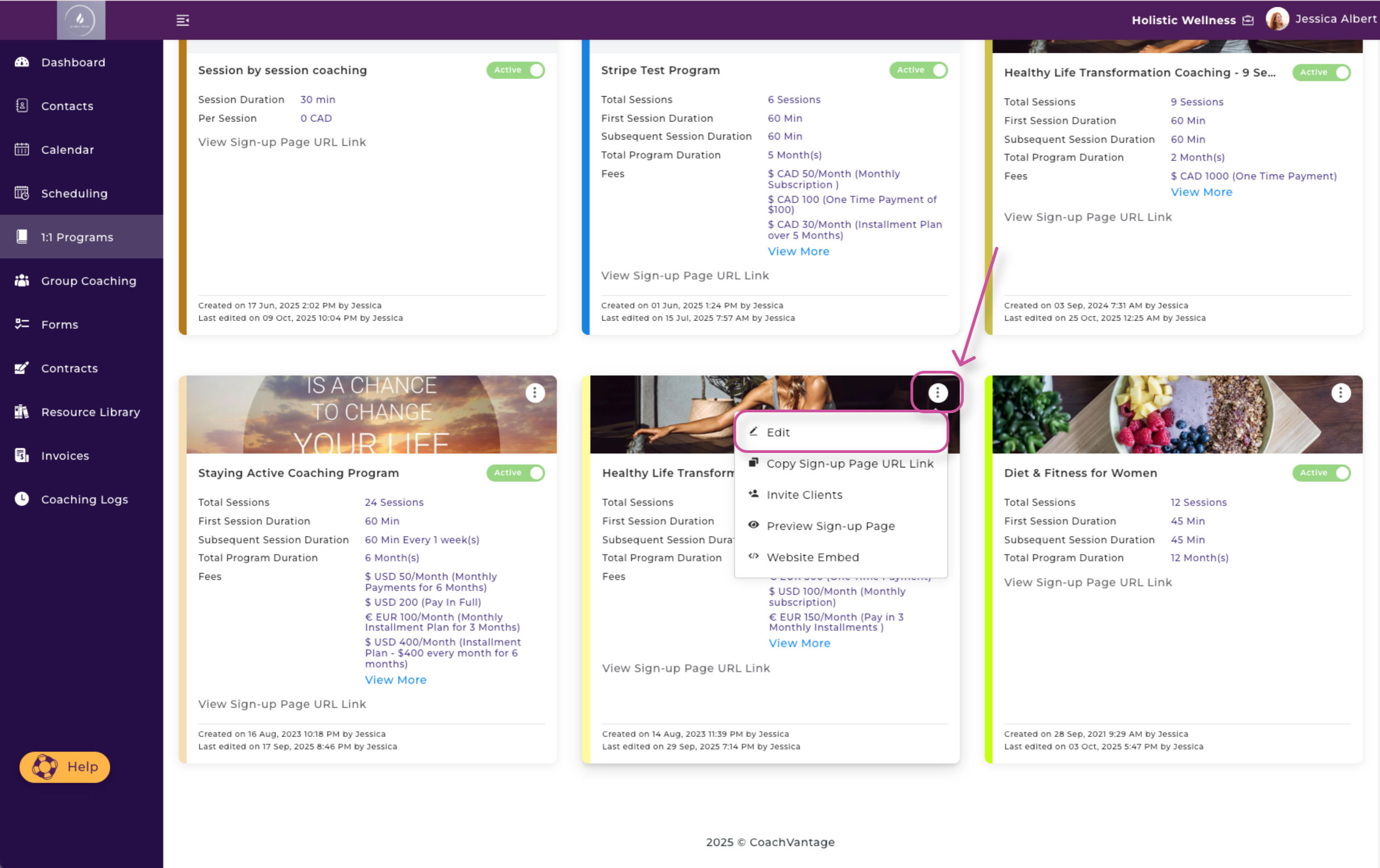
- Select 1:1 Programs from the left-hand menu.
- Click the 3-dot button menu on a specific 1:1 Program.
- Next, select Edit.
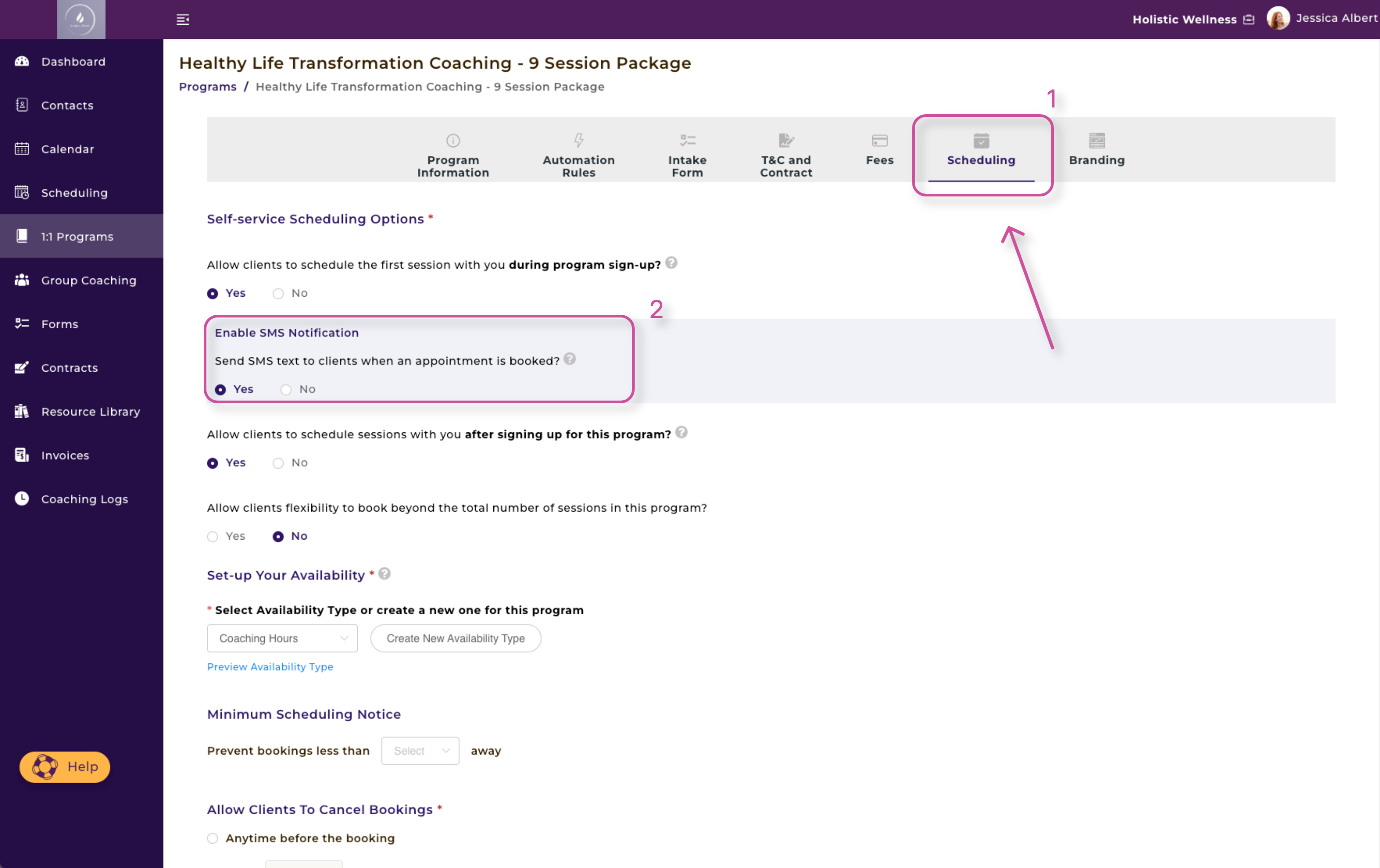
4. Click the Scheduling tab at the top of your screen.
5. Under Self-service Scheduling options, you will see the option to Enable SMS Notification. Select Yes or No accordingly.
6. Remember to scroll down and press the green Next button to save your changes.
Group Coaching Programs
Note: There is currently not a way to enable/disable SMS reminder emails with your group coaching members. The global SMS notification setting in your My Settings > Appointment & Calendar tab will apply to your Group Coaching members. Learn more about this topic in this article, "How to Enable / Disable SMS Appointment Notifications."