
How to Manage Your Course
Overview
Once your course has been created and published, CoachVantage makes it easy to manage your learners and monitor their progress—all from one place. From the Manage Course page, you can invite learners, track enrollments and course completion, engage with your community, respond to lesson comments, and view your course from the learner's perspective. This guide walks you through the tools available to help you successfully manage your course after launch.
Managing Enrollments 👥
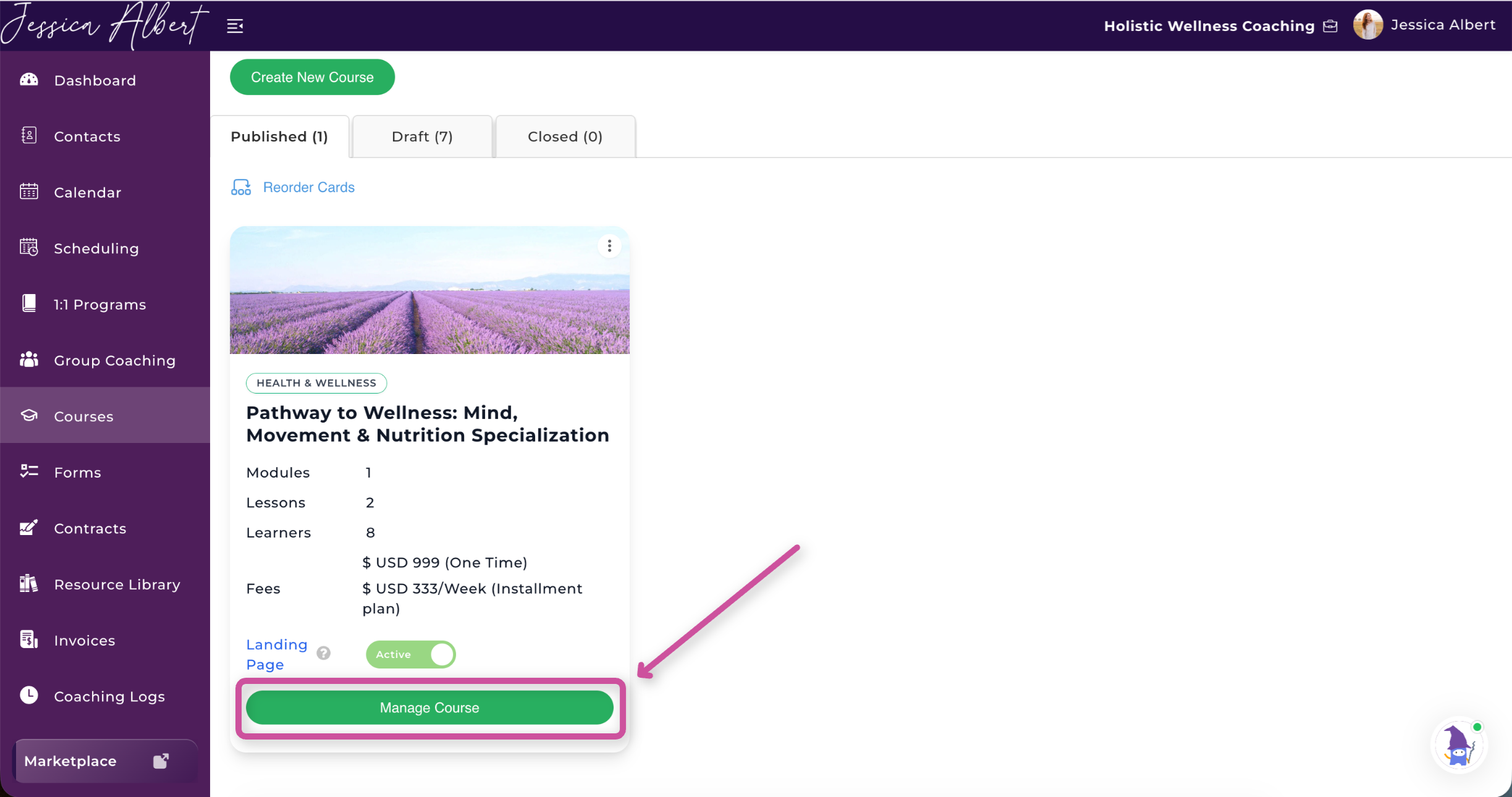
After publishing your course, select Manage Course.
From here you can:
- Invite learners to your course
- View enrolled learners
- View suspended learners
- See who has completed the course
- Monitor learner progress
- Track enrollment status
- Manage learner access
- Access the community wall
- View and reply to learner comments
How to Invite Contacts to Your Course
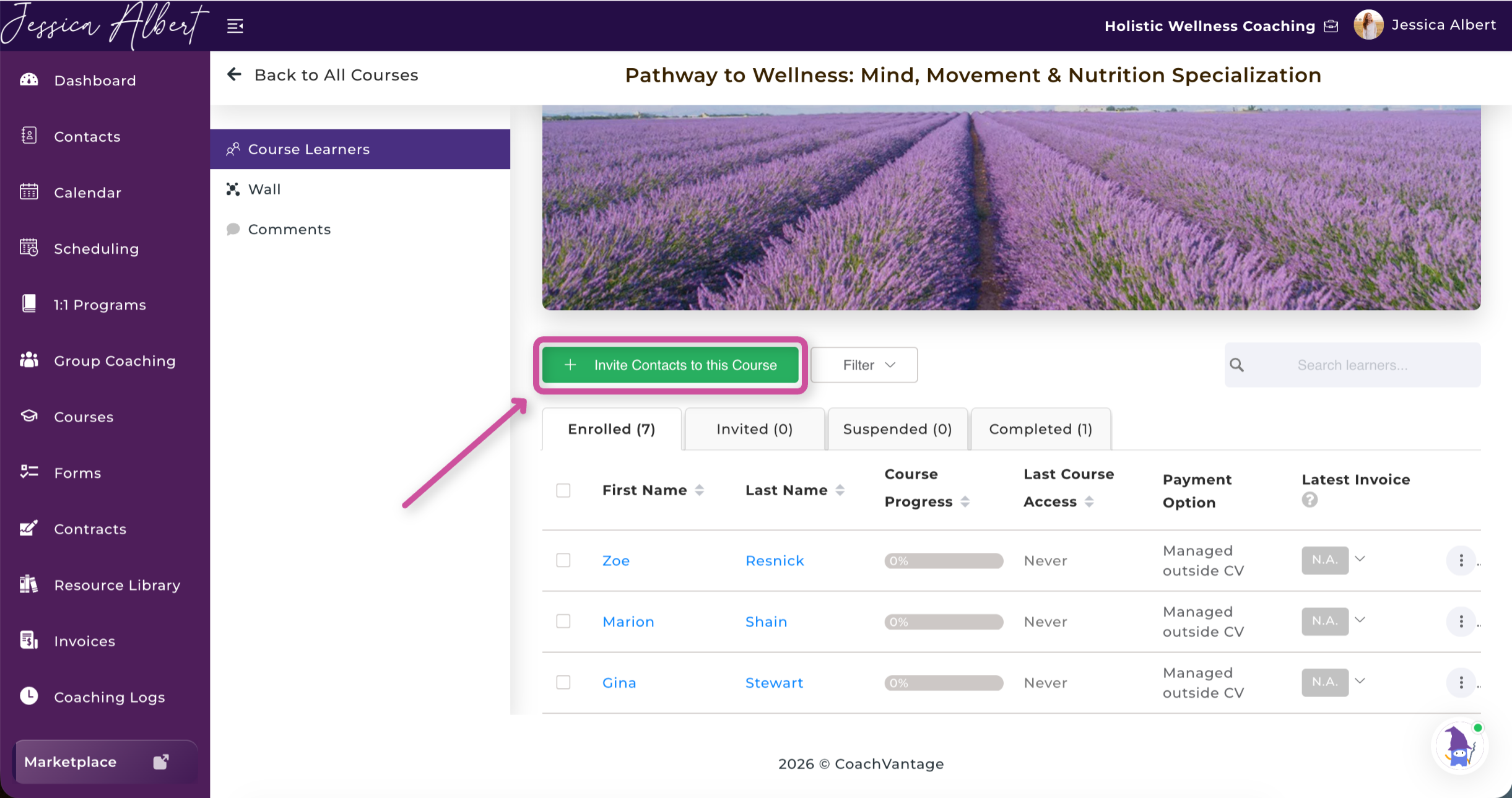
When you're ready to enroll learners, select Invite Contacts to Course from the Manage Course page.
First, choose how you'd like learners to enroll:
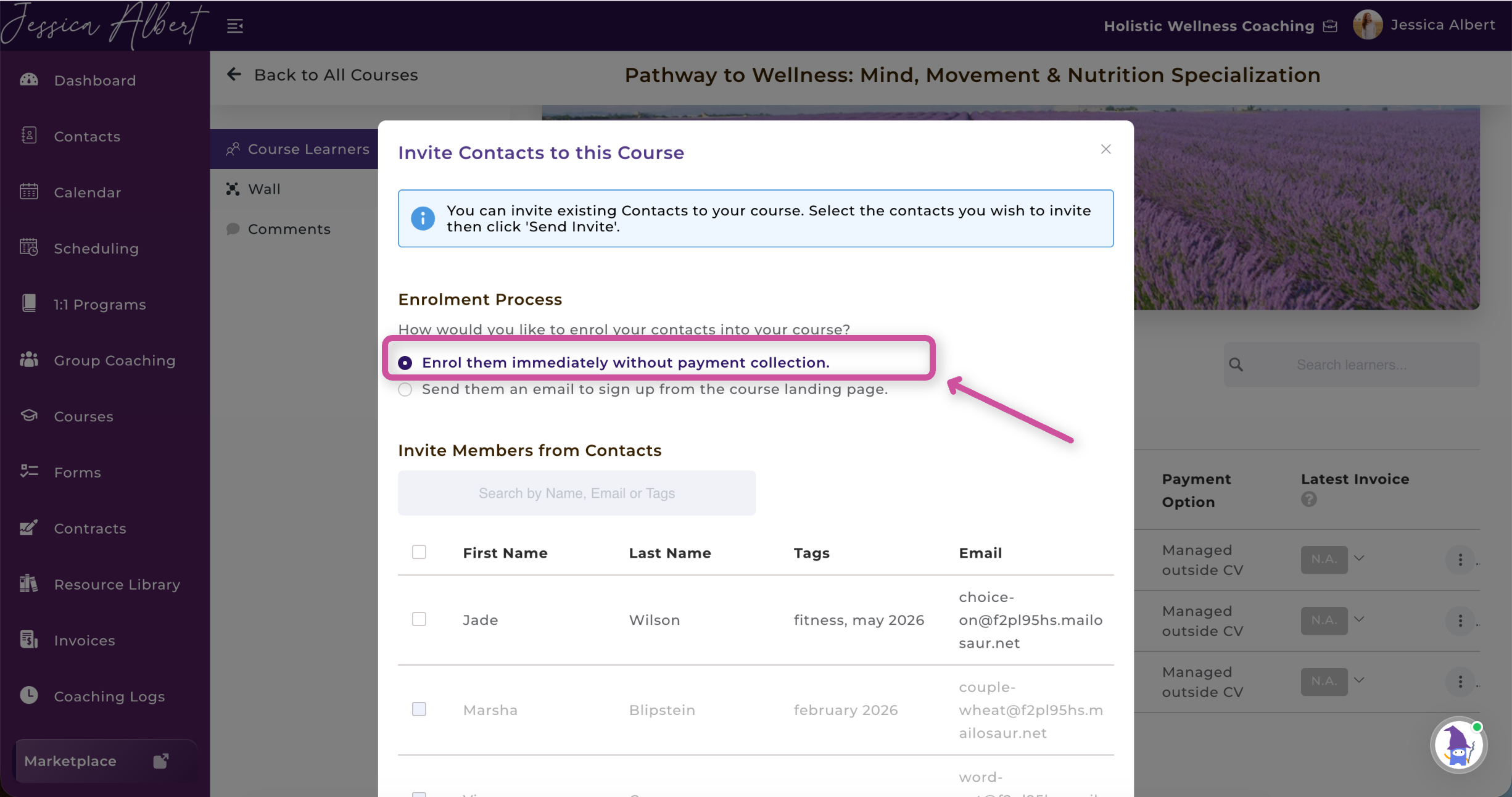
- Enroll Immediately – Enroll learners without collecting payment. This option is ideal if you've already received payment outside of CoachVantage or are offering complimentary access.
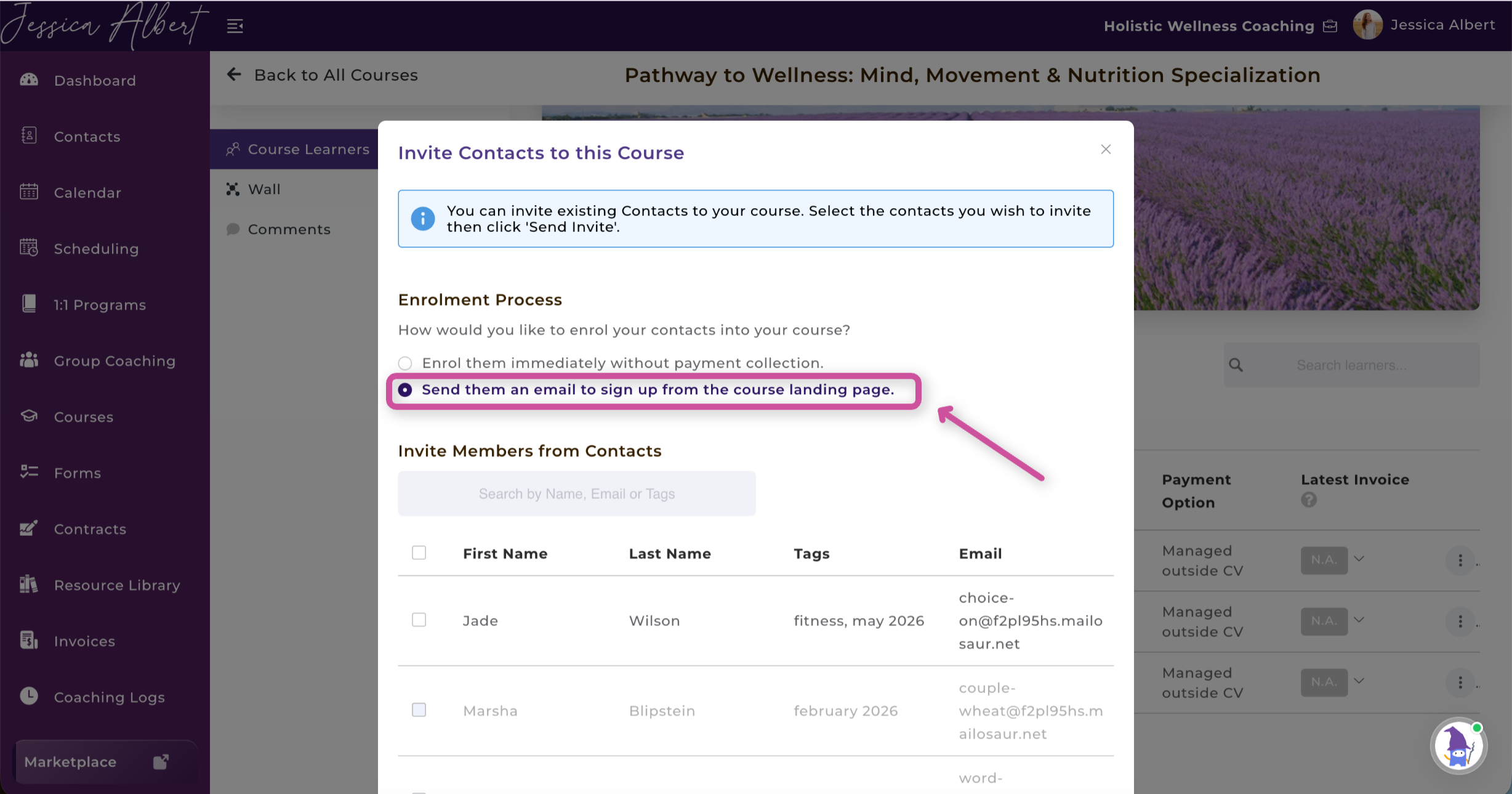
- Send Enrollment Invitation – Send learners an email with a link to your course landing page, where they can complete their own enrollment and payment (if applicable).
Next, search for contacts by name, email address, or tag, then select the checkbox next to each person you'd like to invite. Once you've made your selections, click Send Invite to complete the enrollment process.
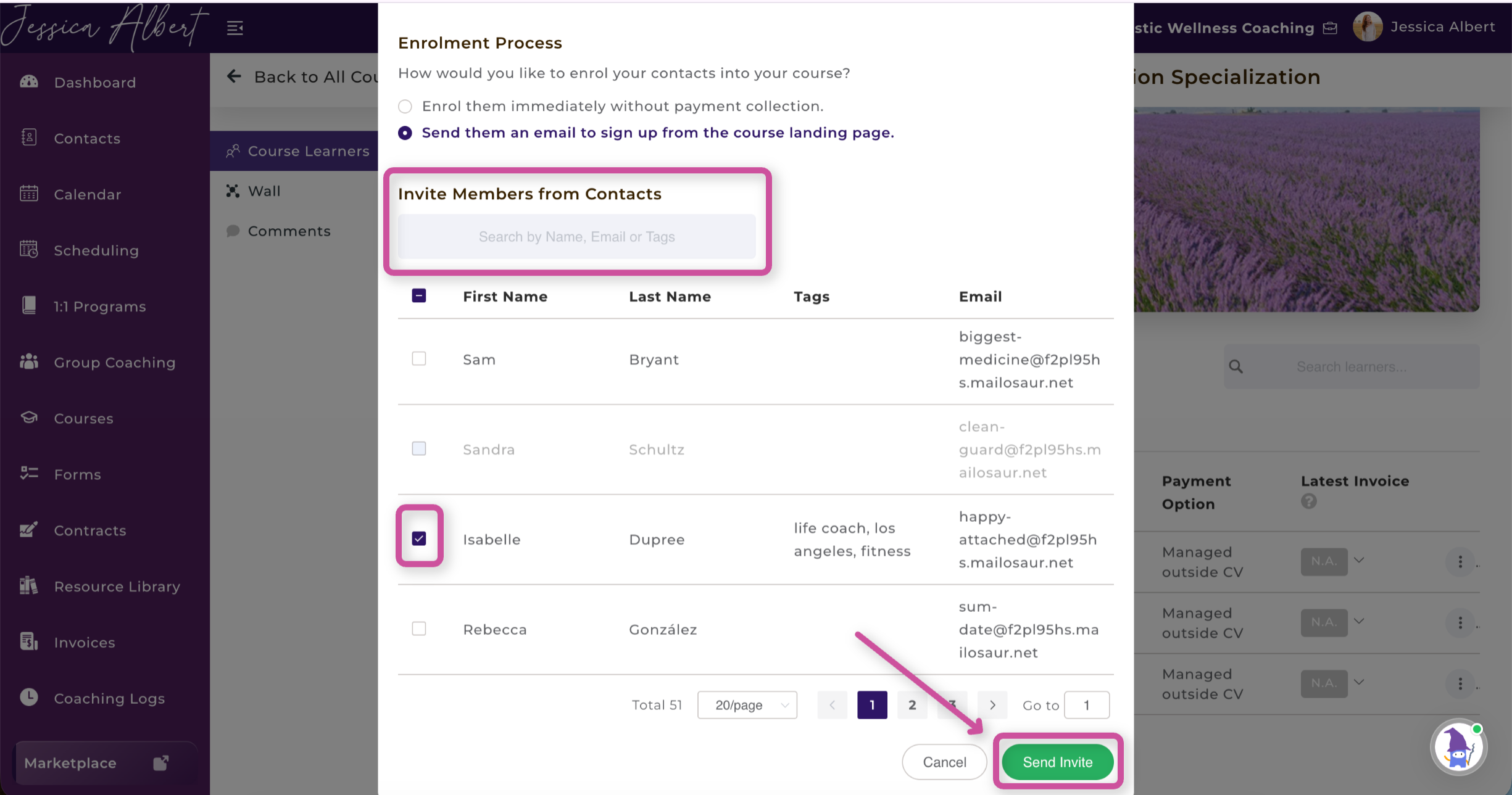
Tip: You can invite multiple contacts at once, making it easy to enroll an entire group or cohort into your course.
View Learner Status🚦
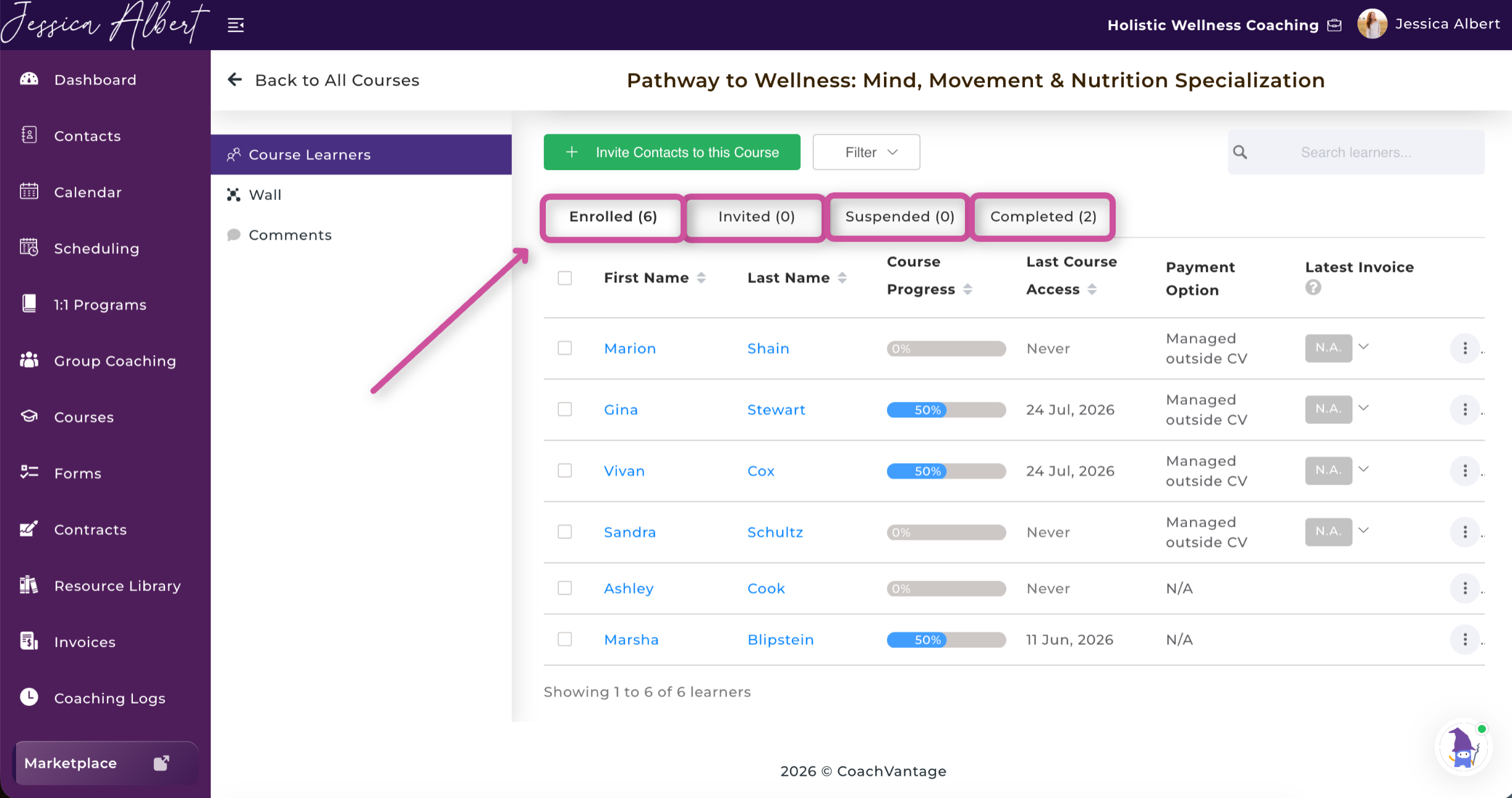
The Course Learners page gives you a complete overview of everyone enrolled in your course. At the top of the page, you'll find tabs that organize learners by their current enrollment status:
- Enrolled – Learners who currently have access to the course.
- Invited – Contacts who have been invited but have not yet enrolled.
- Suspended – Learners whose access to the course has been suspended.
- Completed – Learners who have finished the course.
Select any tab to quickly view learners in that category. For each learner, you can also view their course progress, last course access date, payment information, and latest invoice (if applicable).
Manage Individual Learners 👩
To manage a specific learner, select the three-dot menu next to their name.
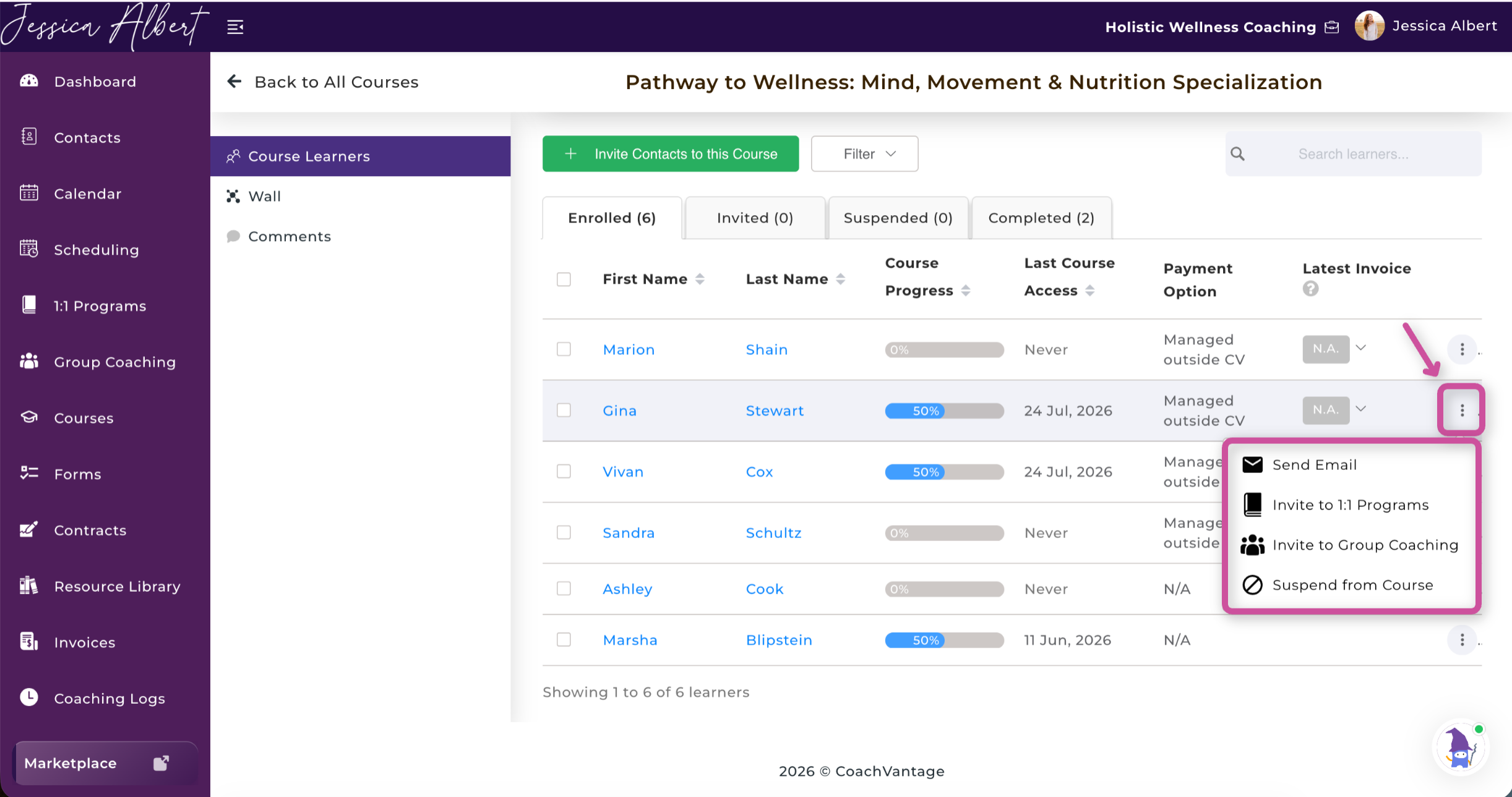
From here, you can:
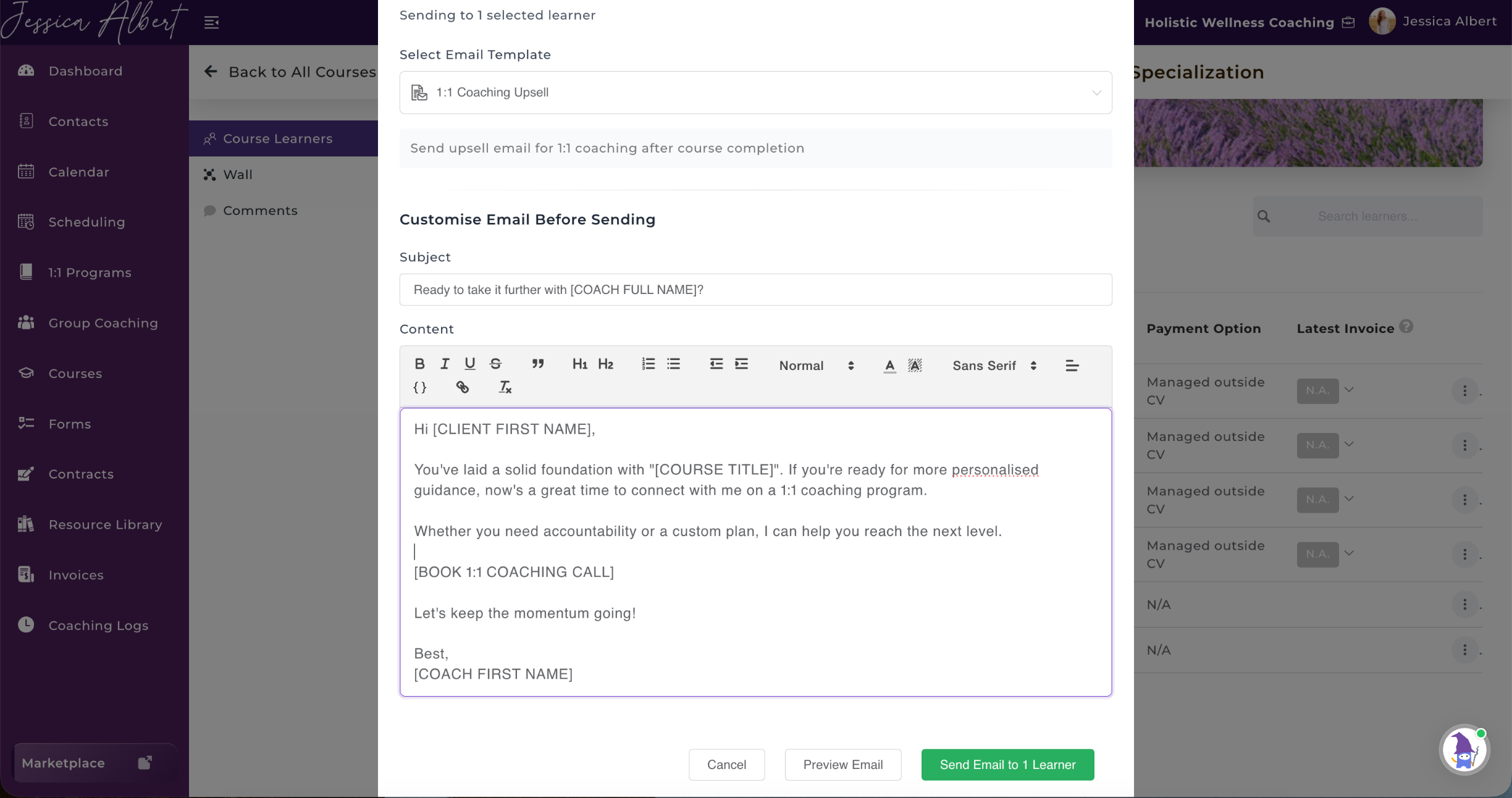
- Send Email – Send an email directly to the learner.
- Invite to 1:1 Programs – Invite the learner to one of your one-on-one coaching programs.
- Invite to Group Coaching – Invite the learner to join one of your group coaching programs.
- Suspend from Course – Remove the learner's access to the course while preserving their enrollment record.
Tip: These options make it easy to continue nurturing learner relationships by guiding them into additional coaching services after or during their course experience.
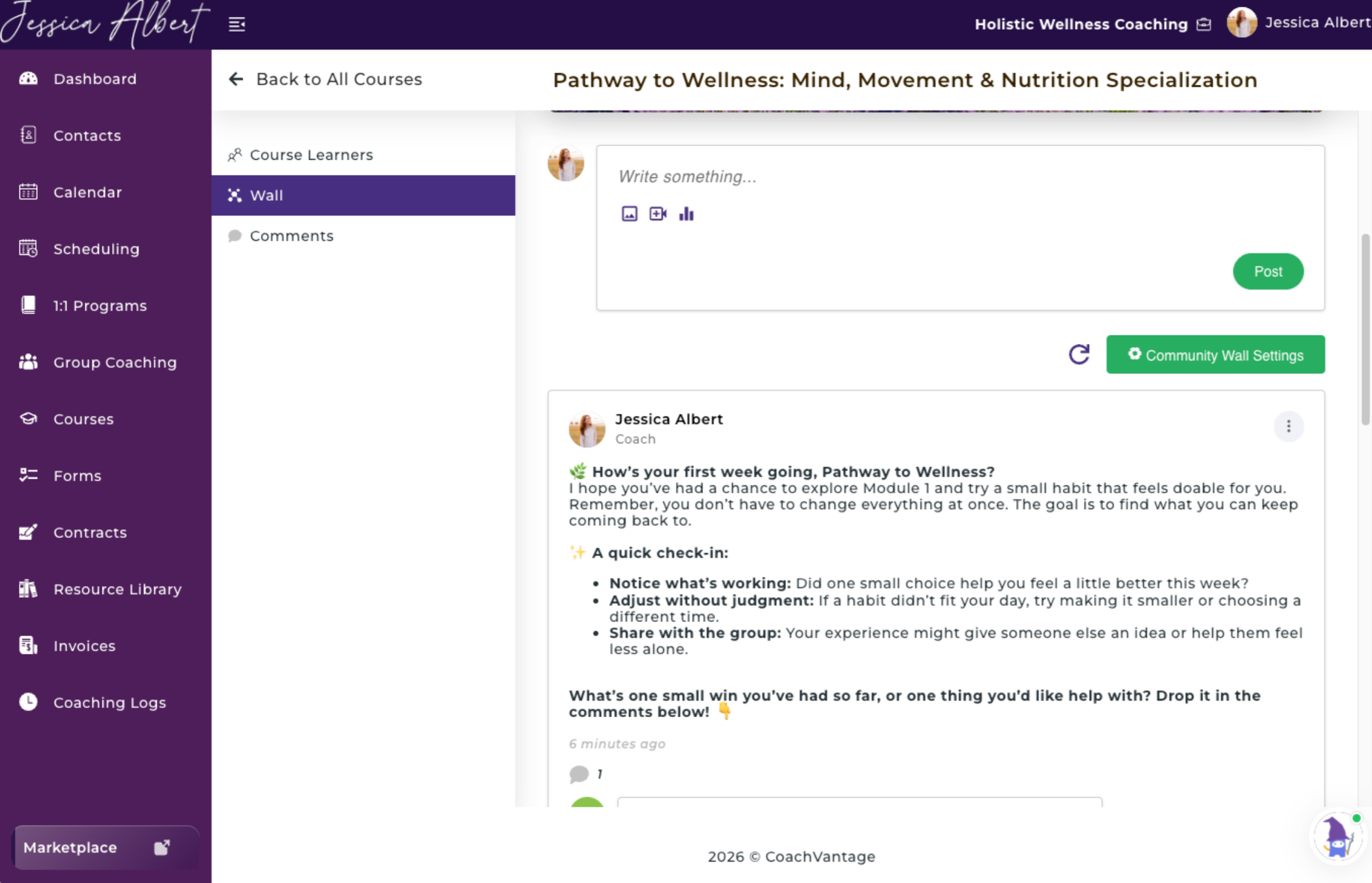
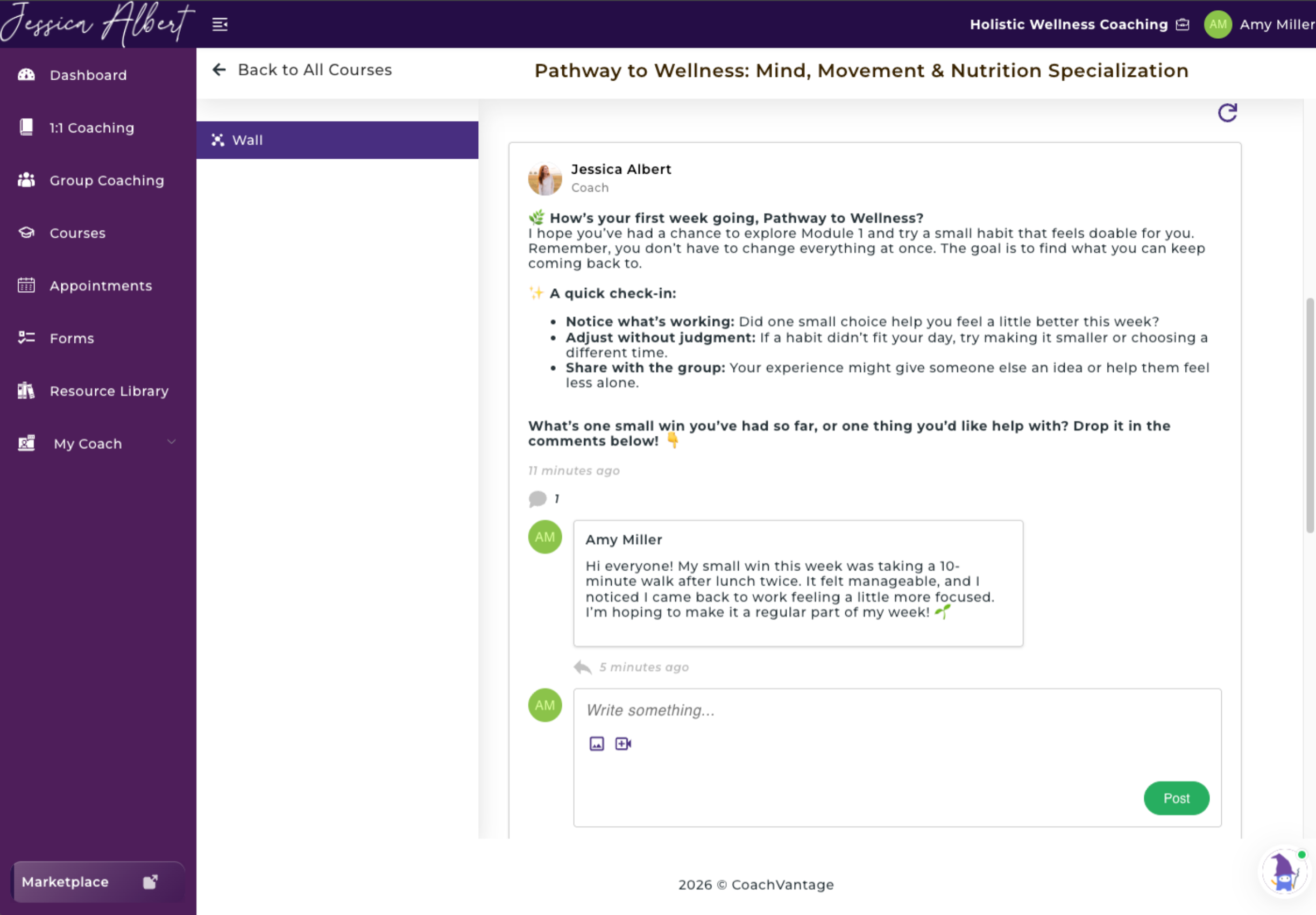
Community Wall
Each course includes a built-in Community Wall.
Think of it as a private discussion board where coaches and learners can interact.
Learners can:
- Create posts
- Leave comments
- Upload photos
- Upload videos
The Community Wall helps build accountability and encourages engagement throughout the course.
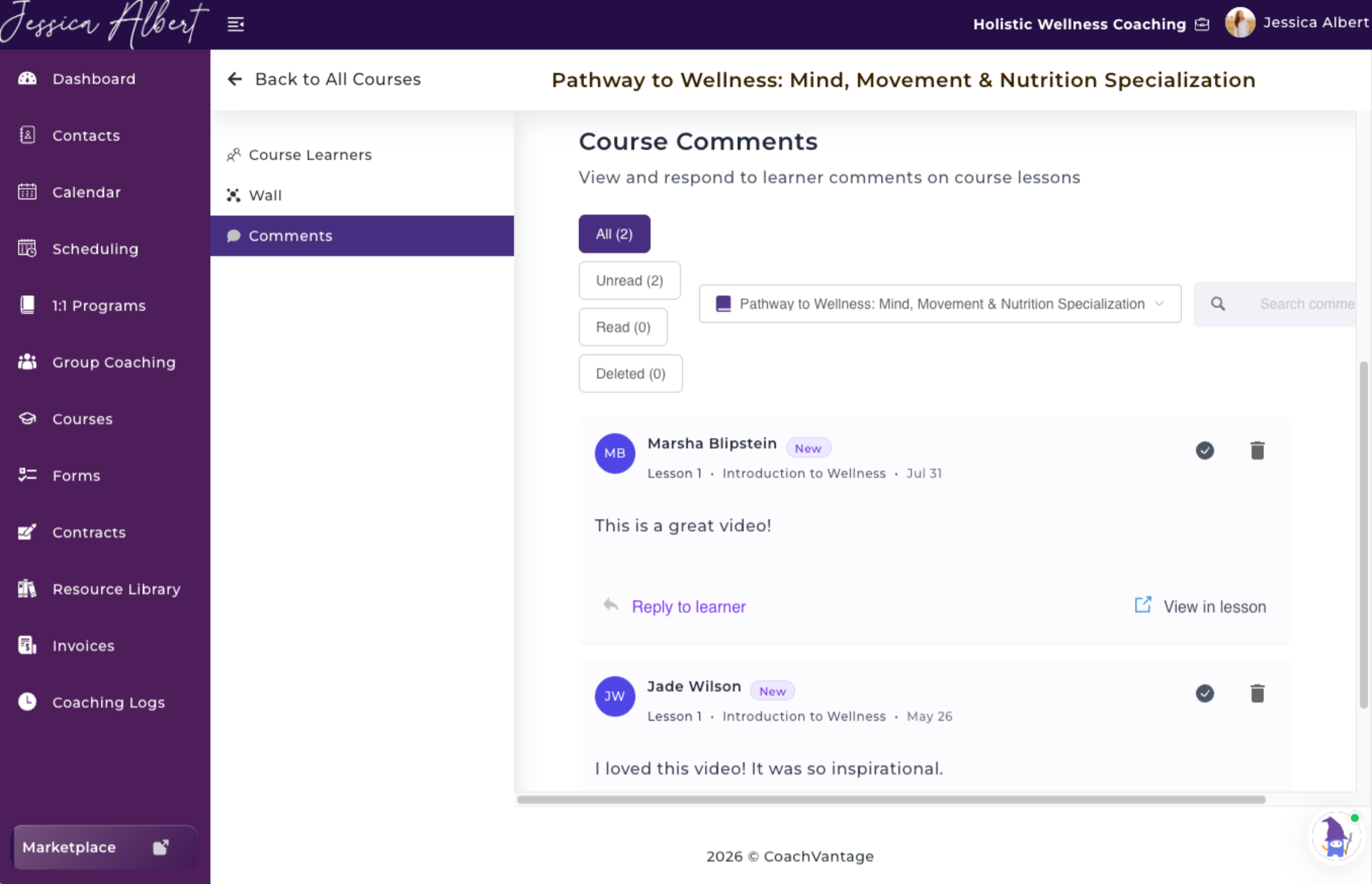
Lesson Comments 💬
Learners can also comment directly on individual lessons.
As the coach, you can:
- Reply to comments
- Mark comments as read
- Continue discussions within the lesson itself
This allows conversations to remain connected to the lesson where they occur.
Learner Experience
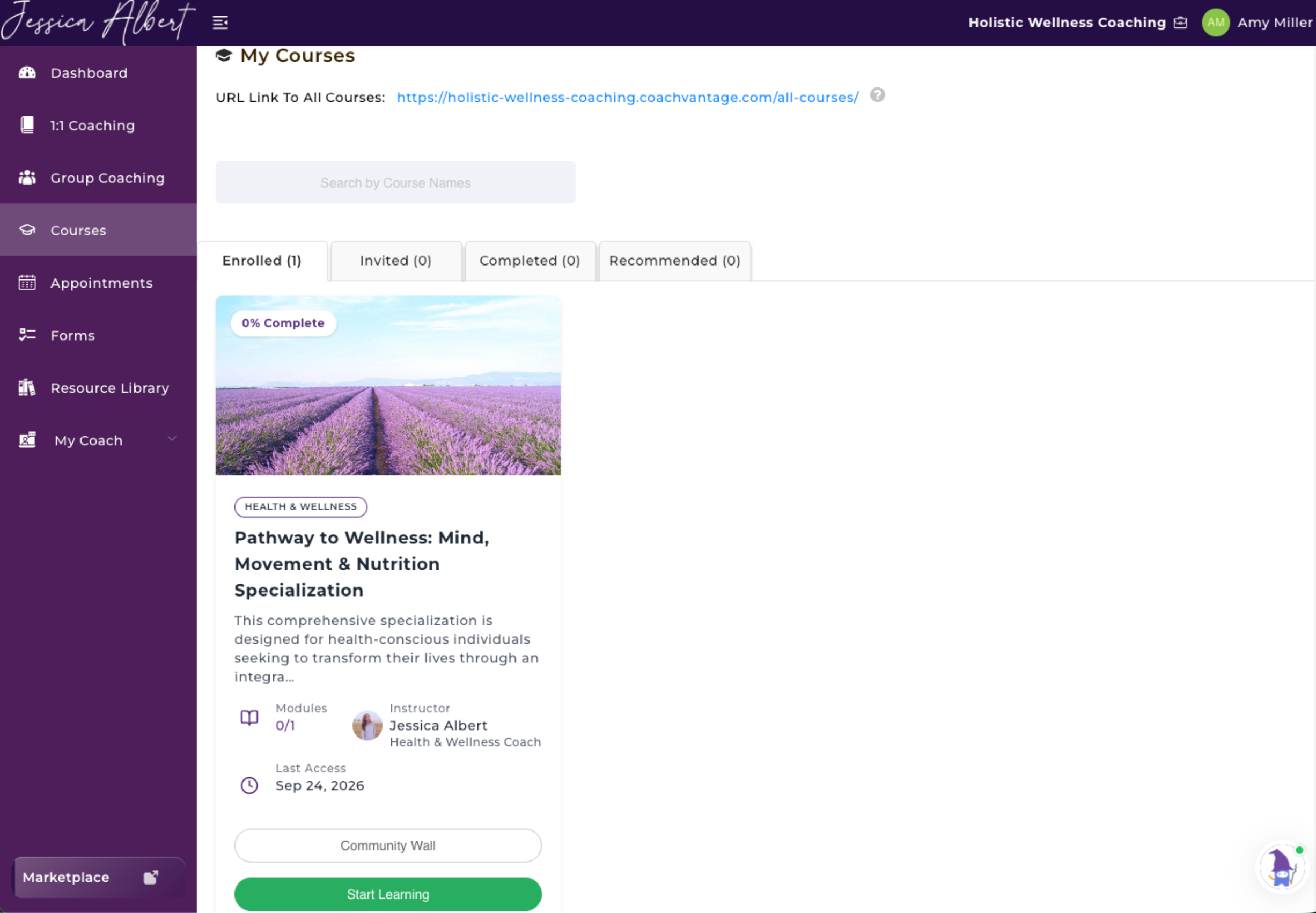
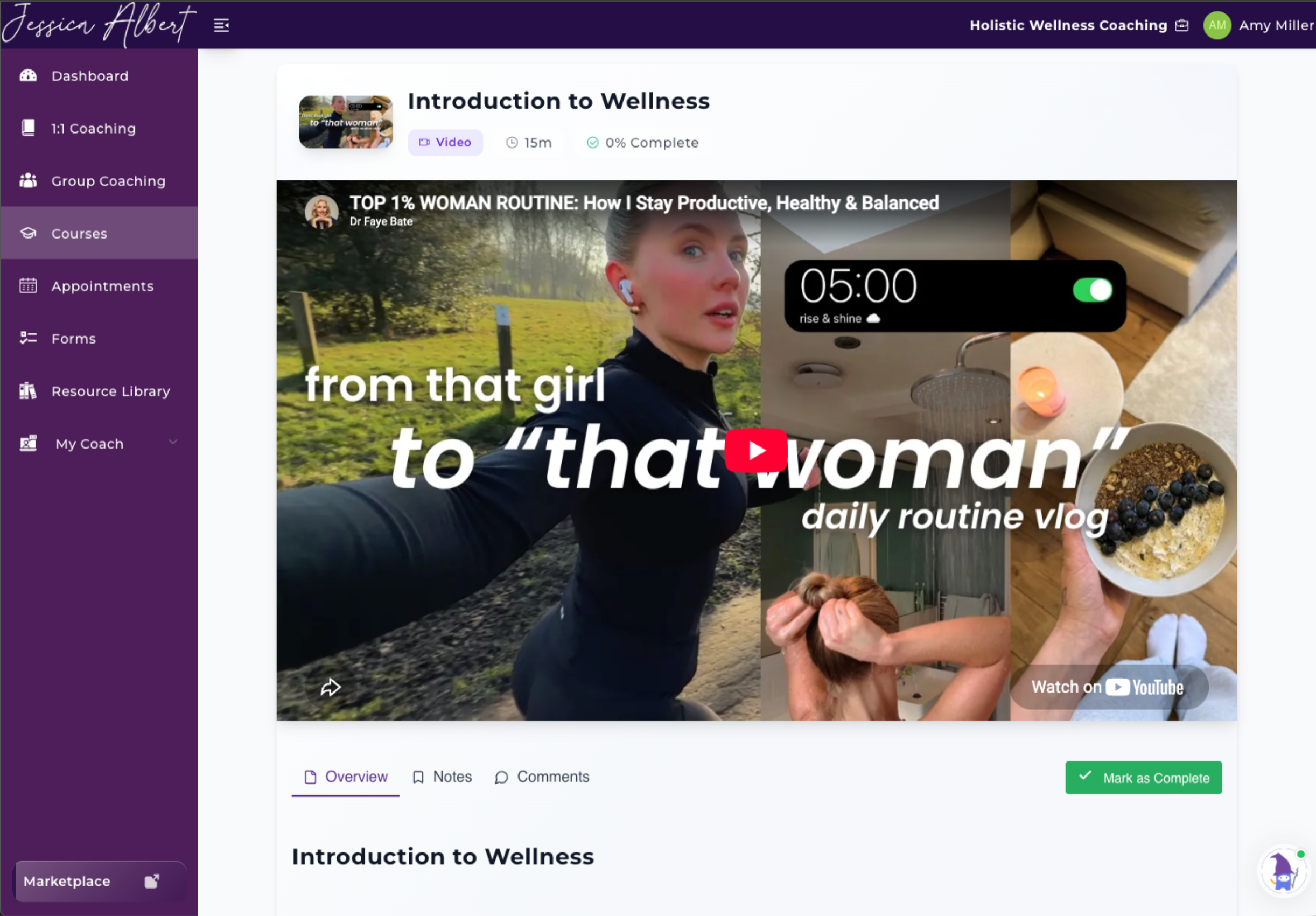
From the Client Portal, learners can:
- View all enrolled courses
- Watch videos
- Read lesson content
- Leave comments
- Create private notes
- Download resources
- Mark lessons complete
- Track module progress
- Participate in the Community Wall
Everything is accessible from a single portal, giving learners one place to engage with your coaching and course offerings.
My Courses
Lesson View
Community Wall (Learner View)
Best Practices
To create the best learner experience, we recommend:
- Using the AI Course Builder to generate your initial course framework.
- Uploading high-quality, horizontal videos or linking externally hosted videos.
- Breaking long topics into shorter lessons.
- Including downloadable worksheets or PDFs to reinforce learning.
- Personalizing email templates using Magic Tags.
- Using the Community Wall to keep learners engaged.
- Promoting your coaching programs using the Coaching Upsell email template after course completion.