
Introducing the Updated CoachVantage Dashboard
Overview
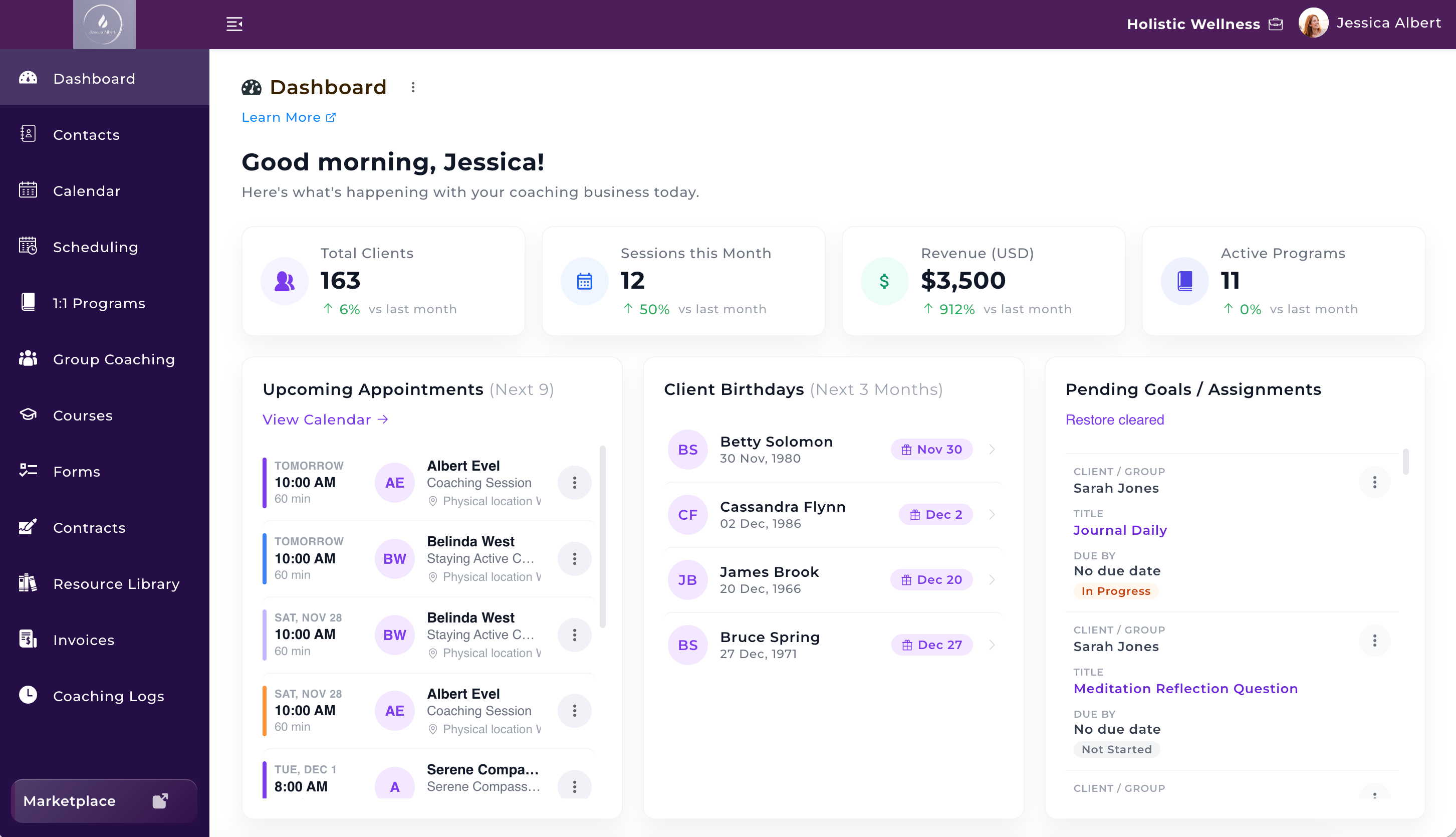
Your updated Dashboard makes it easier to start your day, see how your coaching business is doing, and take care of your next task. You can compare key numbers with last month, keep track of client follow-ups, and customize the layout so the sections you use most have more room.
To get started, select Dashboard from the left-hand menu in CoachVantage.
See how your coaching business is doing at a glance
At the top of your Dashboard, you’ll find four key metrics.
| Metric | What you can see |
|---|---|
Total Clients | Your total client count and the percentage change compared with last month. |
Sessions This Month | Your session count for the current month and how it compares with last month. |
Revenue This Month | Your revenue for the current month and how it compares with last month. |
Active Programs | The number of active coaching programs in your account. |
Use this overview to see how your client base, session volume, and revenue are changing month to month. When you want to look at a specific period in more detail, use the Revenue section farther down the Dashboard.
Customize your Dashboard
Give more space to the information you check most often and hide sections you rarely use.
- Click Customize at the top of the Dashboard.
- Choose which sections to show or hide.
- Adjust the width of the sections you want to give more space.
- Click Save Changes to apply your layout.
For example, if client follow-ups are a priority, you can make Pending Goals and Assignments full width. If you rarely check Pending Forms from the Dashboard, you can hide that section.
To return to the original layout, open Customize and select Reset to Default.
Get to common tasks faster with Quick Actions
Quick Actions takes you directly to the area of CoachVantage where you can start a task. For example, select Send a Form to open the Forms section, or use Add New Contact when you’re ready to add someone to your account.
You can also make these shortcuts easier to recognize.
- In Quick Actions, click Edit.
- Update a shortcut’s label, such as changing Add New Contact to New Client.
- To change its icon, choose a new one and click Select.
- Hide any shortcuts you don’t use, then click Save to apply your changes.
Stay on top of your coaching day
| Dashboard section | How it helps |
|---|---|
Upcoming Appointments | See what’s next on your schedule and check appointment details, including the time and location. |
Client Birthdays | See upcoming birthdays and plan a personal greeting. Save a client’s birth date on their profile for it to appear here. |
Pending Goals and Assignments | See what clients still have to complete so you can plan your next check-in or follow-up. |
Pending Forms | See which forms clients still need to complete so you can follow up before a session or program start. |
To-Do List | Keep track of your own next steps alongside your appointments and client follow-ups. |
Review your clients, programs, and account activity
- Active Clients shows your current coaching engagements and each client’s progress. Use it to prepare for check-ins or review your current workload before taking on another client.
- Active Programs lists the coaching programs that are currently active in your account.
- Contact Breakdown shows how your contacts are distributed across contact types.
- Revenue shows the revenue recorded in CoachVantage. Select a date range to review a specific period.
- Account Snapshot summarizes account activity, including active contacts, logged paid and pro bono coaching hours, active programs, and active events.
- Helpful Resources gives you a place to find guidance from the Dashboard.