
How to Manage Your Account Security
Overview 🔐
CoachVantage provides several ways to help protect your account and client information. You can:
- Review the devices and browsers signed in to your account
- Revoke access from a device you no longer use or recognize
- Enable two-factor authentication (2FA)
- Save backup codes in case you lose access to your authenticator app
CoachVantage also automatically logs you out after 12 hours of inactivity. If your session expires, simply sign in again.
Access Your Security Settings
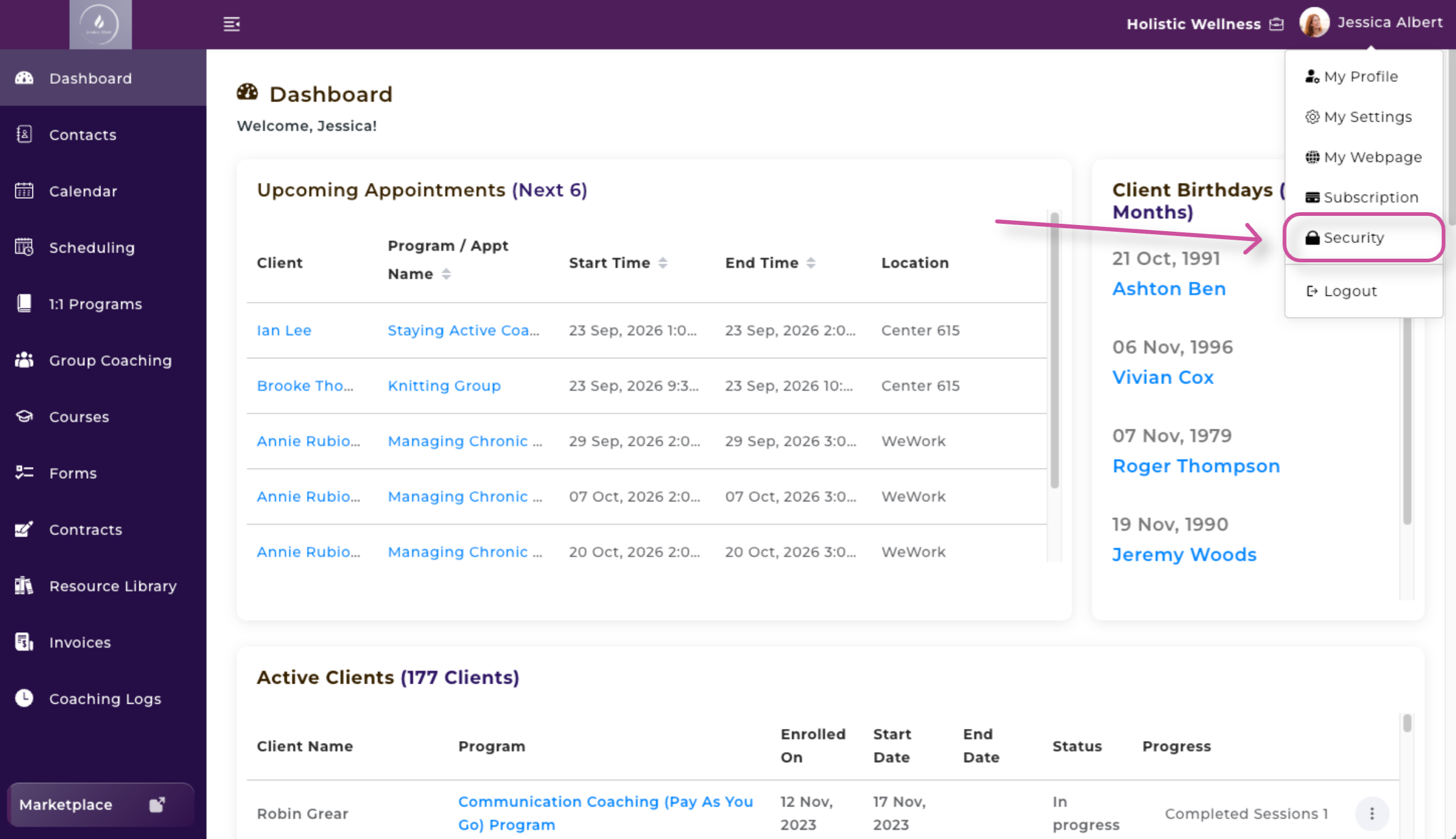
- Select your name in the upper-right corner of CoachVantage.
- Select Security.
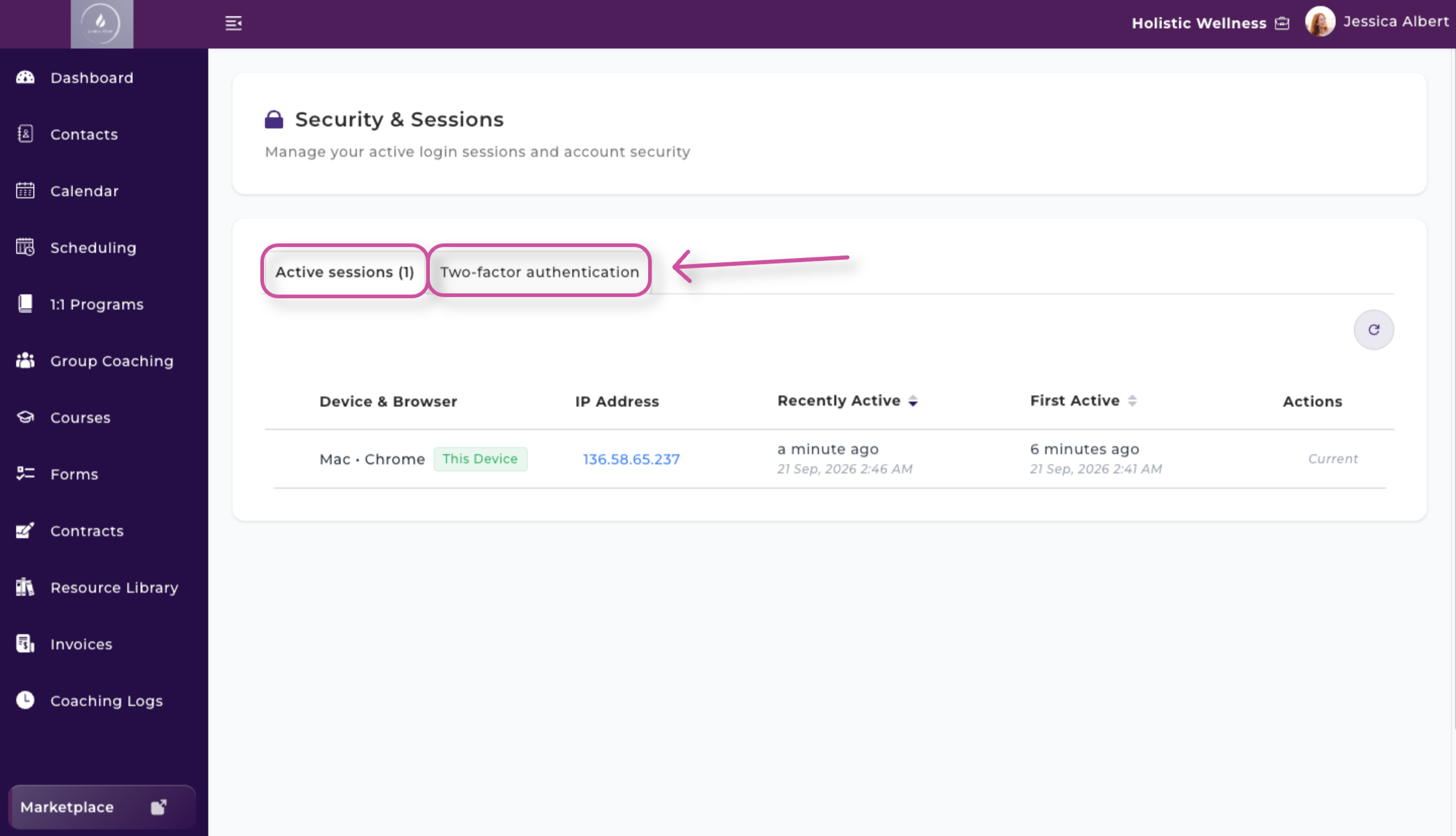
The Security page contains two tabs: Active Sessions and Two-Factor Authentication.
Review Your Active Sessions
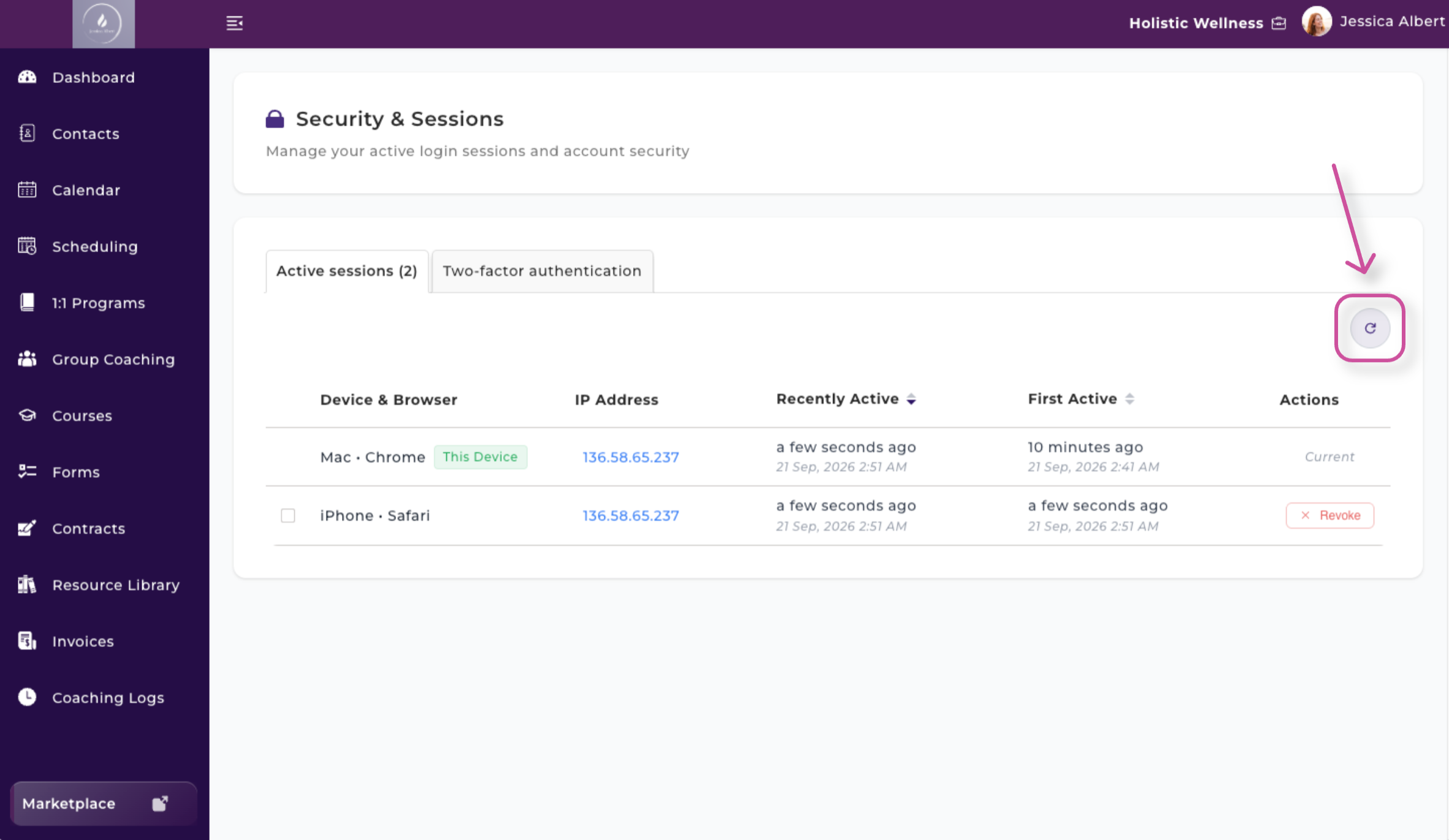
The Active Sessions tab displays information about the devices used to access your CoachVantage account.
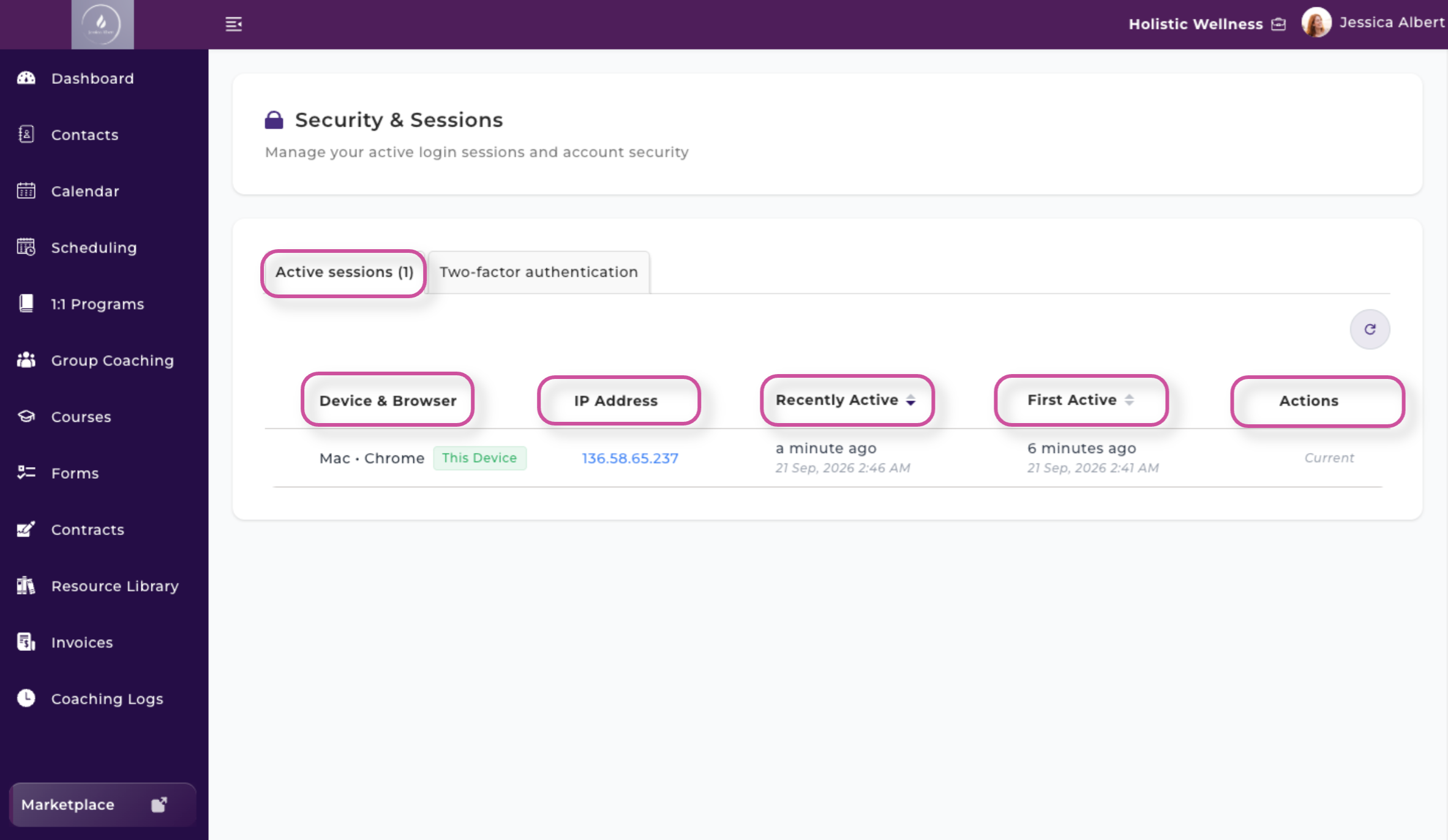
For each active session, you can view:
- The device and browser used
- The IP address
- When the session was first active
- When the session was most recently active
- Available actions for that session
This information can help you identify when and where your account has been accessed.
Revoke Access From a Device
If you see a device or login session you do not recognize:
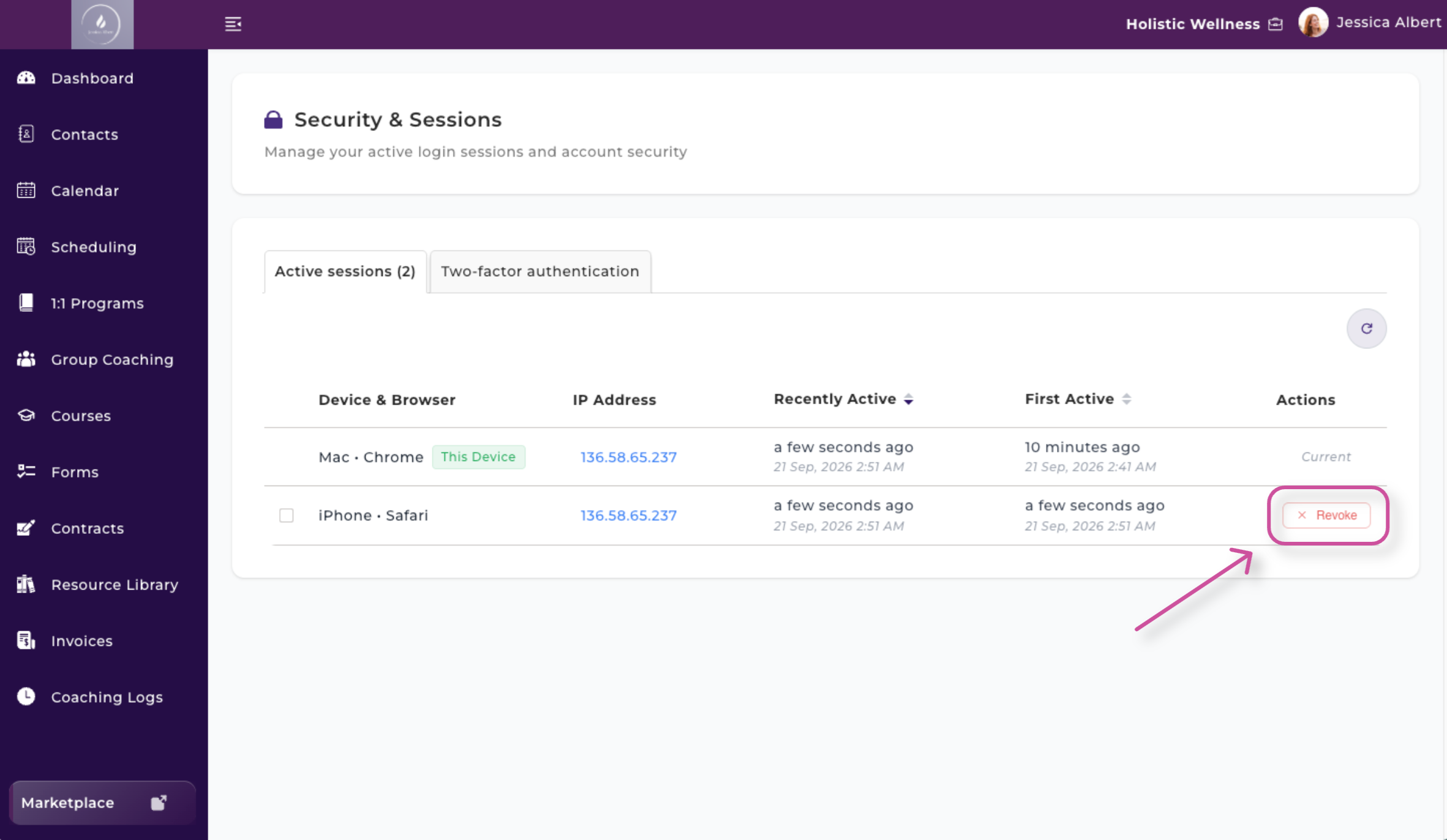
- Locate and select the session.
- Select Revoke.
Revoking a session removes that device’s authorization to access your CoachVantage account.
To update the list of active sessions, select Refresh.
Automatic Logout After Inactivity
CoachVantage automatically ends a login session after 12 hours of inactivity. This helps protect your account if a device is left unattended, particularly on a shared or public computer. When your session expires, you will be prompted to sign in again.
Your saved information remains in CoachVantage. For extra protection, manually log out when you finish using a shared or public device.
Two-Factor Authentication 📲
Two-factor authentication, also known as 2FA, adds an additional layer of security when you sign in to CoachVantage.
CoachVantage works with authenticator apps such as:
- Google Authenticator
- Download via the Apple App Store
- Download via the Google Play App Store
- Microsoft Authenticator
- Download via the Apple App Store
- Download via the Google Play App Store
- Other compatible authenticator apps
You will also receive backup codes that you can use to sign in if you lose access to your phone or authenticator app.
Enable Two-Factor Authentication
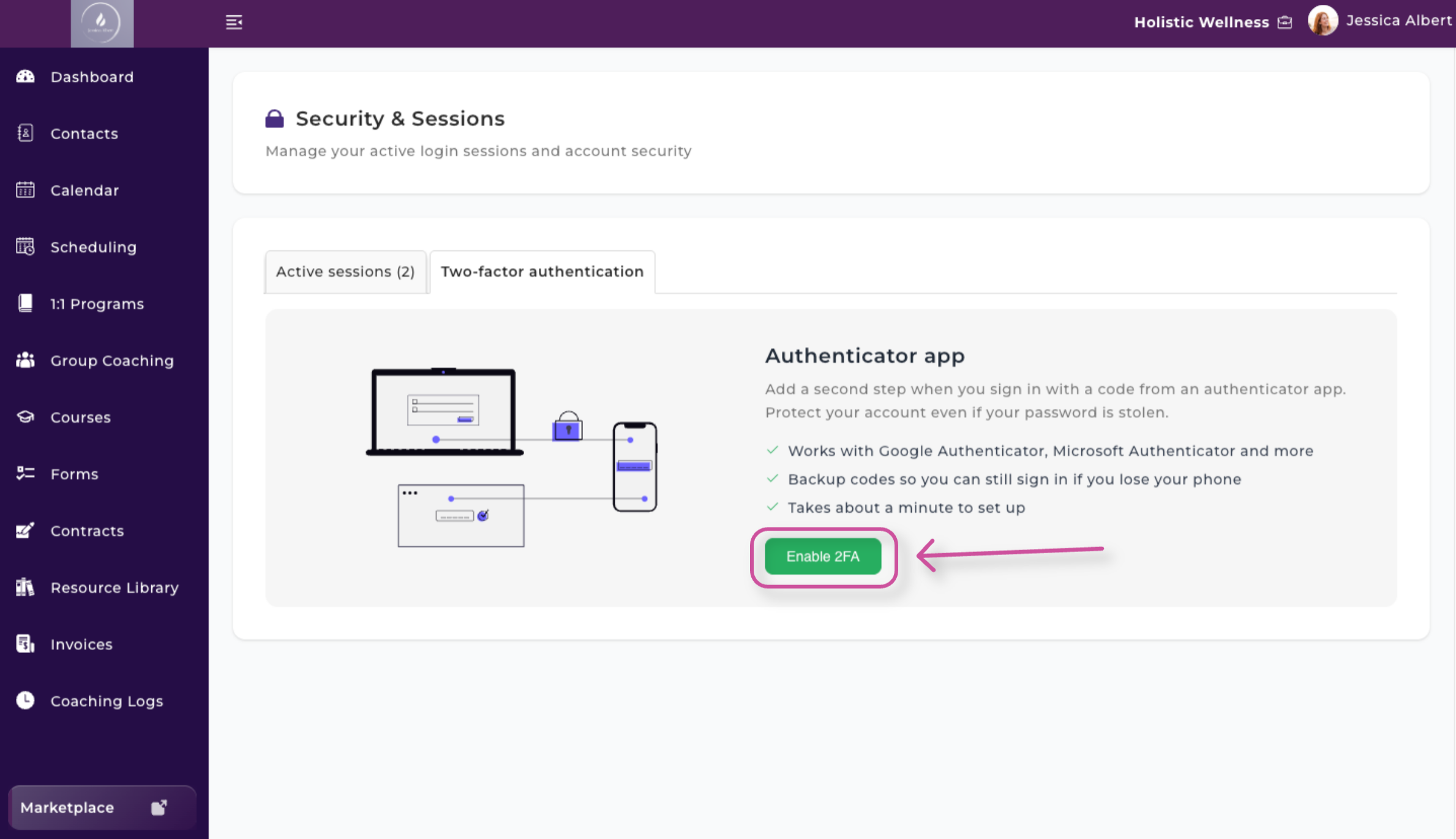
- Open the Two-Factor Authentication tab.
- Select Enable 2FA.
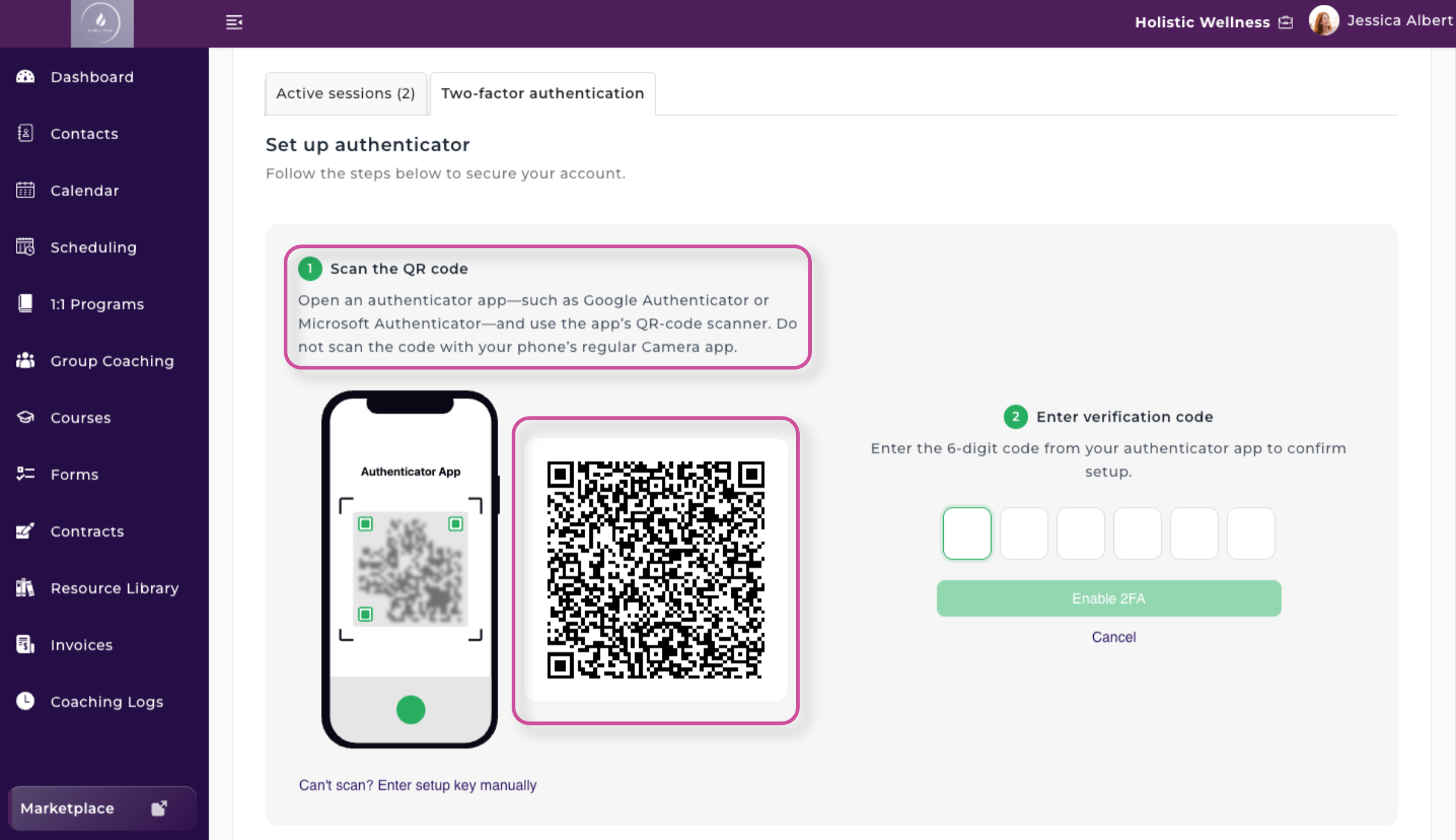
3. Open your authenticator app and use it to scan the QR code displayed in CoachVantage.
❗️Do not scan the QR code with your phone camera.
Tip: In Google Authenticator, select Add a Code, then Scan a QR Code, to get to the scanner.
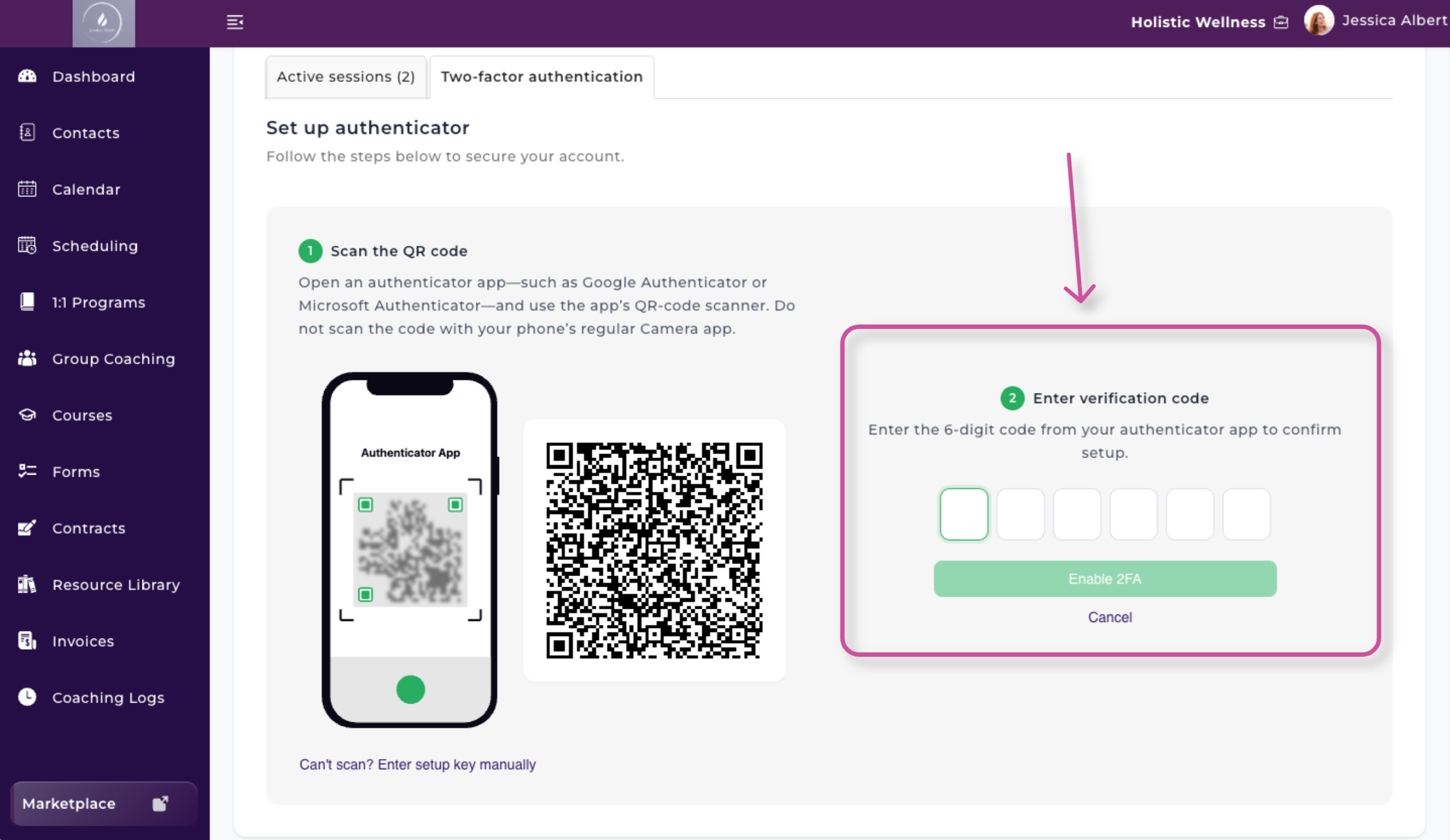
4. Your authenticator app will generate a six-digit verification code.
5. Enter the six-digit code in CoachVantage to confirm the setup.
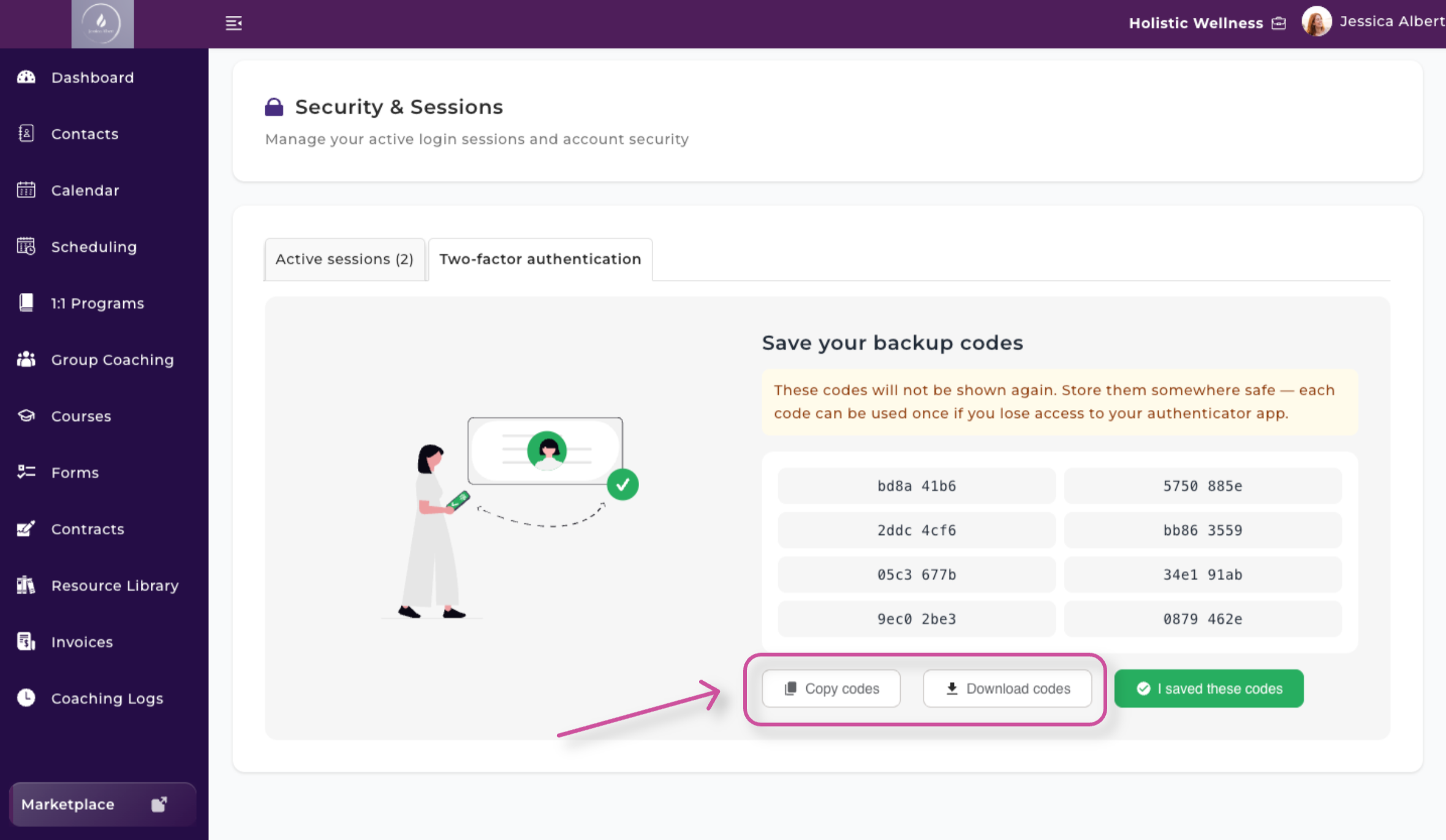
6. Save the backup codes provided for future use. Store your backup codes in a secure place. They can help you regain access to your account if your phone is lost, replaced, or unavailable.
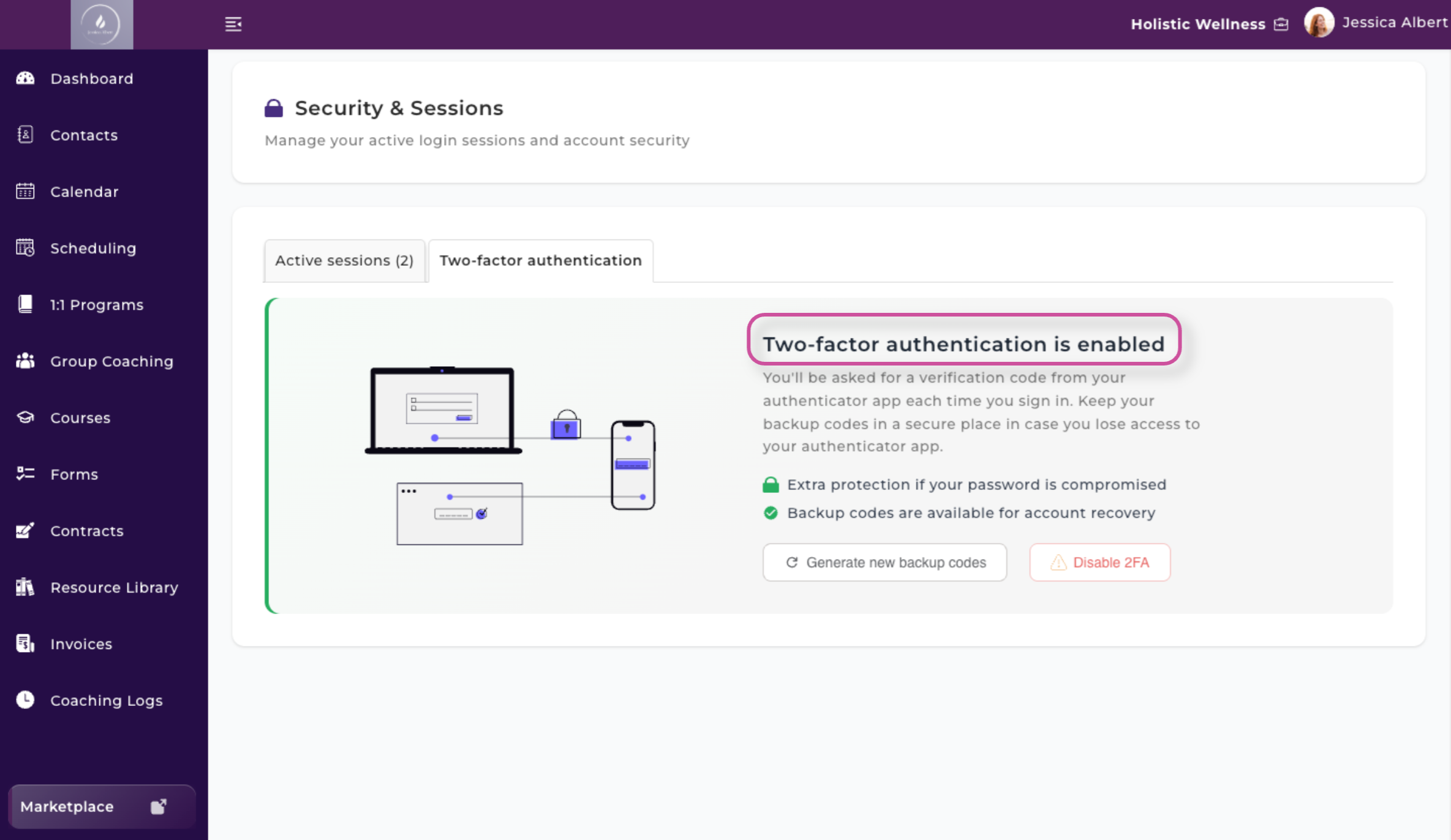
7. Once setup is complete, you will use a two-step authentication process when signing in to CoachVantage.
Disable Two-Factor Authentication 🚫
To remove the two-factor authentication, please follow these steps:
1. Open the Two-Factor Authentication tab.
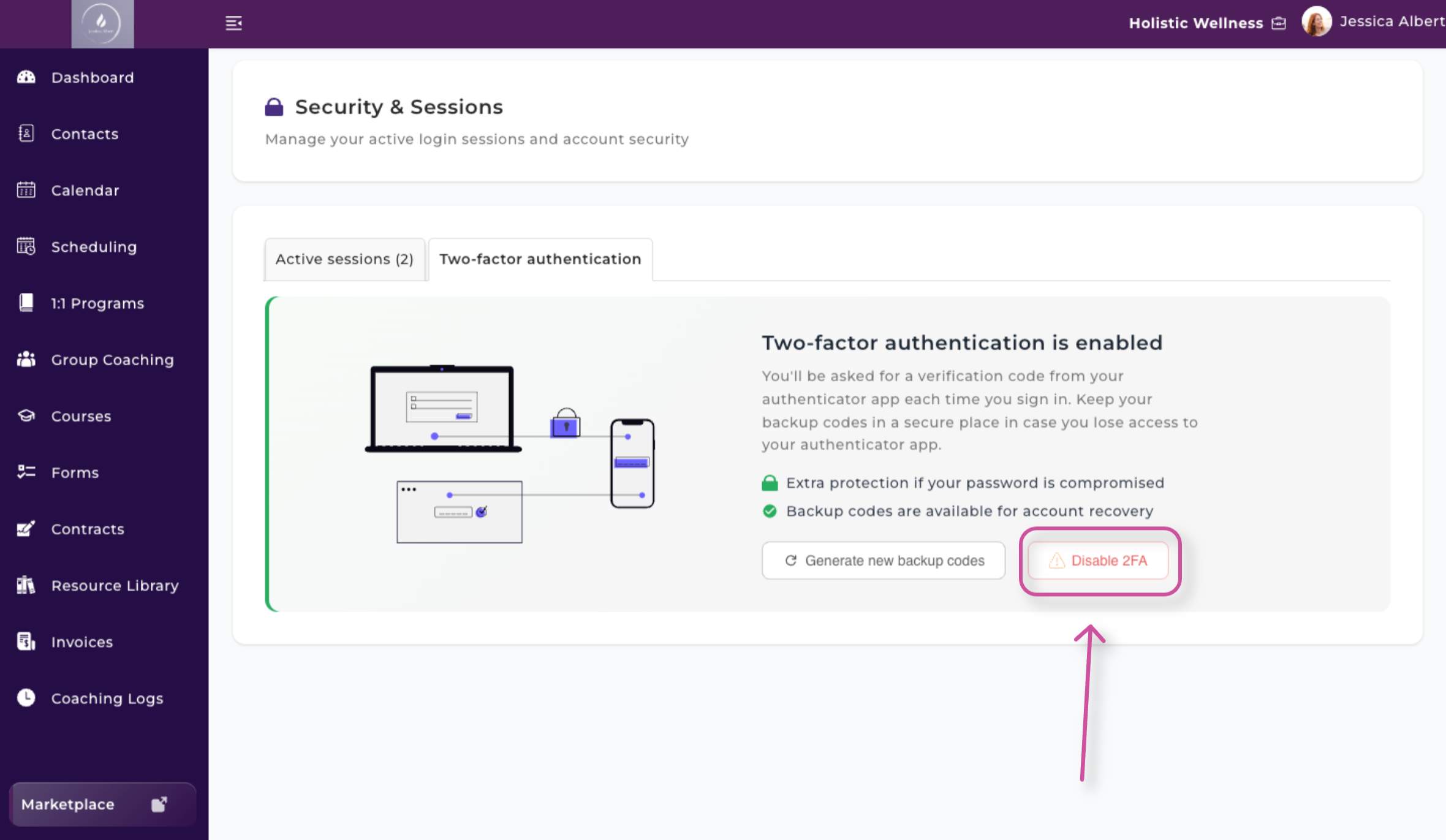
2. Select Disable 2FA.
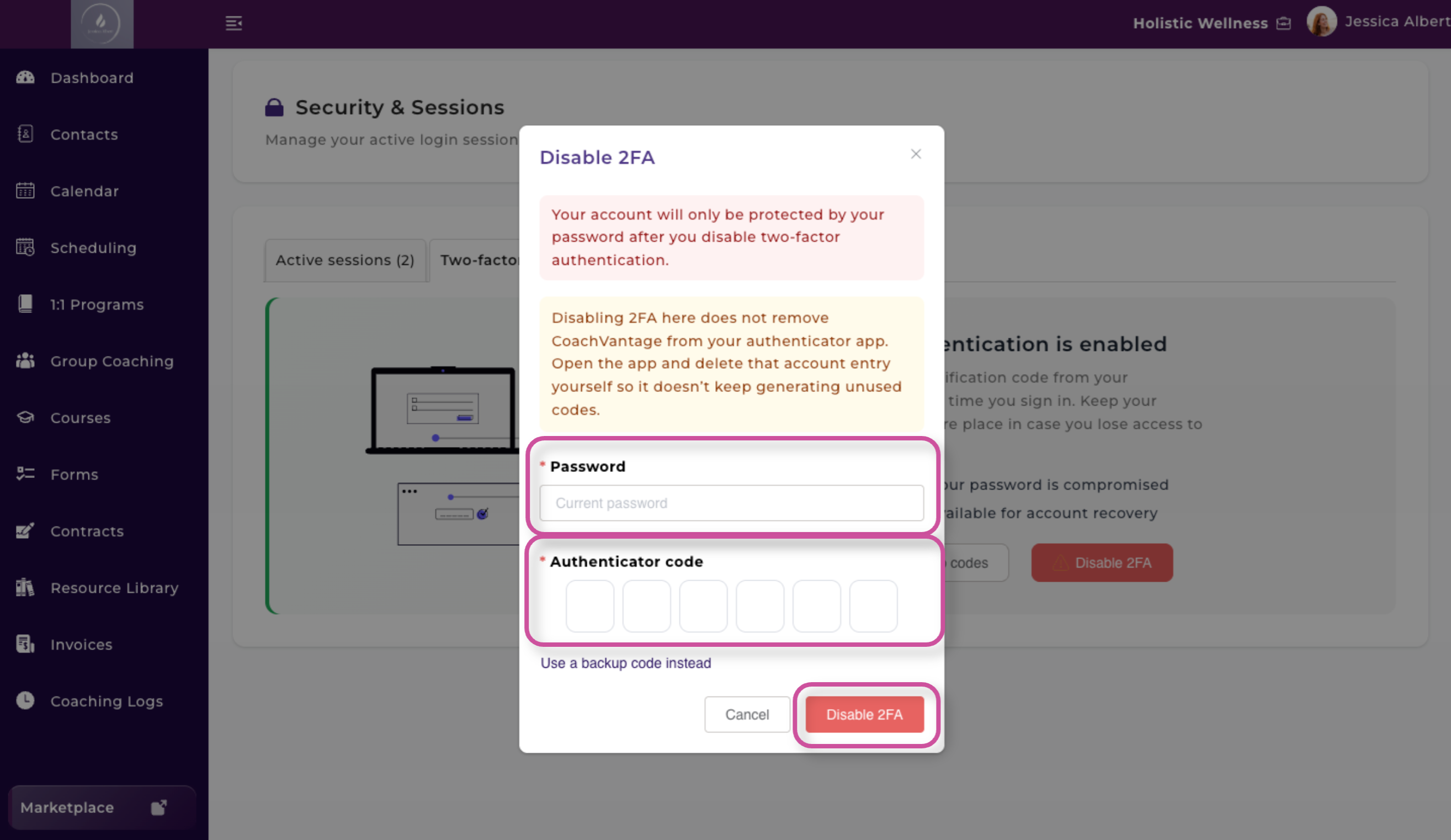
3. Enter your CoachVantage Password and the Authenticator Code. You also can enter a backup code instead if you prefer.
4. Click Disable 2FA.
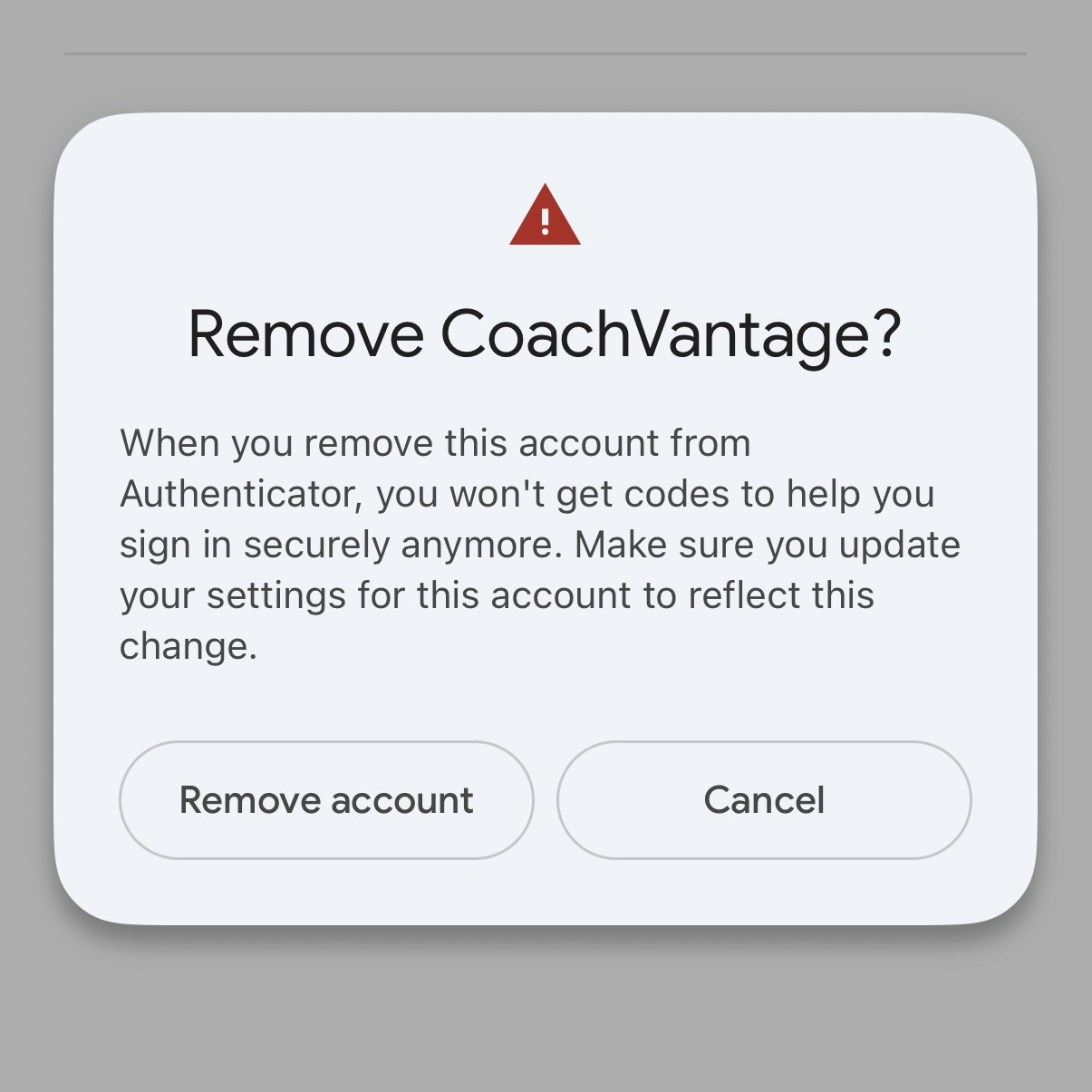
Remove CoachVantage From Your Authenticator App
To remove CoachVantage from your authenticator app, please follow these steps:
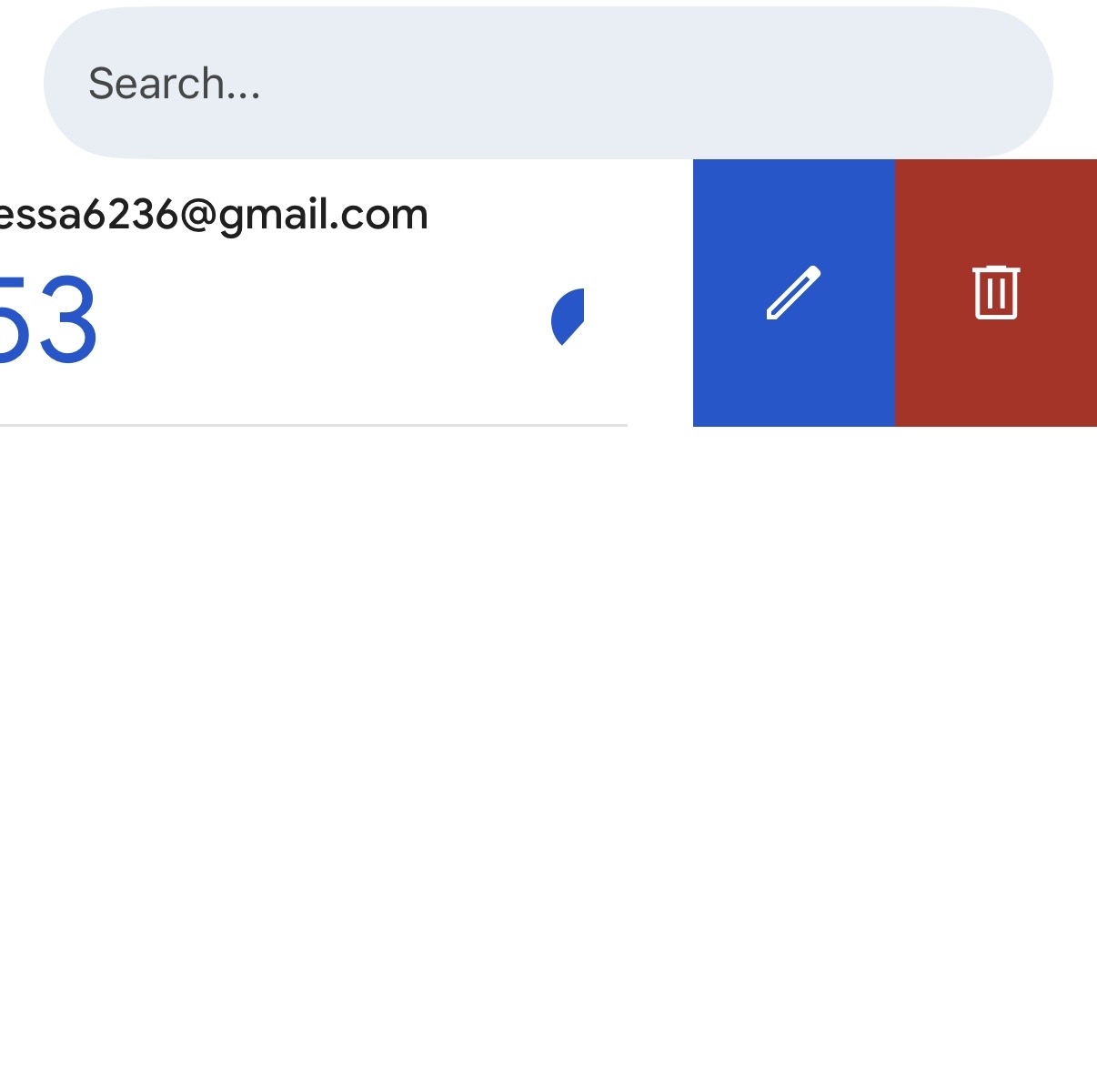
- Open your Authenticator App on your phone
- On Google Authenticator, hover over the code, and swipe left.
- Click the red trashcan icon.
Frequently Asked Questions
Why was I logged out?
CoachVantage automatically logs you out after 12 hours of inactivity. Sign in again to continue.
Why do I see multiple active sessions?
Each device, browser, or browser profile you use can create a separate session. For example, signing in through Chrome on a laptop and Safari on a phone may produce two entries.
Do I still need to log out manually?
We recommend manually logging out whenever you use CoachVantage on a shared or public computer, even though inactive sessions expire automatically.
What should I do if I see an unfamiliar session?
Revoke the unfamiliar session from the Active Sessions tab. Consider changing your password, and contact the CoachVantage Support Team if you have further concerns.