
How to Track Missed Sessions
Overview
CoachVantage allows you to mark a past session as missed, record why it was missed, and decide whether the missed session should count toward the total number of sessions in a program.
This makes it easy to maintain accurate session records and see at a glance which sessions were completed, missed, or counted toward a program.
🌟 Pro-Tip for Coaches
Before deciding whether to count a missed session as completed, it's always a good idea to check your coaching agreement's cancellation policy. This ensures your tracking stays completely aligned with what you and your client originally agreed upon.
How to Mark a Session as Missed 📆
From the Contact Record Page
Use this option when you want to review and manage sessions associated with a specific contact.
- Open the contact’s record and select Sessions.
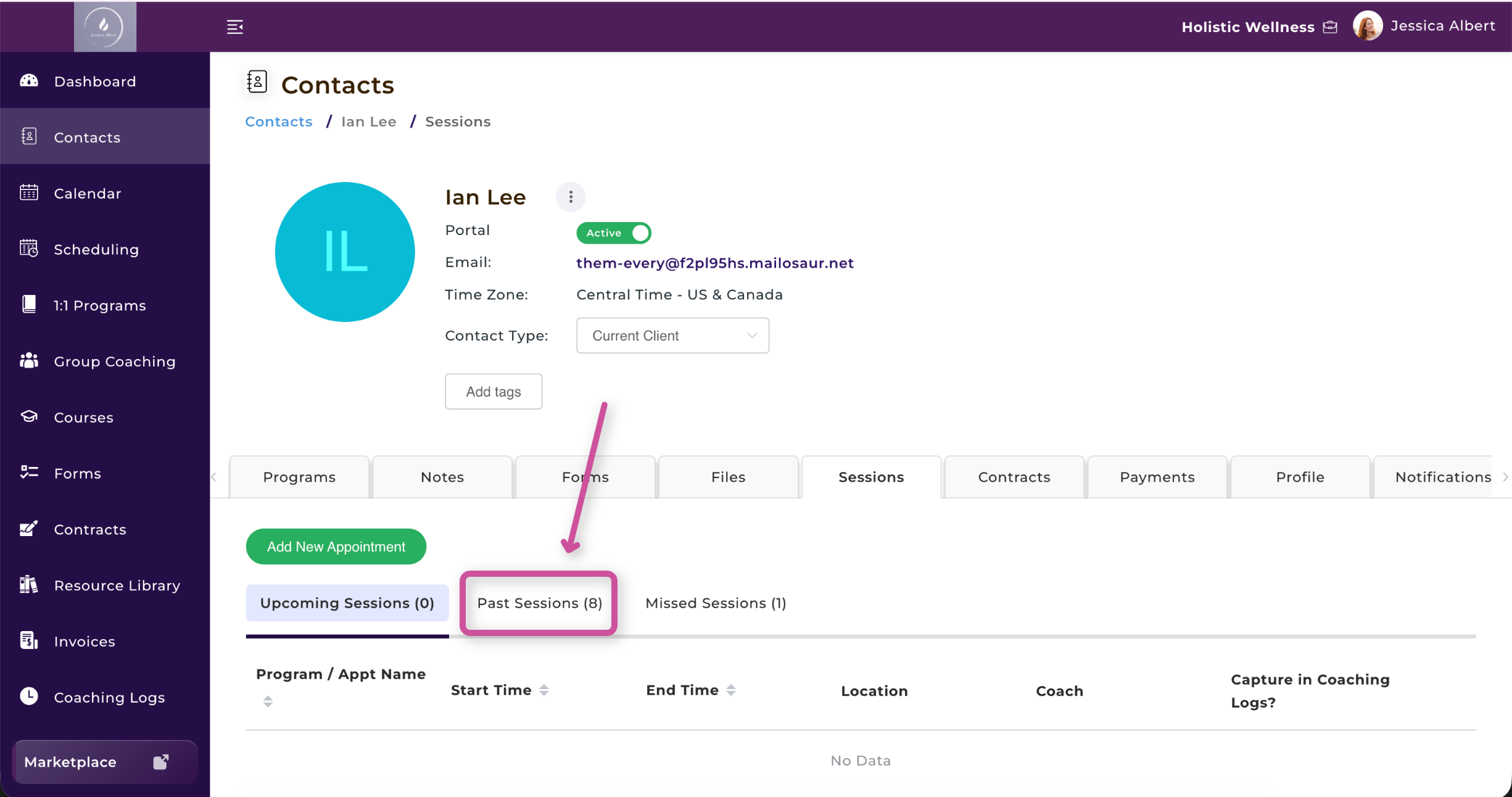
2. Go to the Past Sessions tab.
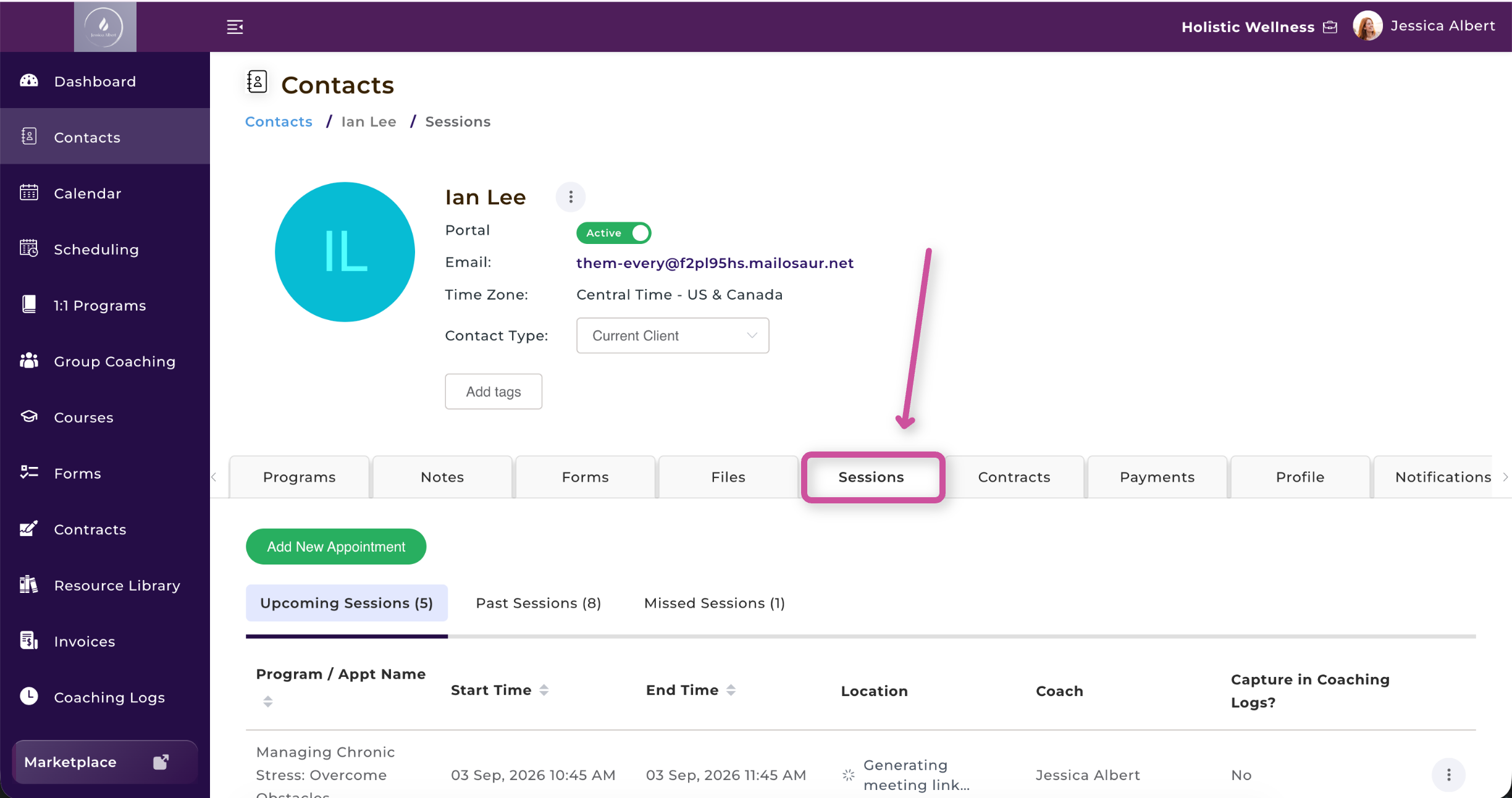
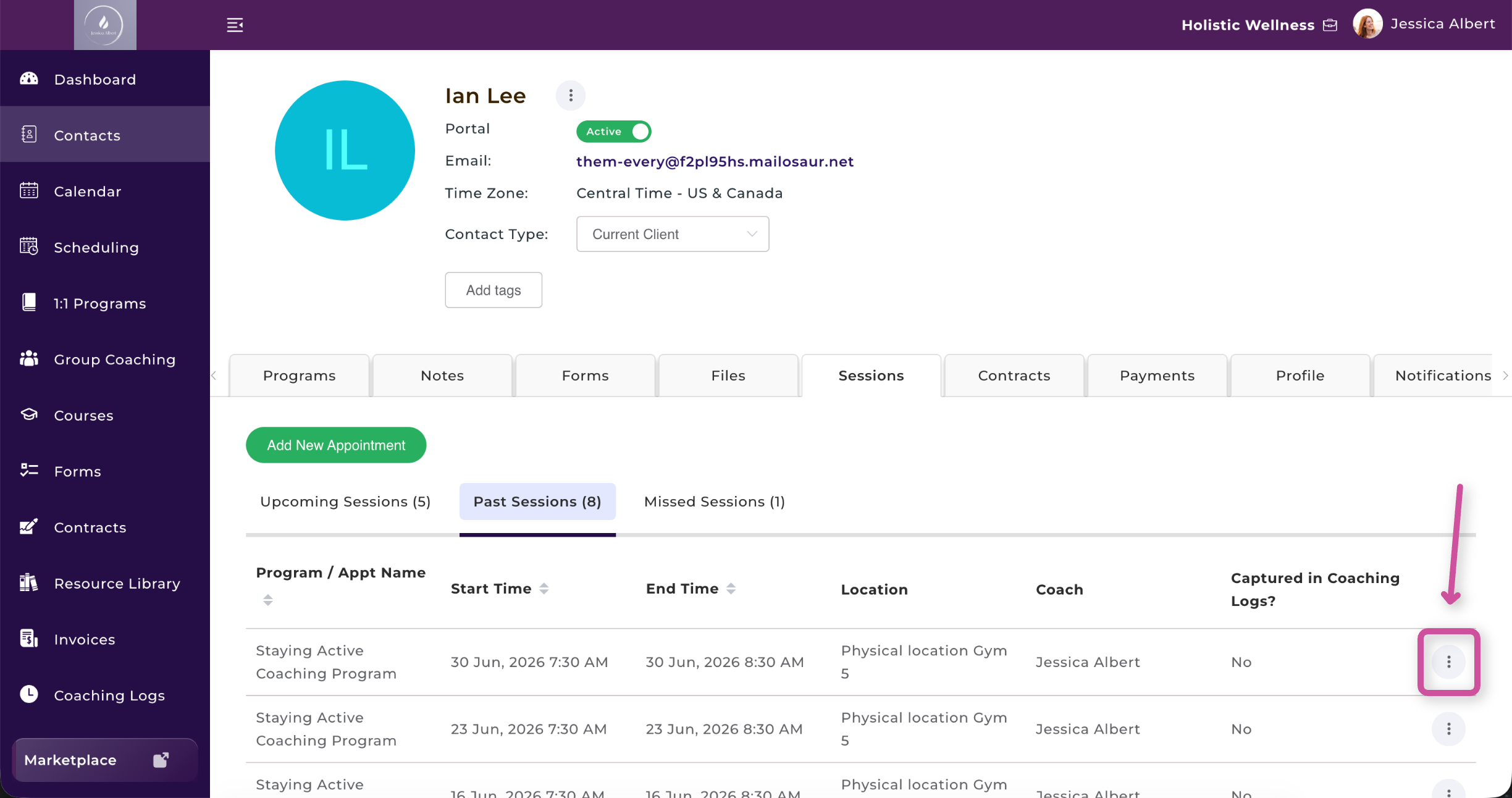
3. Find the session you want to mark as missed
4. Select the three-dot menu next to the session.
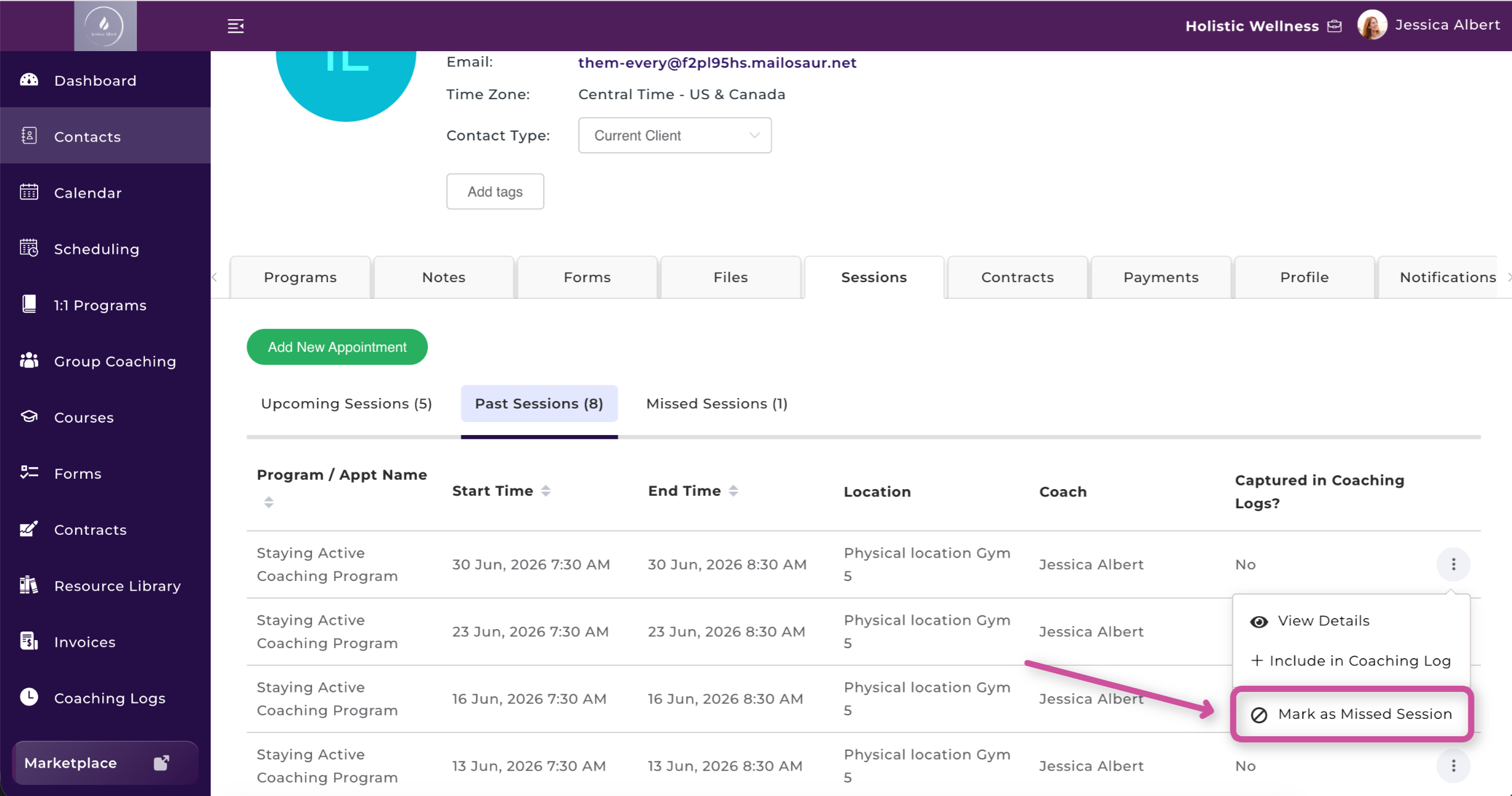
5. Click Mark as Missed Session.
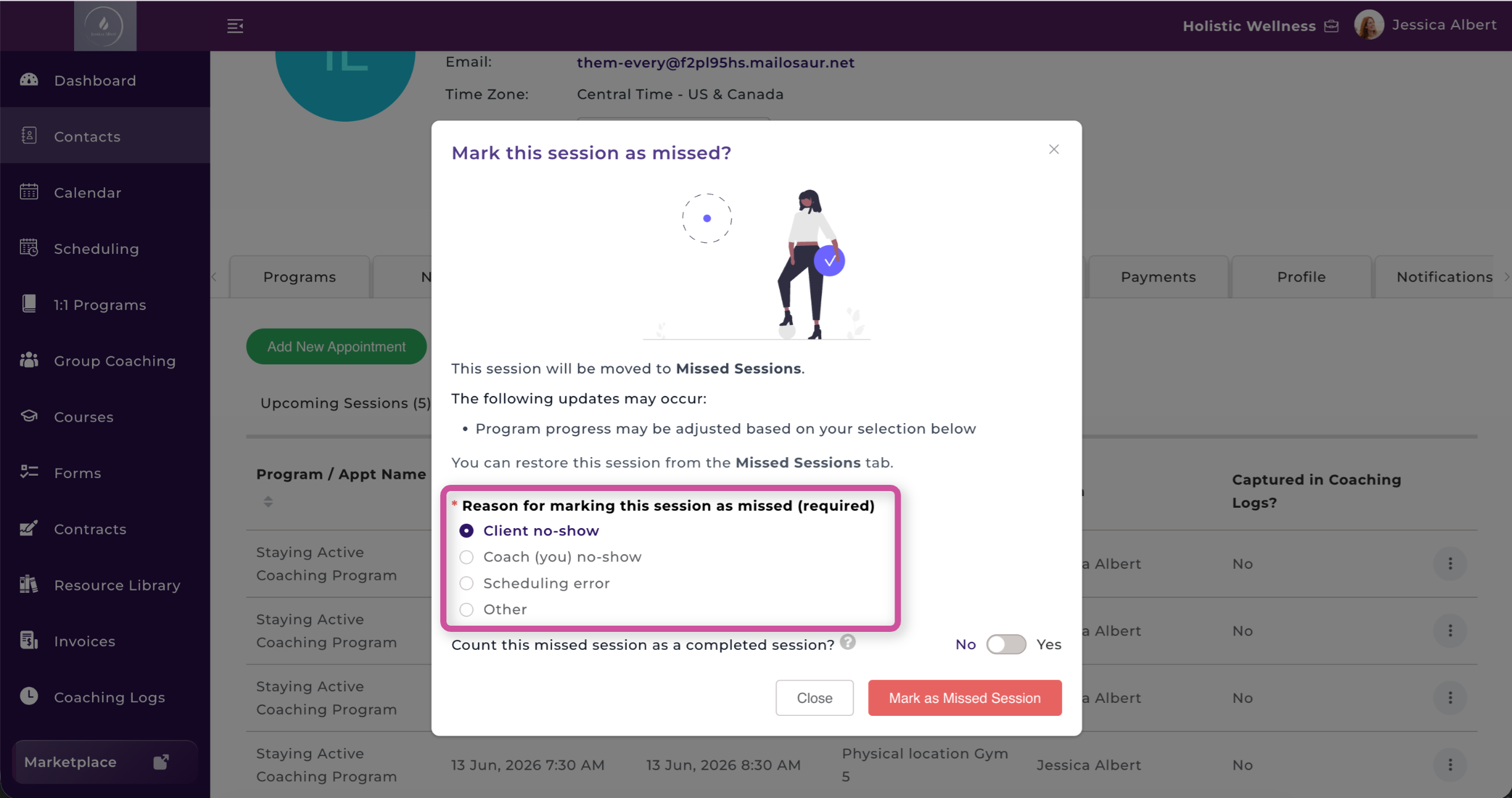
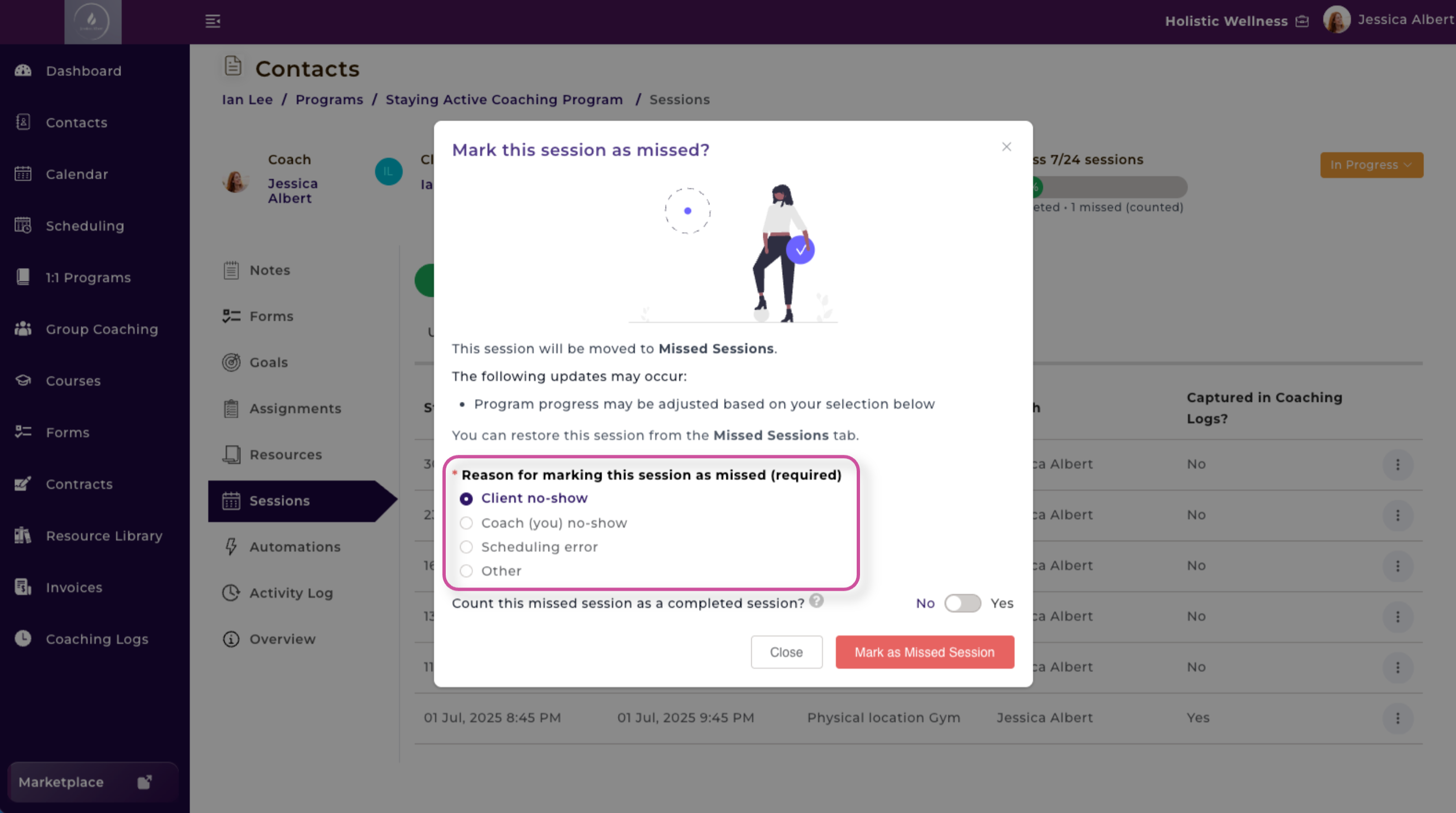
6. Select the reason the session was missed:
- Client no-show
- Coach (you) no-show
- Scheduling error
- Other
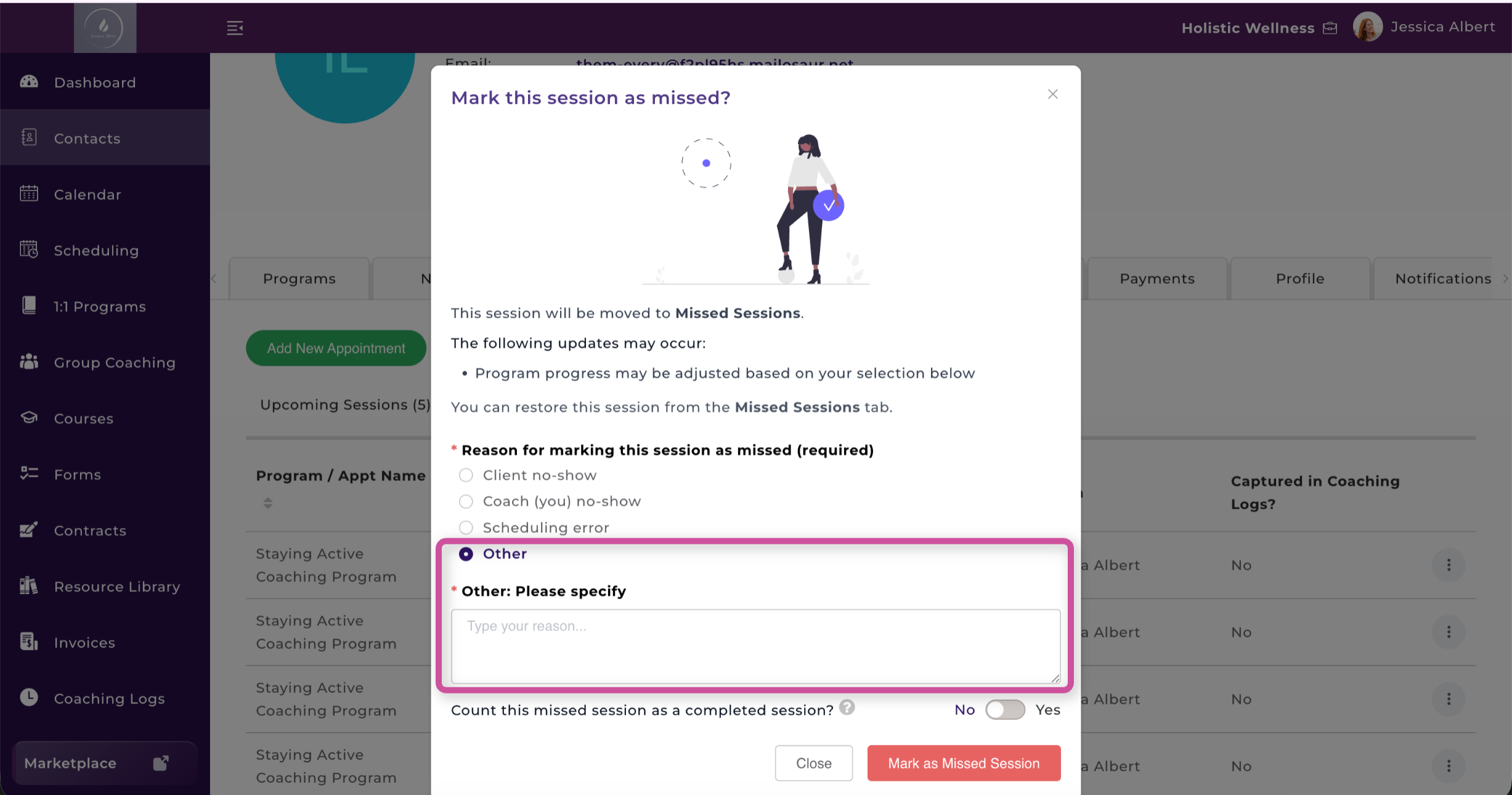
7. If you select Other, enter a brief explanation.
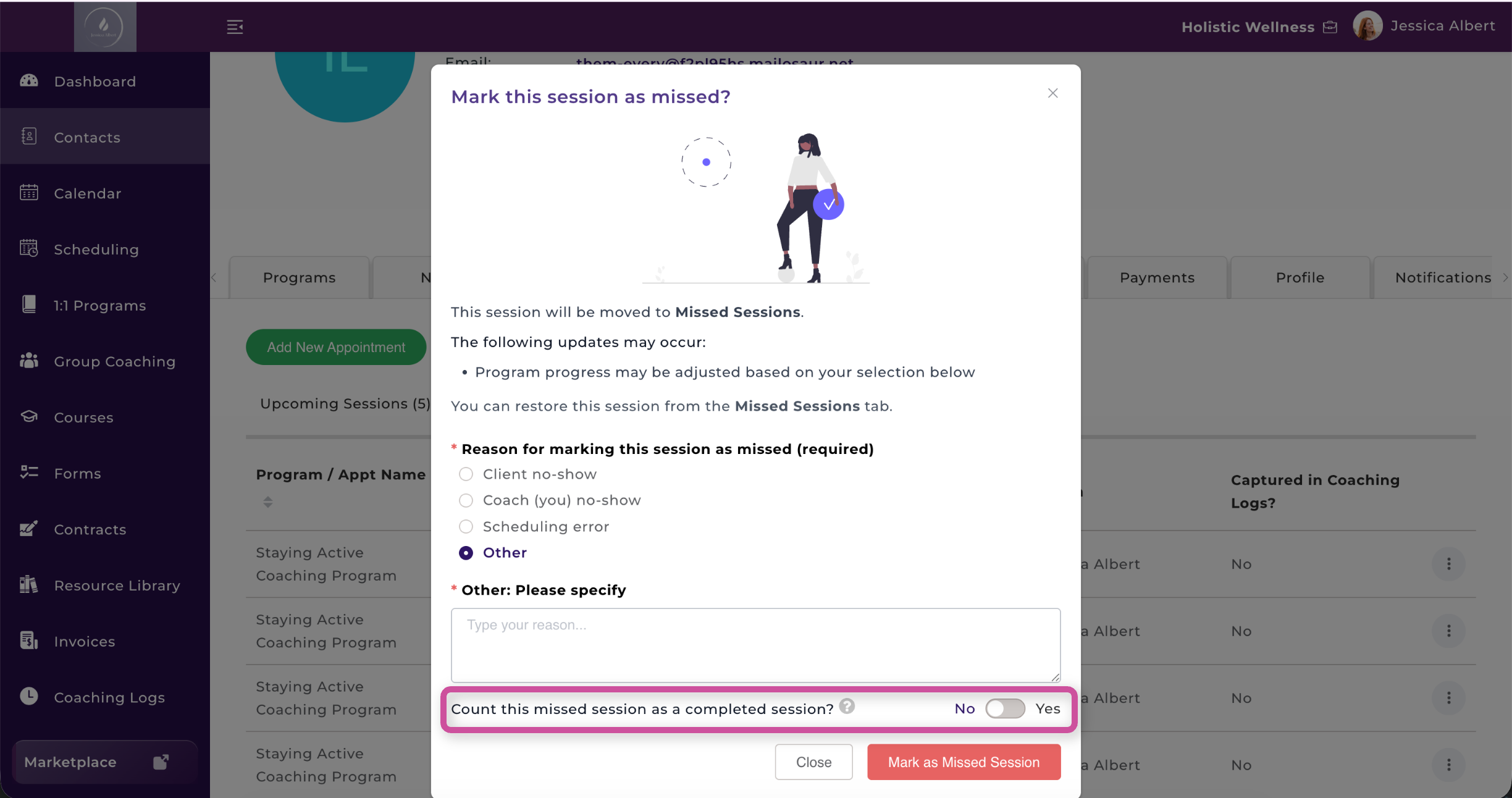
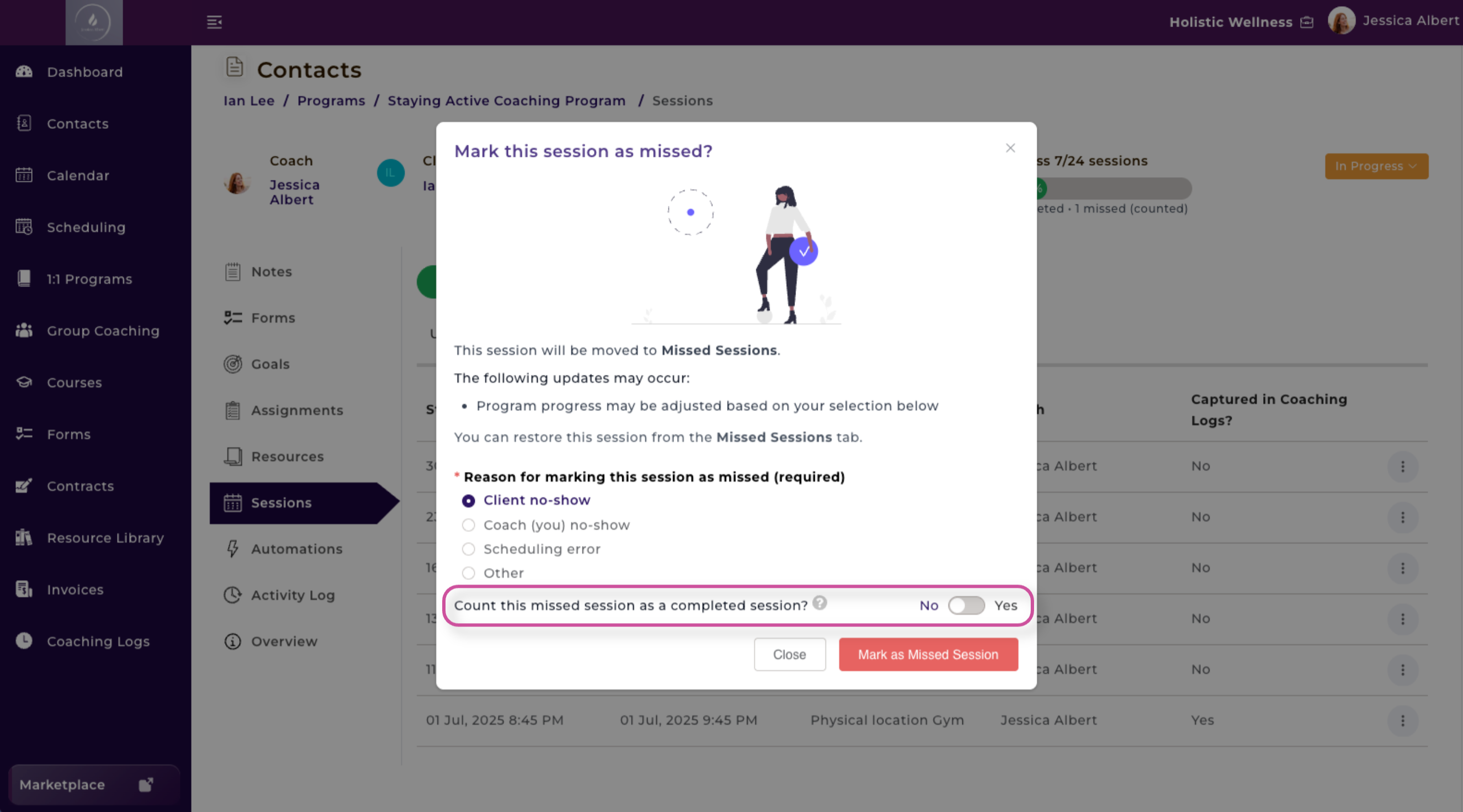
8. Choose whether the missed session should count as a completed session.
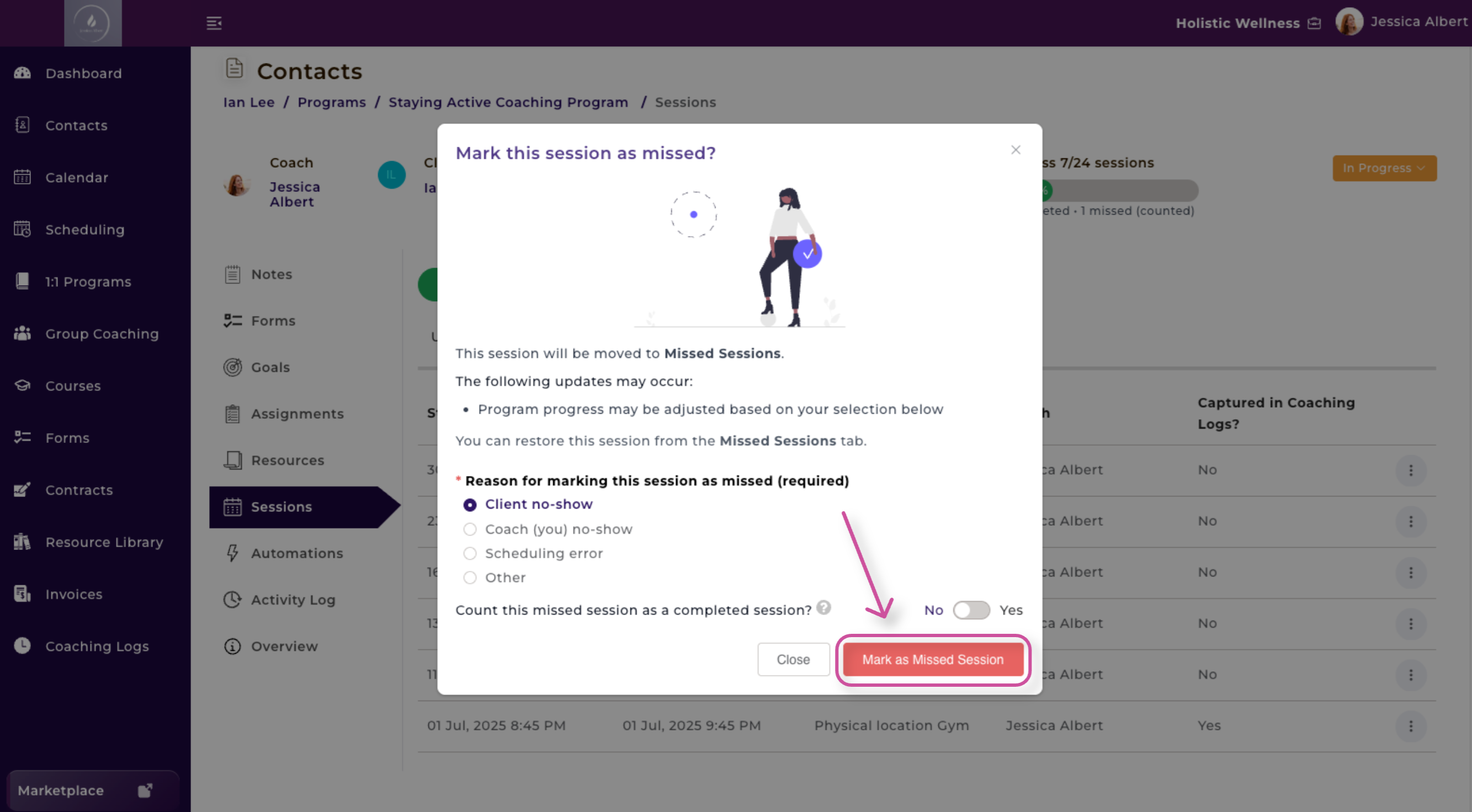
9. Click Mark as Missed Session.
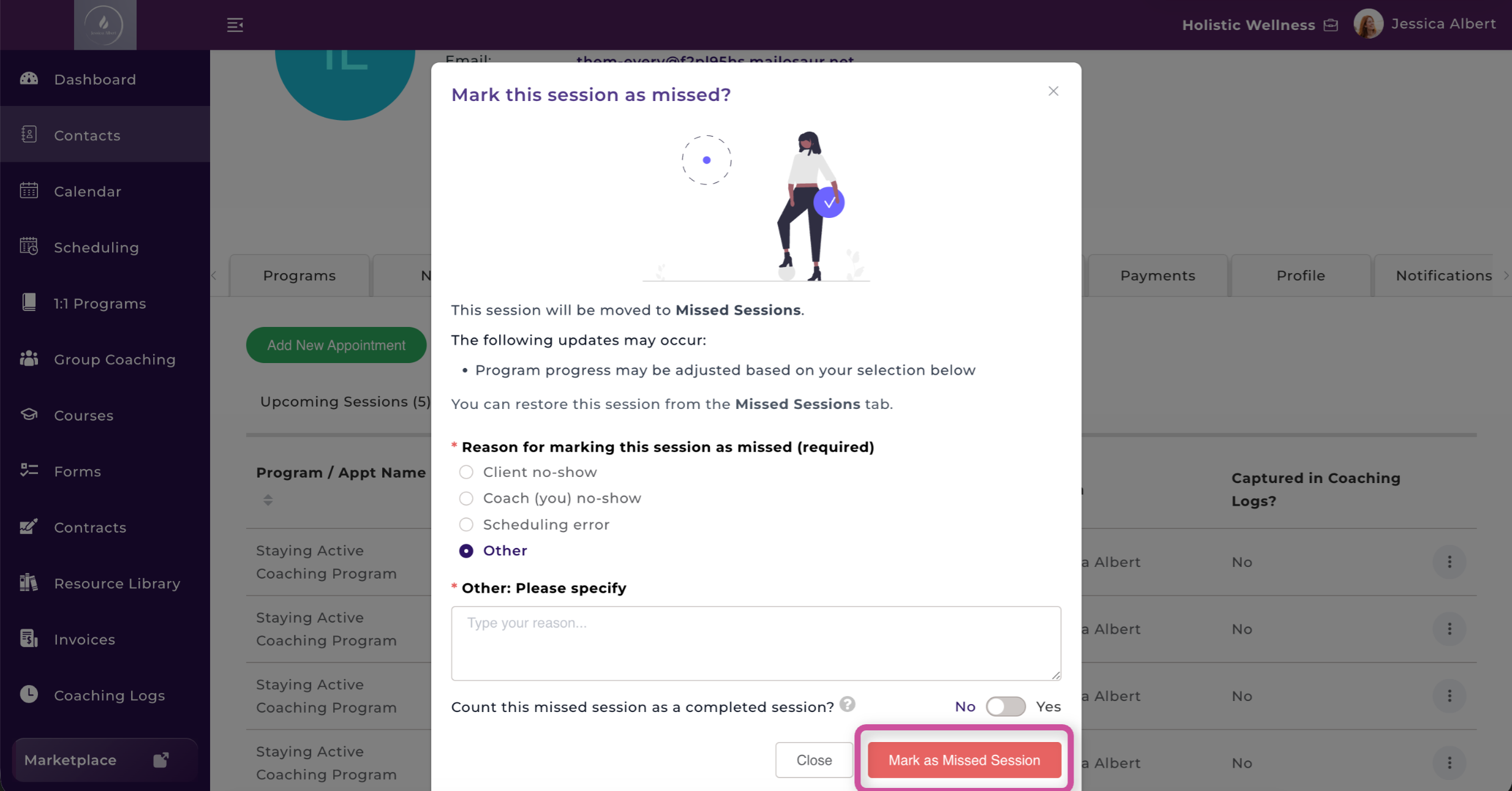
The session will move from the Past Sessions tab to the Missed Sessions tab, where you can also view the reason it was missed.
From the Program Management Page
Use this option when you are managing a specific program and want to update a session associated with that program.
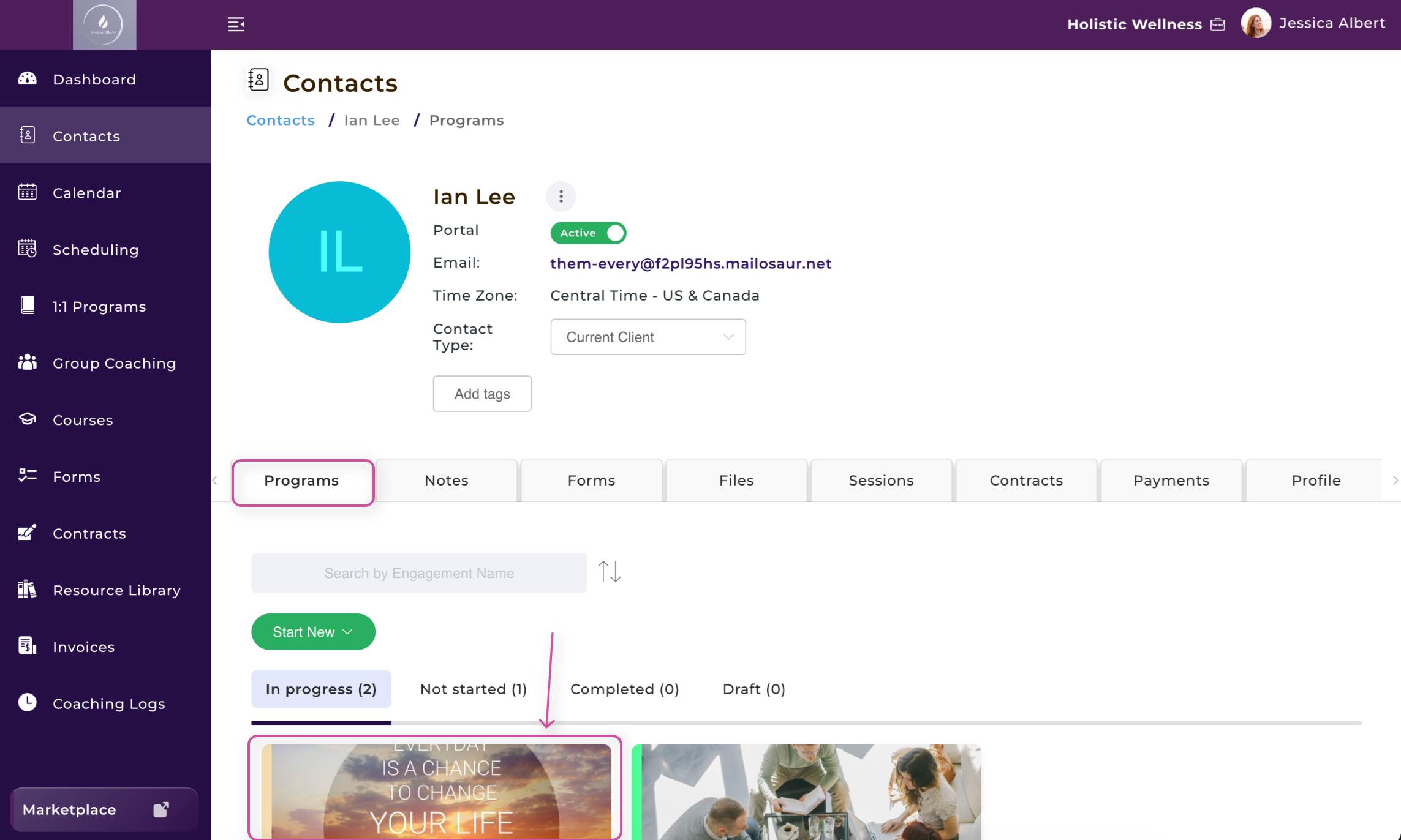
- Go to a Contact Record Page and select the Programs tab and open the applicable program.
2. From the Program Management page, select Sessions.
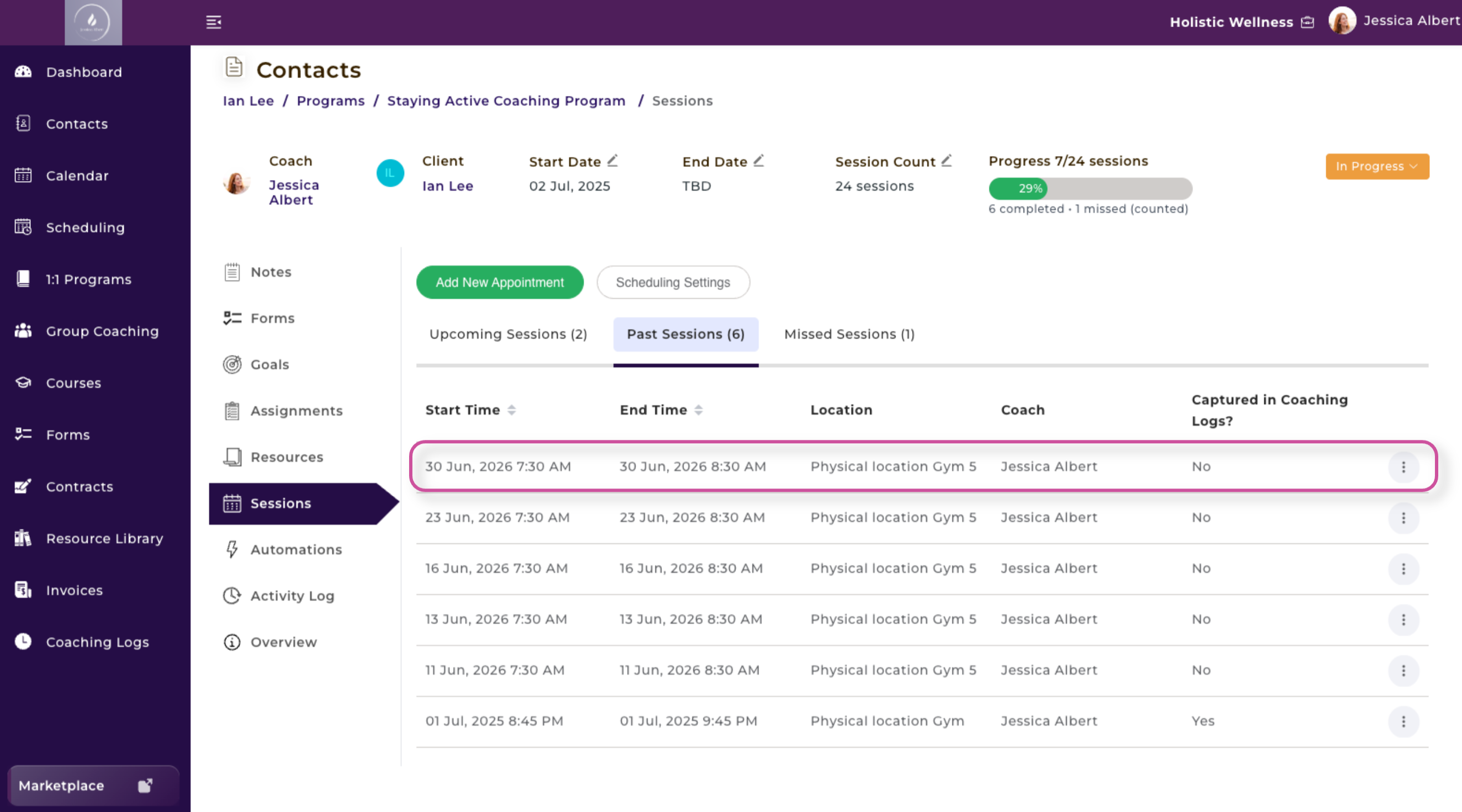
3. Find the past session you want to mark as missed.
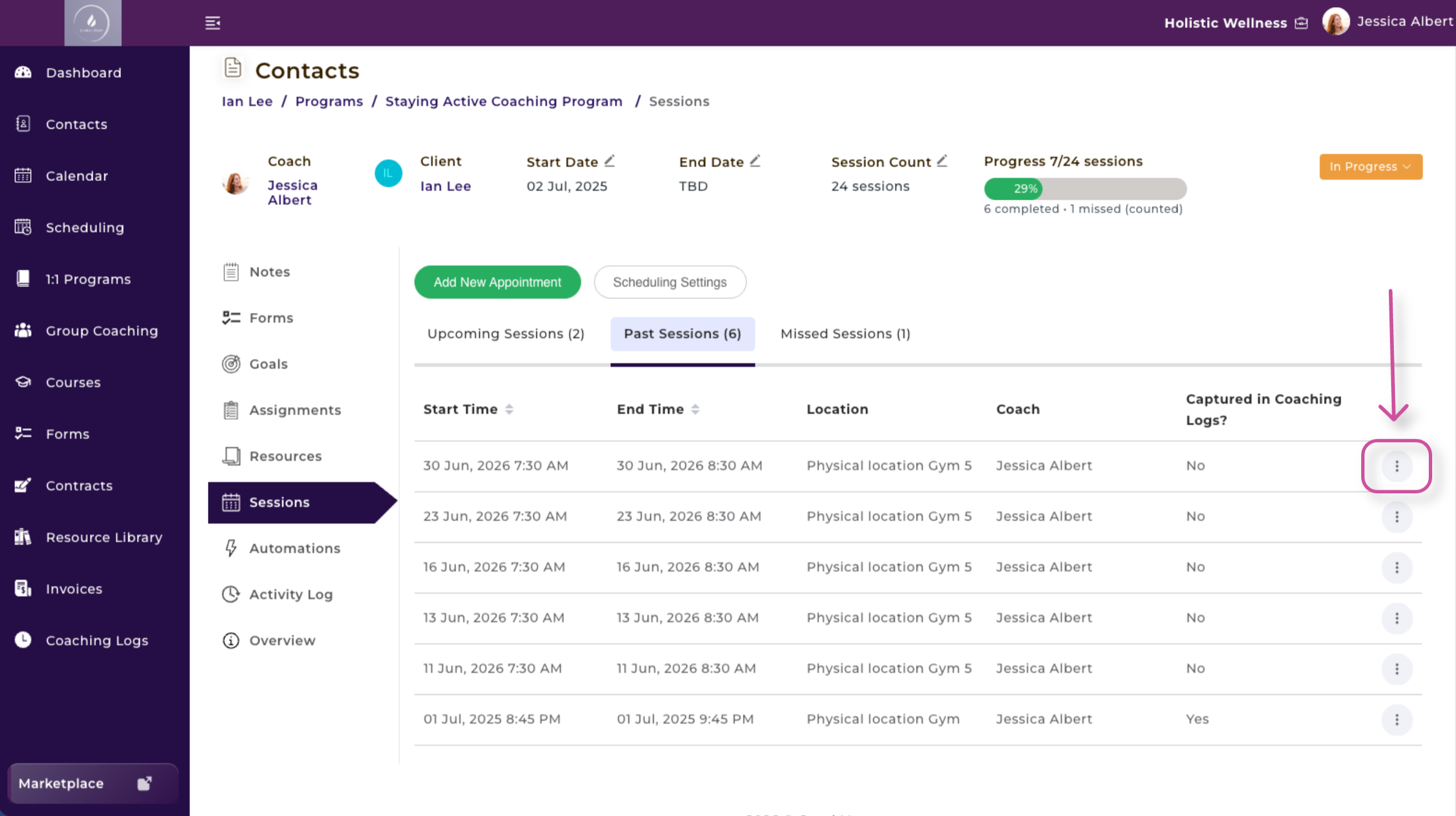
4. Select the three-dot menu next to the session.
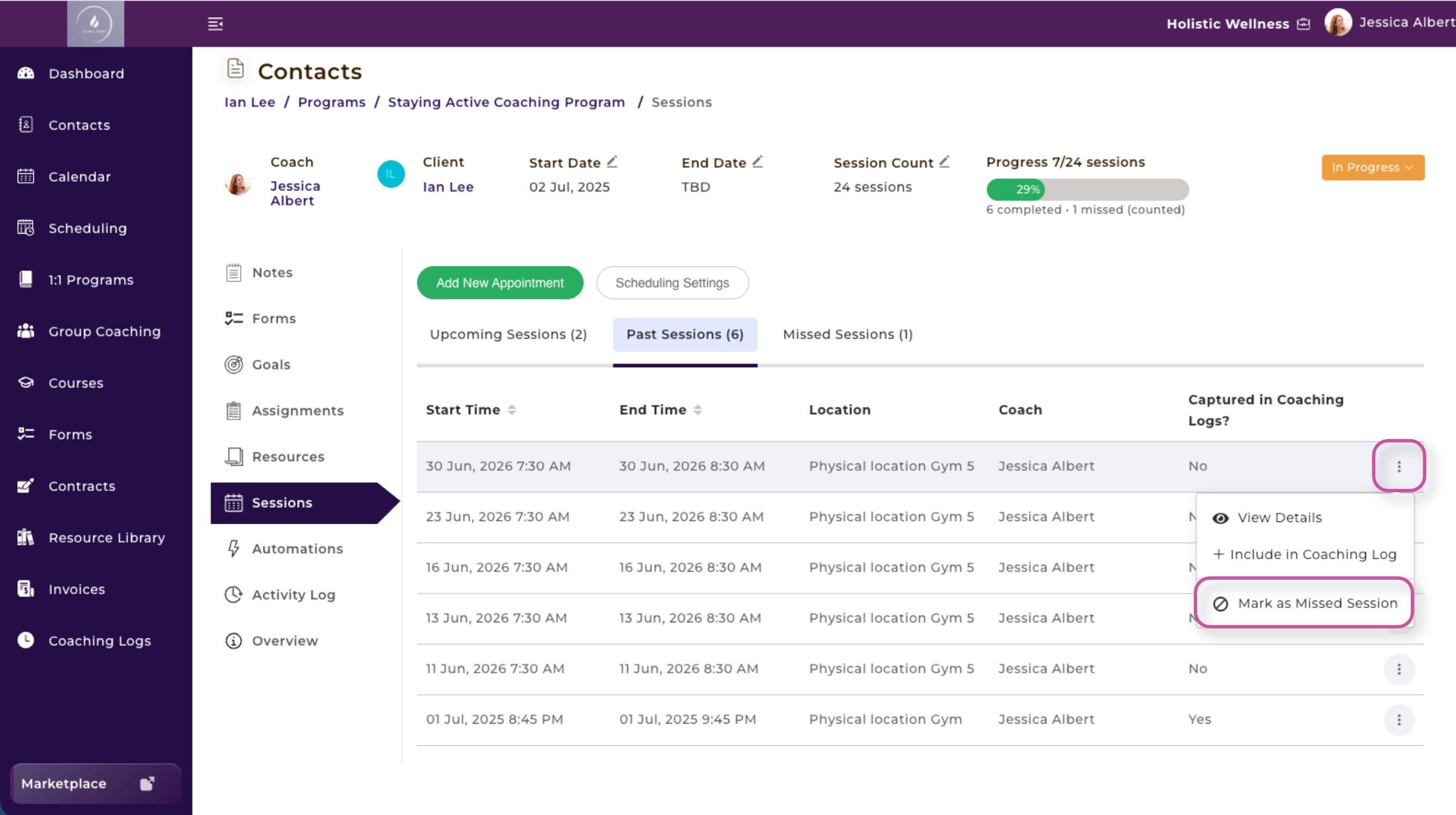
5. Click Mark as Missed Session.
6. Select the reason the session was missed.
7. Choose whether the missed session should count as a completed session.
8. Click Mark as Missed Session.
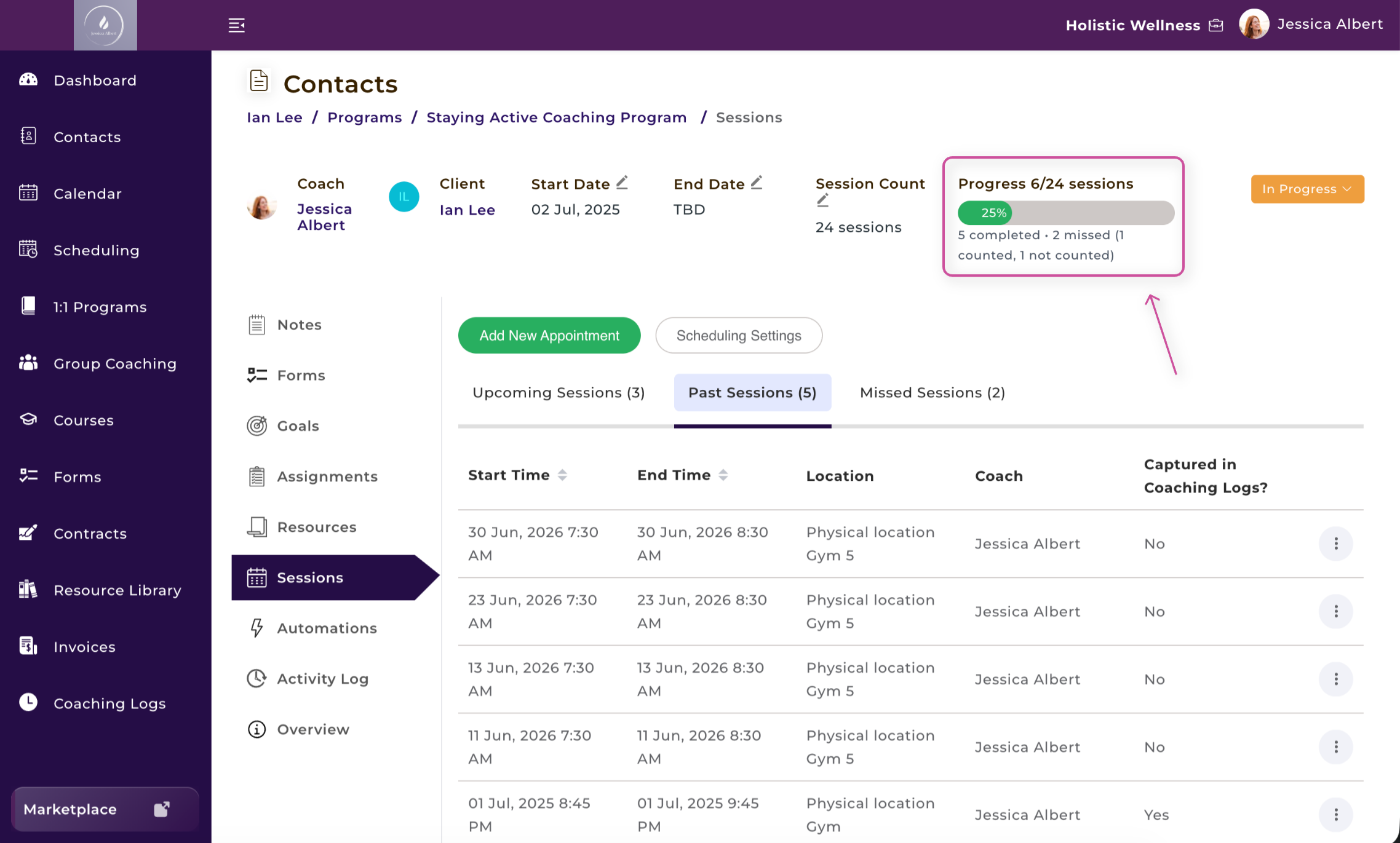
The Program Management page will display the number of sessions that have been completed and missed. If you chose to count the missed session toward the program total, Counted will appear in parentheses next to the missed-session information.
Decide Whether a Missed Session Should Count
When marking a session as missed, you can choose whether it should count as a completed session.
- Select Yes if the missed session should count toward the number of sessions used in the program.
- Select No if the missed session should not count toward the program total.
For example, you may choose to count a client no-show as a used session based on your cancellation or attendance policy. If the session was missed because of a scheduling error, you may decide not to count it.
Track Progress at a Glance
The program progress bar automatically updates to accurately reflect the number of sessions counted toward the program total. Missed sessions marked as counted will advance the progress bar, while missed sessions marked as not counted will not affect the program’s progress. The summary beneath the progress bar also provides a clear breakdown of completed sessions and missed sessions, including how many were counted and not counted.
Restore a Missed Session
If you marked a session as missed by mistake, you can restore it:
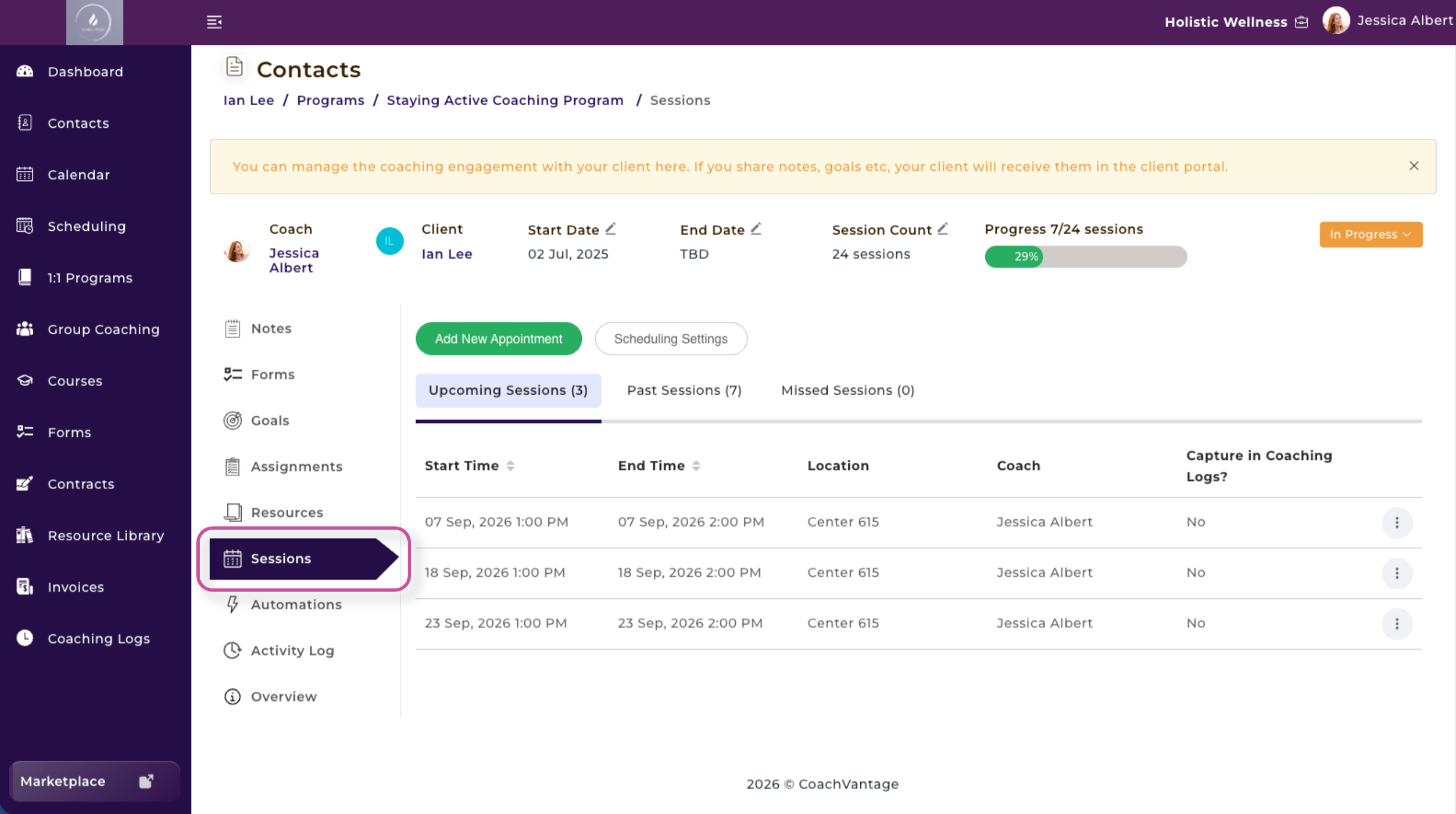
- Open the Contact Record or the Program Management Page and go to Sessions.
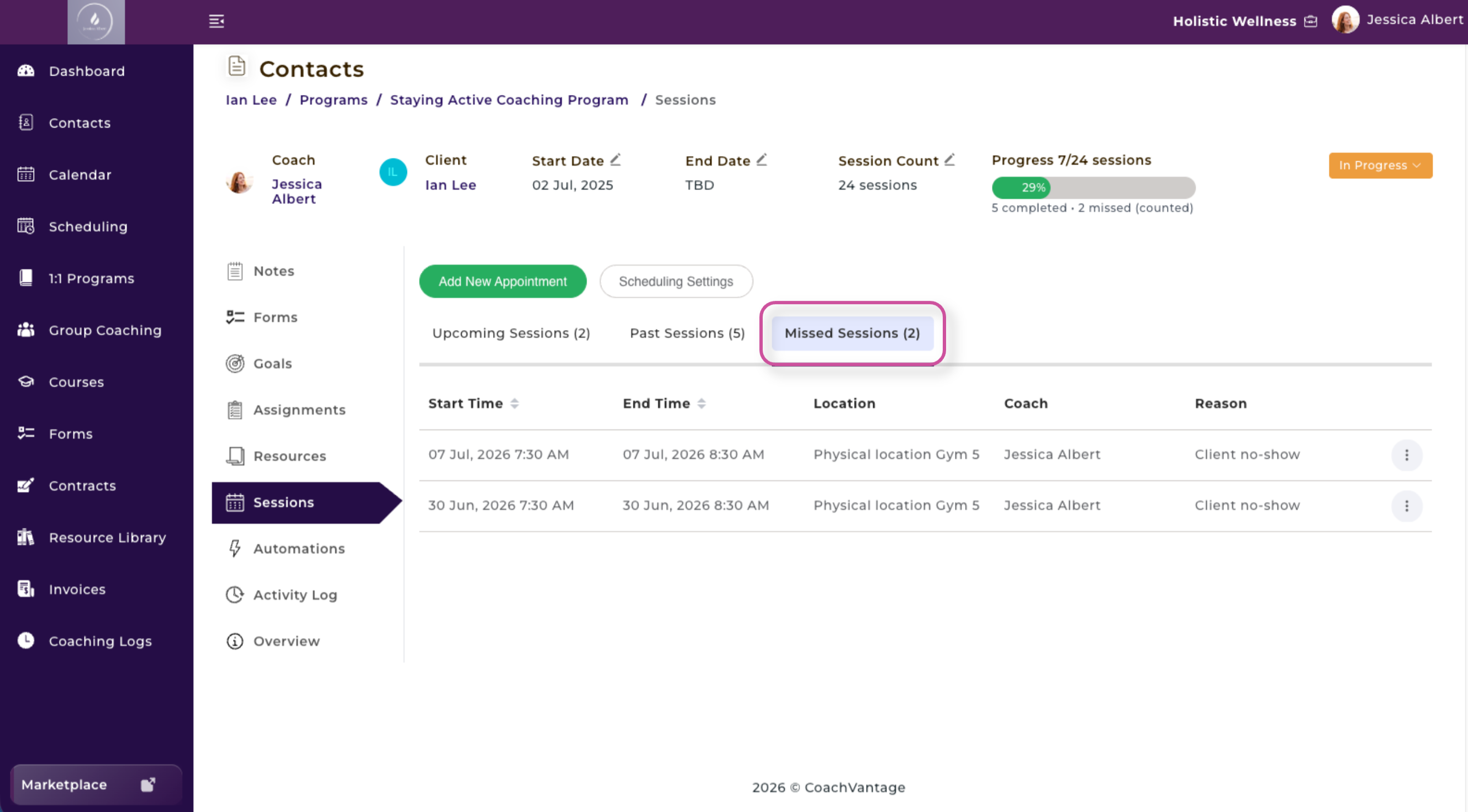
2. Select the Missed Sessions tab.
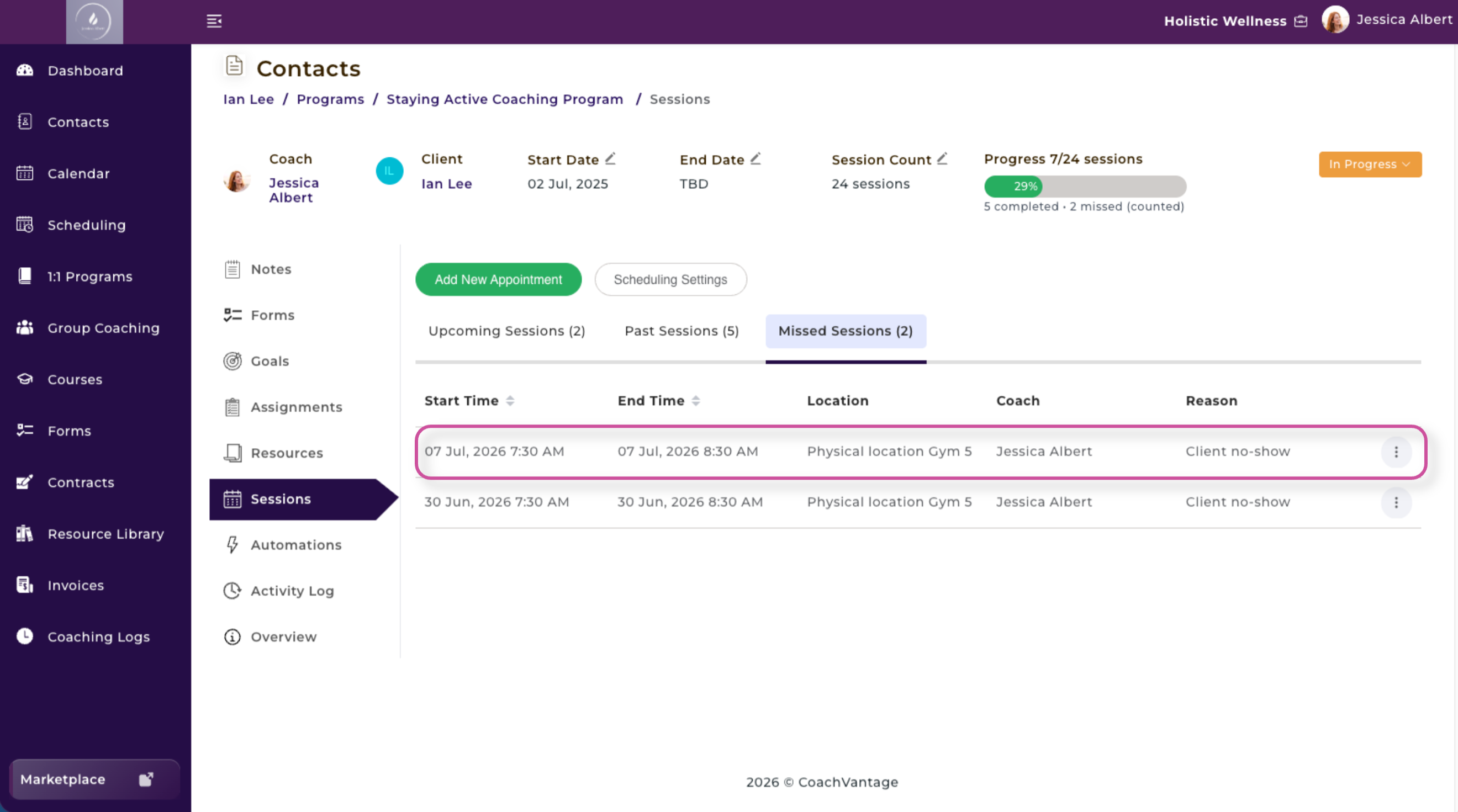
3. Find the session you would like to restore.
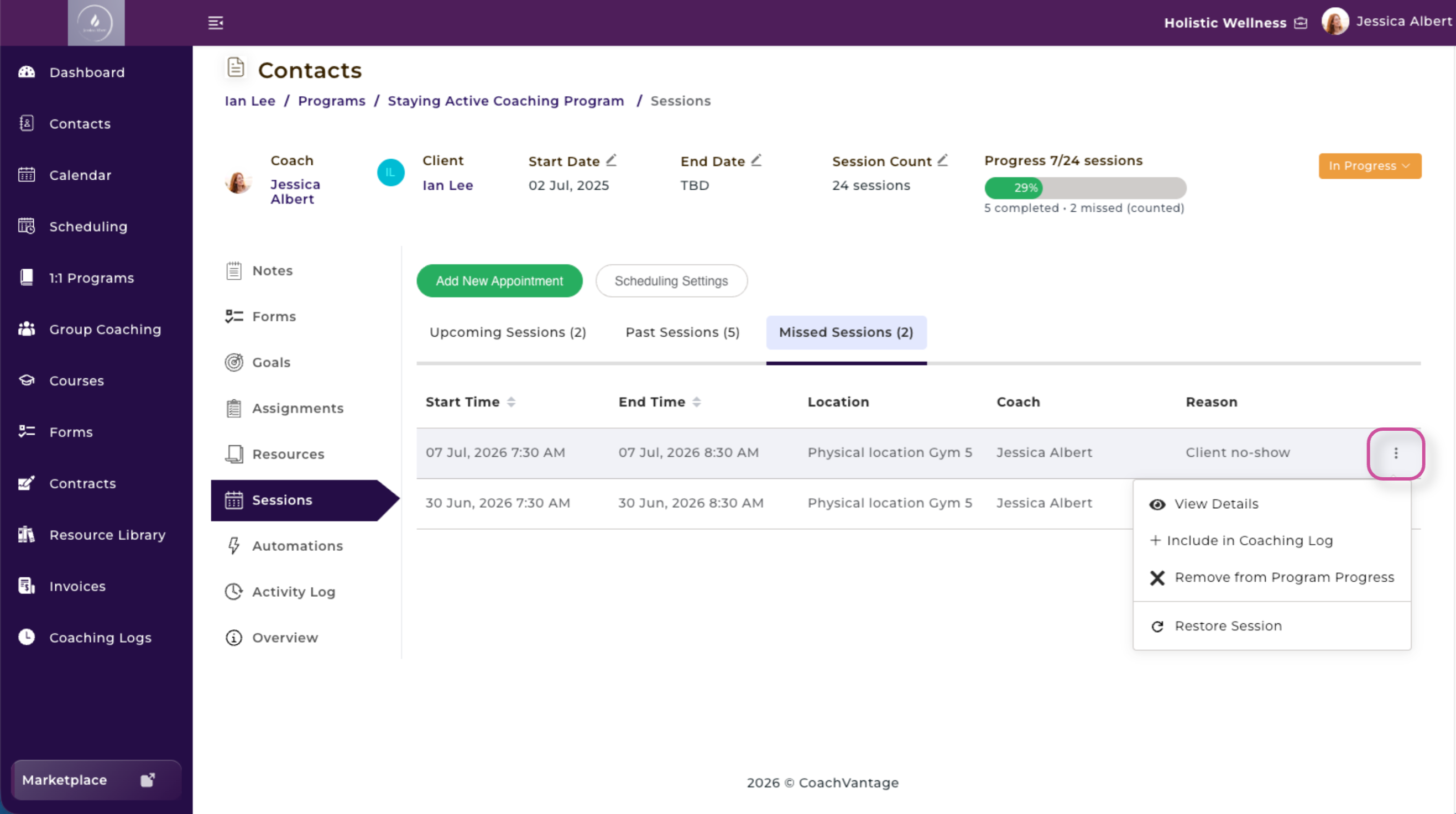
4. Select the 3-dot button menu.
5. Restore Session.
6. Click Restore in the confirmation window.
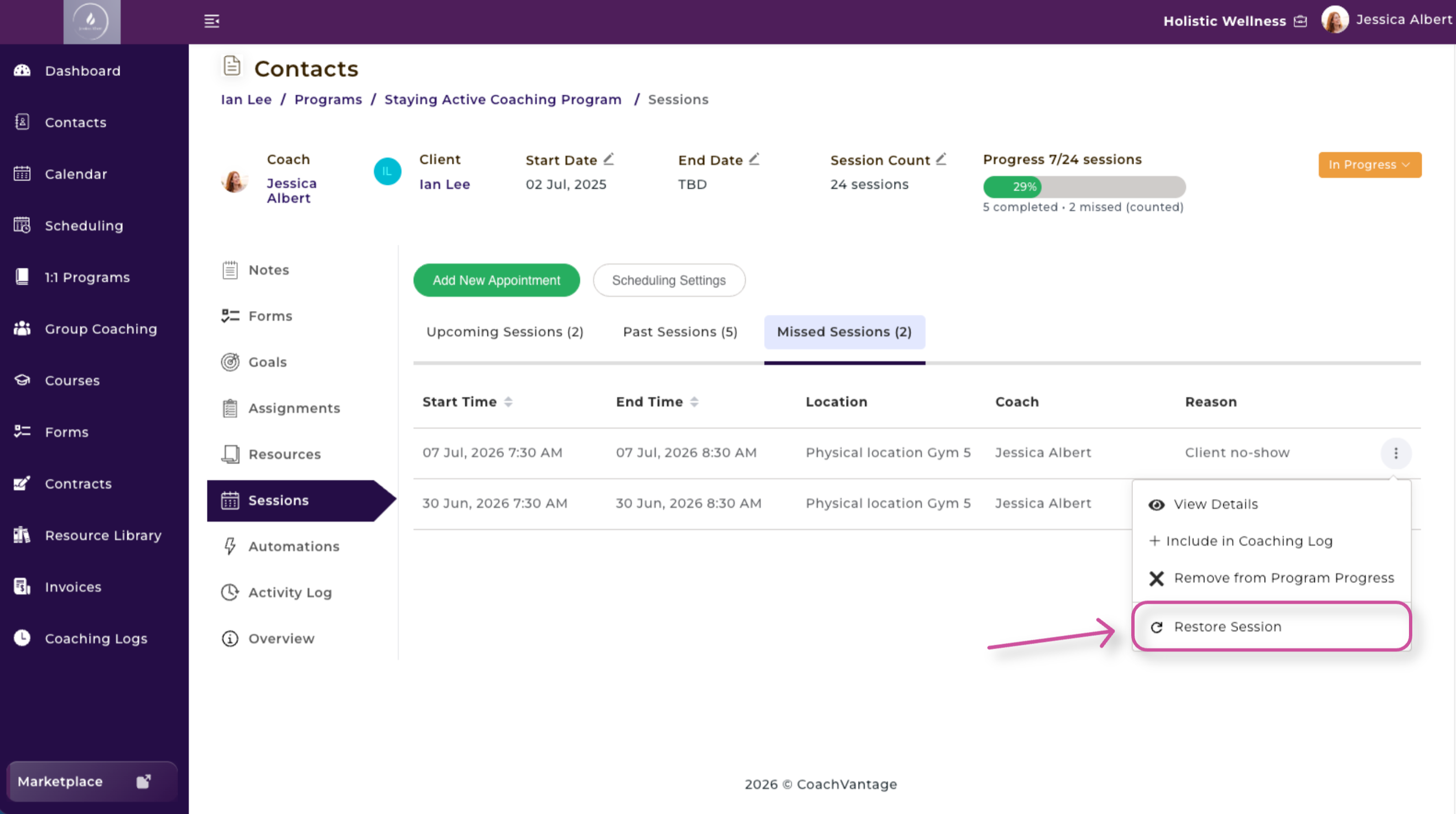
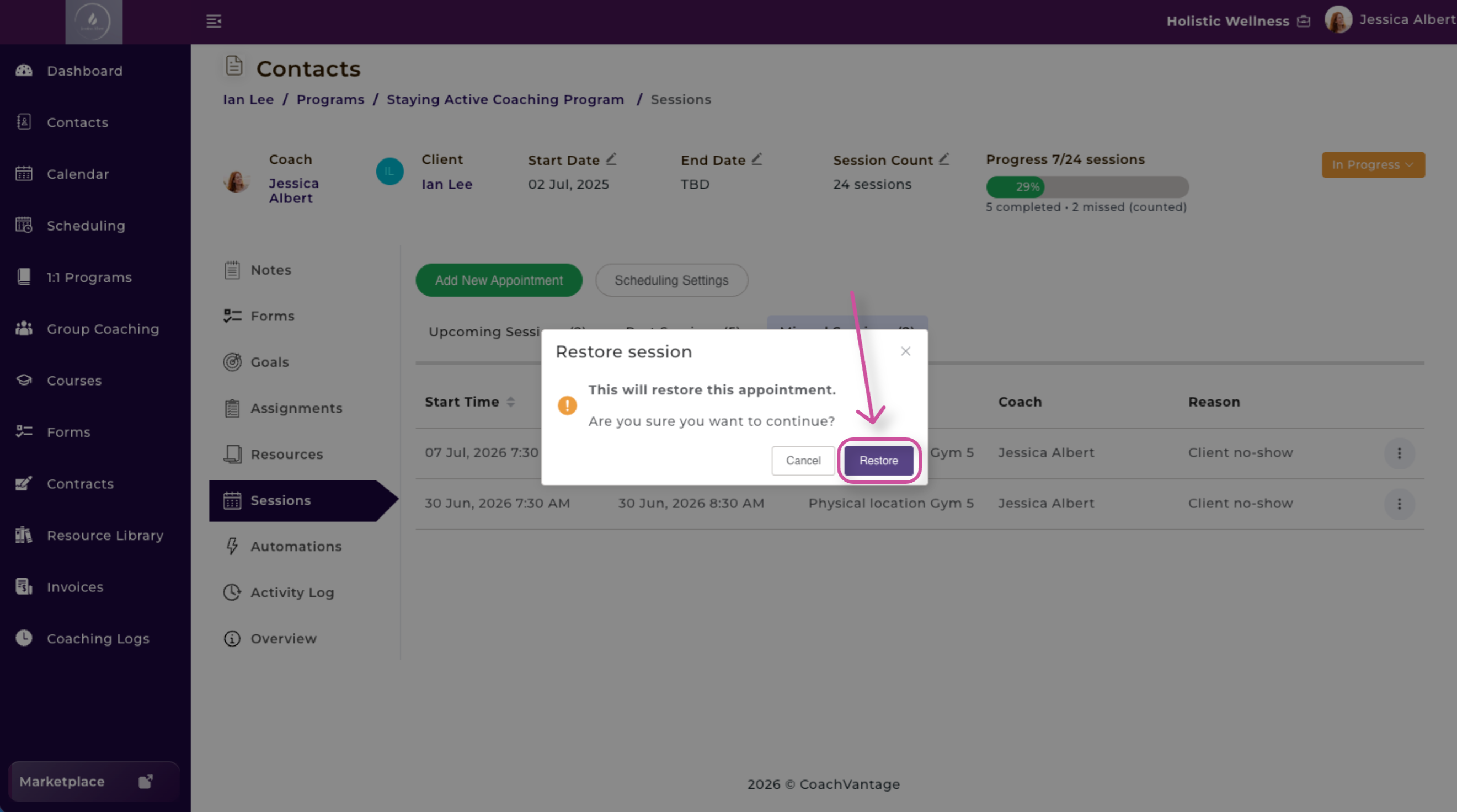
The session will be removed from the Missed Sessions list and returned to the Past Sessions list.
View Missed Session Information 👁️
You can view missed-session information from either the Contact Record page or the Program Management page.
View Missed Sessions from the Contact Record Page
- Open the applicable contact’s record.
- Select Sessions.
- Open the Missed Sessions tab.
Here, you can view the contact’s missed sessions along with the reason each session was marked as missed.
View Missed Sessions from the Program Management Page
- Go to a Contact.
- Select the Programs tab.
2. Click Sessions from the left-hand menu.
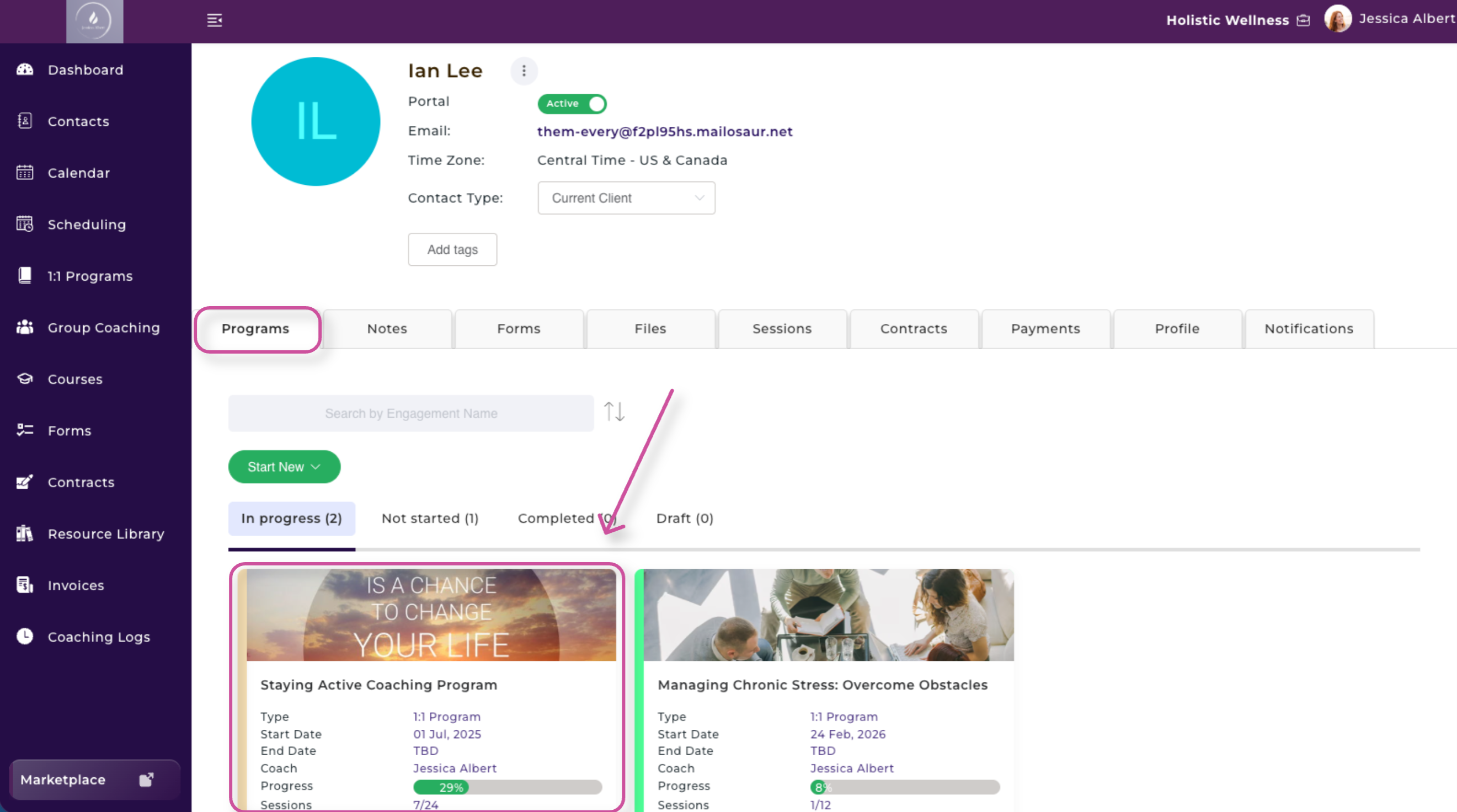
- Go to the Missed Sessions tab.
The summary shows how many program sessions have been completed and how many have been missed. If a missed session was counted toward the program total, Counted will appear in parentheses next to it.
You can also select Sessions from the Program Management page to view the missed-session information within that specific program’s session list.
Keep Your Session Records Accurate 🗂️
Tracking missed sessions helps you maintain a clear history of client attendance, apply your missed-session policy consistently, and understand how many sessions remain in a program.