
How to Mark a Session as Missed
Overview
No matter how well you plan out client coaching appointments, missed sessions do happen. A client forgets an appointment, a last-minute conflict arises, or someone simply doesn't show up. You need an easy way to keep track of this.
That's why we've introduced Missed Sessions in CoachVantage. You can now easily record when a session wasn't attended, giving you a clear record of which sessions happened, and which didn’t.
Best of all, you decide how missed sessions are handled. Count them toward program progress or leave them out entirely—the choice is yours, based on your coaching agreement terms. See below how you can manage this in just a few clicks.
Step-by-Step: How to Mark a Past Session as Missed
Coaches can explicitly log client absences and specify attendance context directly from the contact's individual profile timeline. Follow these simple steps:
- Navigate to your left-hand main sidebar menu and click on Contacts.
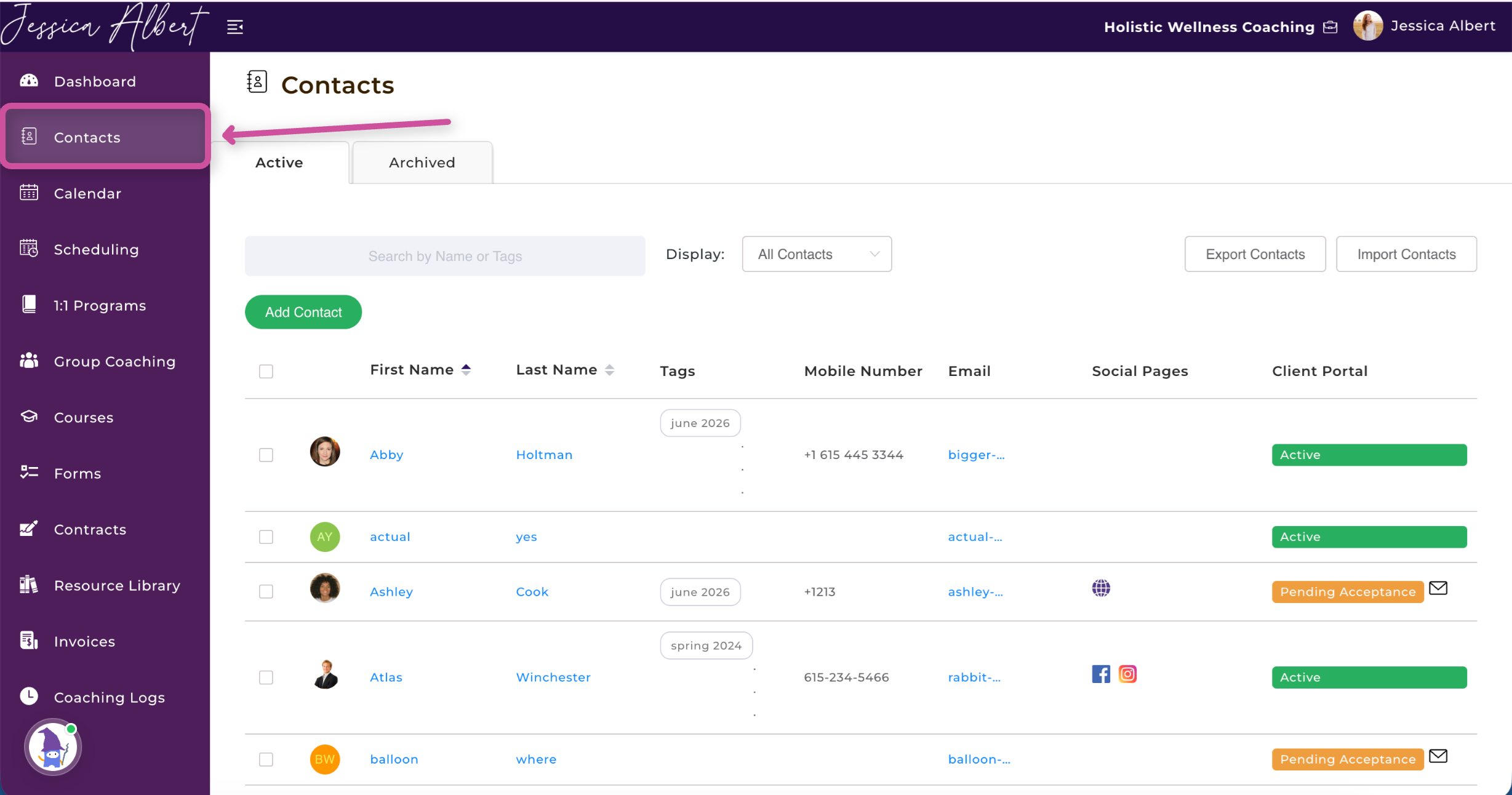
- Select and click on the specific Individual Contact Record of the client who missed the appointment.
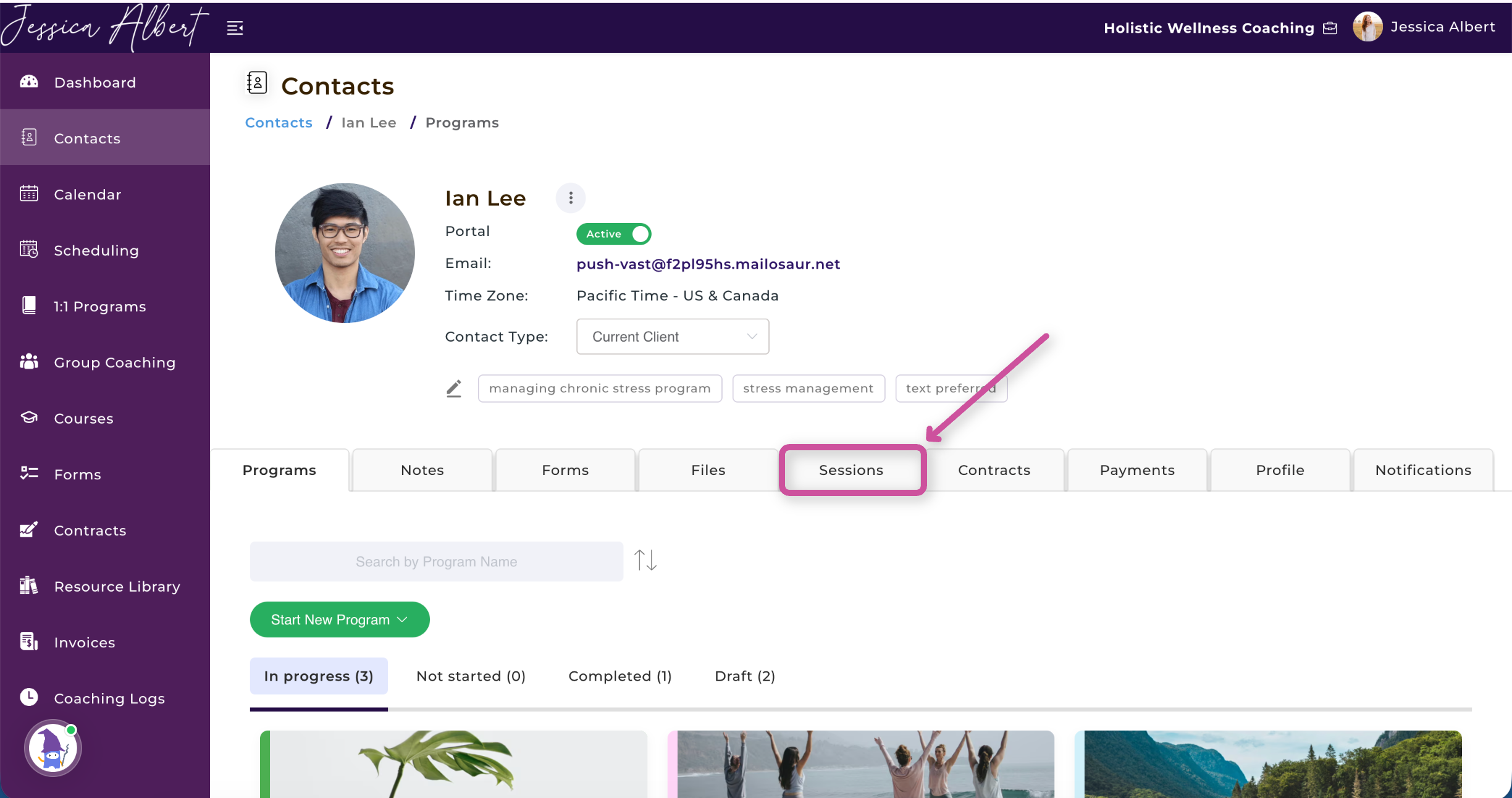
- On the client's page, click on the Sessions tab located in the horizontal sub-navigation bar.
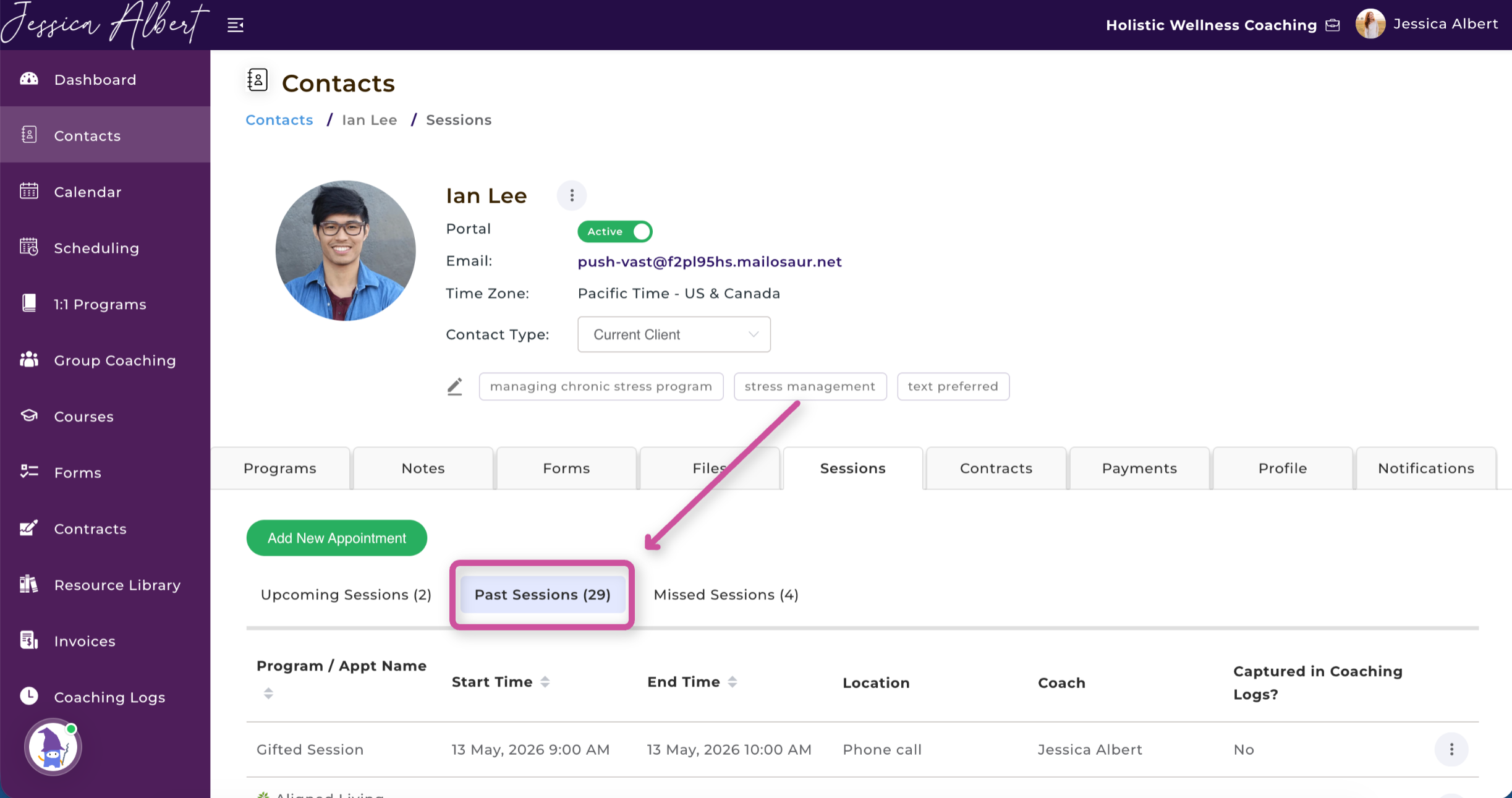
- By default, you will see your general appointment lists. Click into the Past Sessions sub-tab.
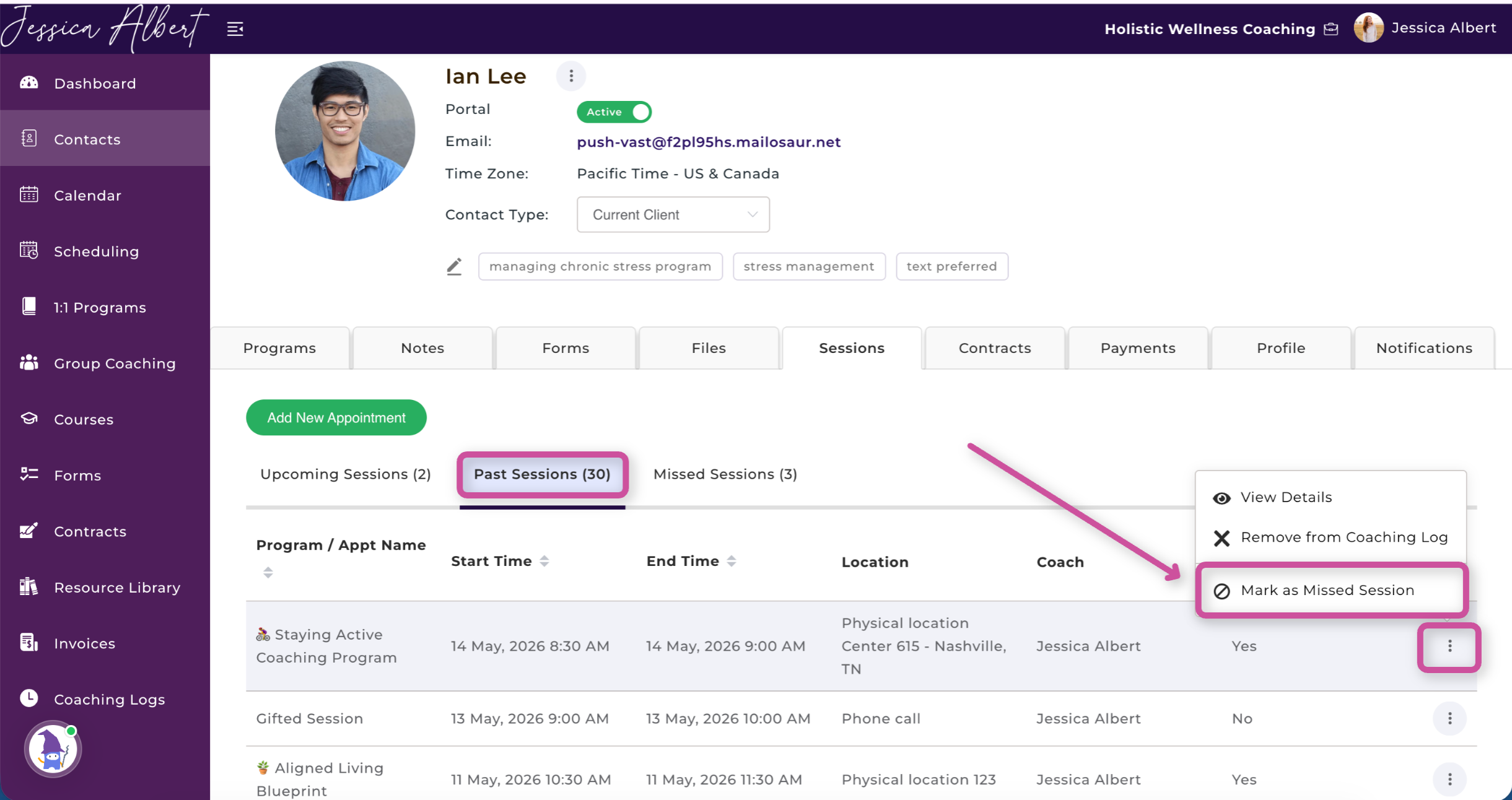
- Locate the relevant session from the list. On the right-hand side of that specific session line entry, click the 3-dot (Options Menu) button.
- From the drop-down menu overlay, select Mark as Missed Session.
Configuring Missed Session Rules
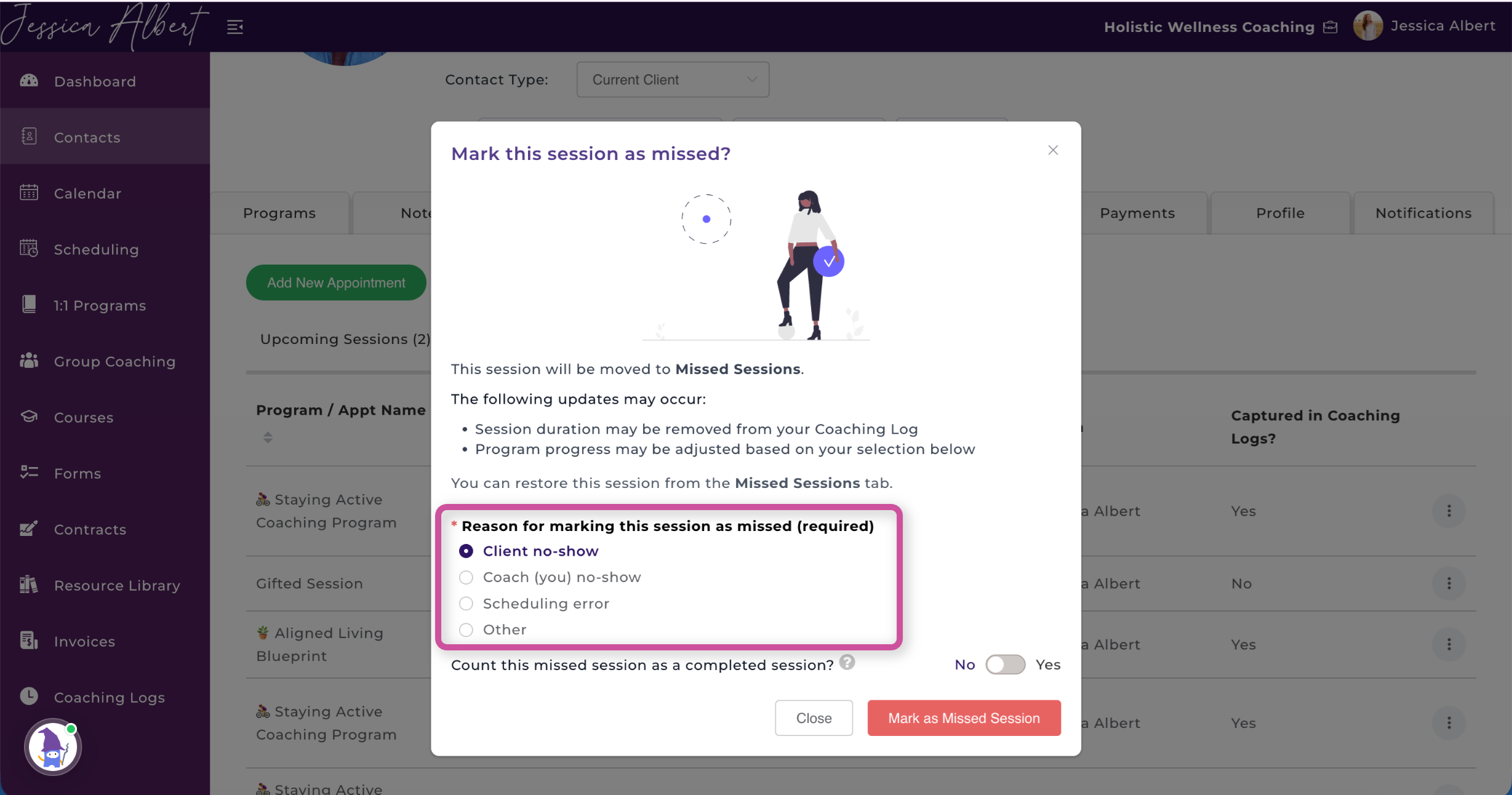
Once selected, a customization modal window titled "Mark this session as missed?" will appear. This layout prompts you to establish how this specific absence impacts program progression logs and billing policies:
1. Reason for marking this session as missed (Required)
Choose the appropriate context checkbox for accountability data tracking:
- Client no-show: The client missed the window without giving prior notification.
- Coach (you) no-show: An emergency or scheduling conflict forced your absence.
- Scheduling error: Overlaps or time-zone misalignments caused an administrative mismatch.
- Other: Any customized scenario tailored to unique client communications.
2. Count this missed session as a completed session? (Toggle Switch)
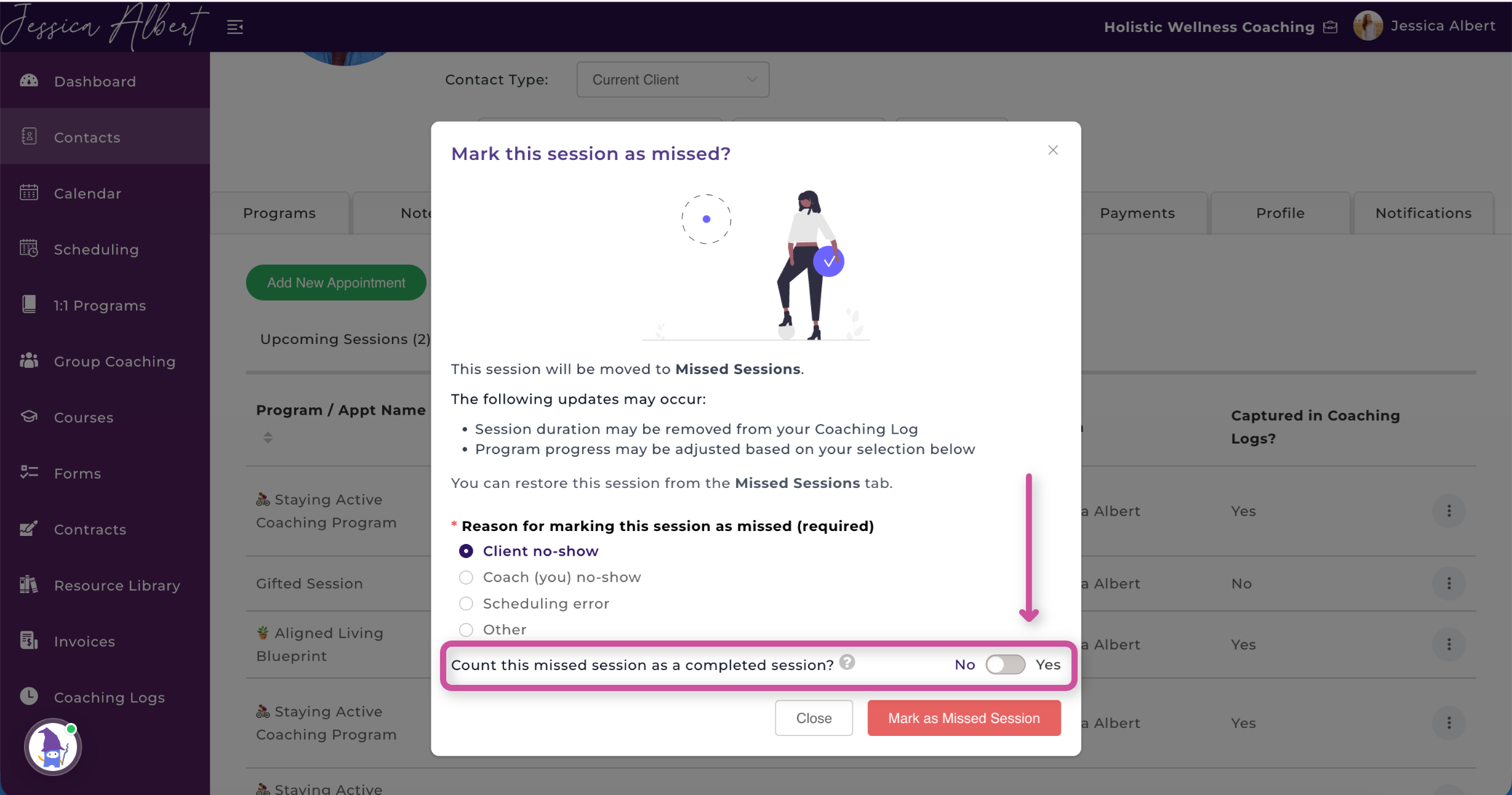
This setting controls your financial rules and program billing policy terms dynamically:
- Select "Yes" (Toggle Active): Use this option if you want to hold the client contractually or financially accountable. The system will count the session as a fulfilled slot in their package, meaning they are charged or "use up" that session slot without a makeup option.
- Select "No" (Toggle Inactive): Use this option if you wish to give the client a courtesy pass. The session slot will be preserved and freed up so they can reschedule or pick an alternate makeup date without wasting their prepaid program credits.
Once you have configured these preferences, finalize the change by clicking the red Mark as Missed Session button.
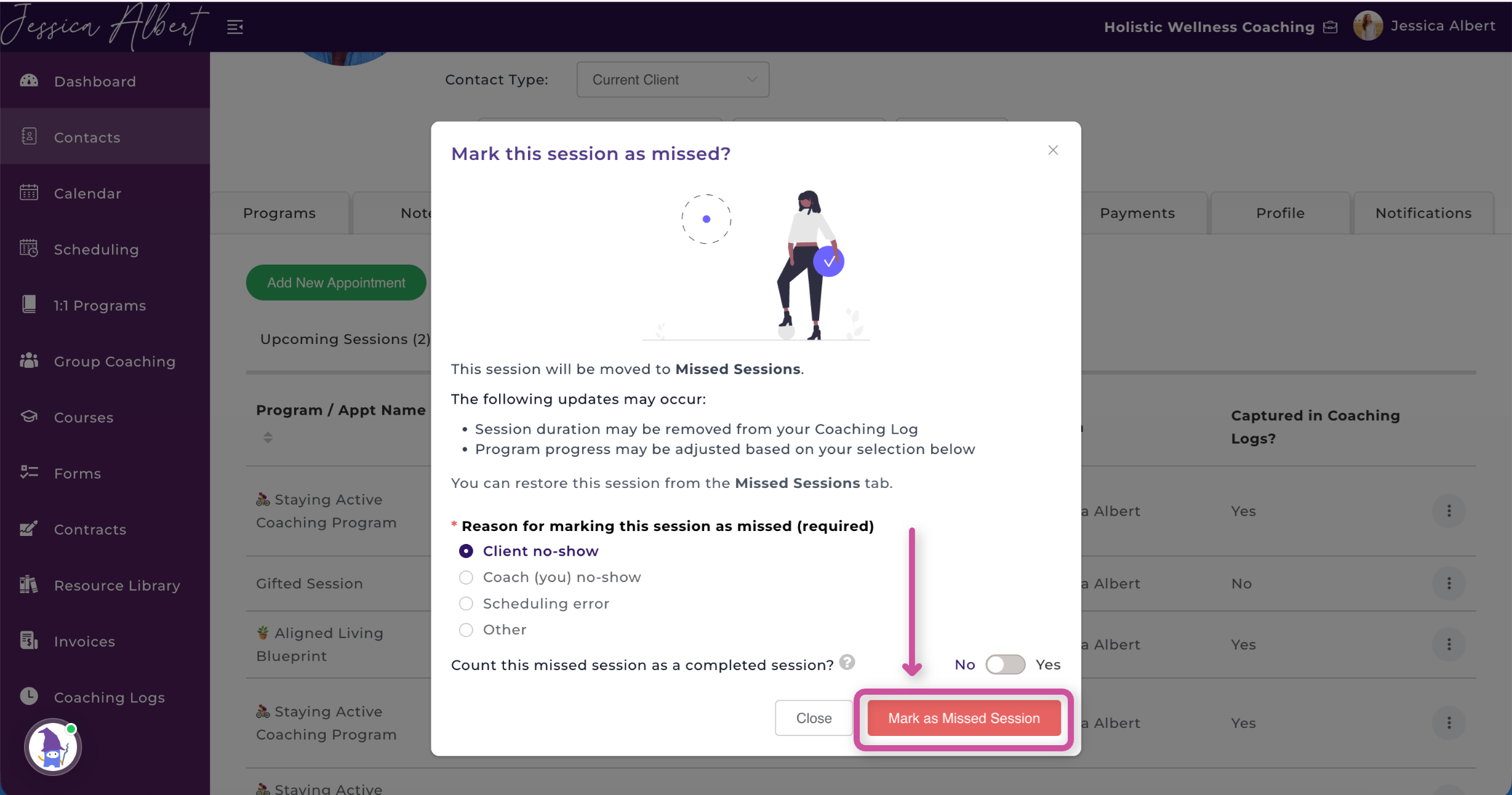
📌 System Automation Notice: Upon confirming, the session automatically migrates out of the Past Sessions filter list and appears immediately inside the dedicated Missed Sessions view bucket.
Reversing Mistakes: How to Restore an Appointment
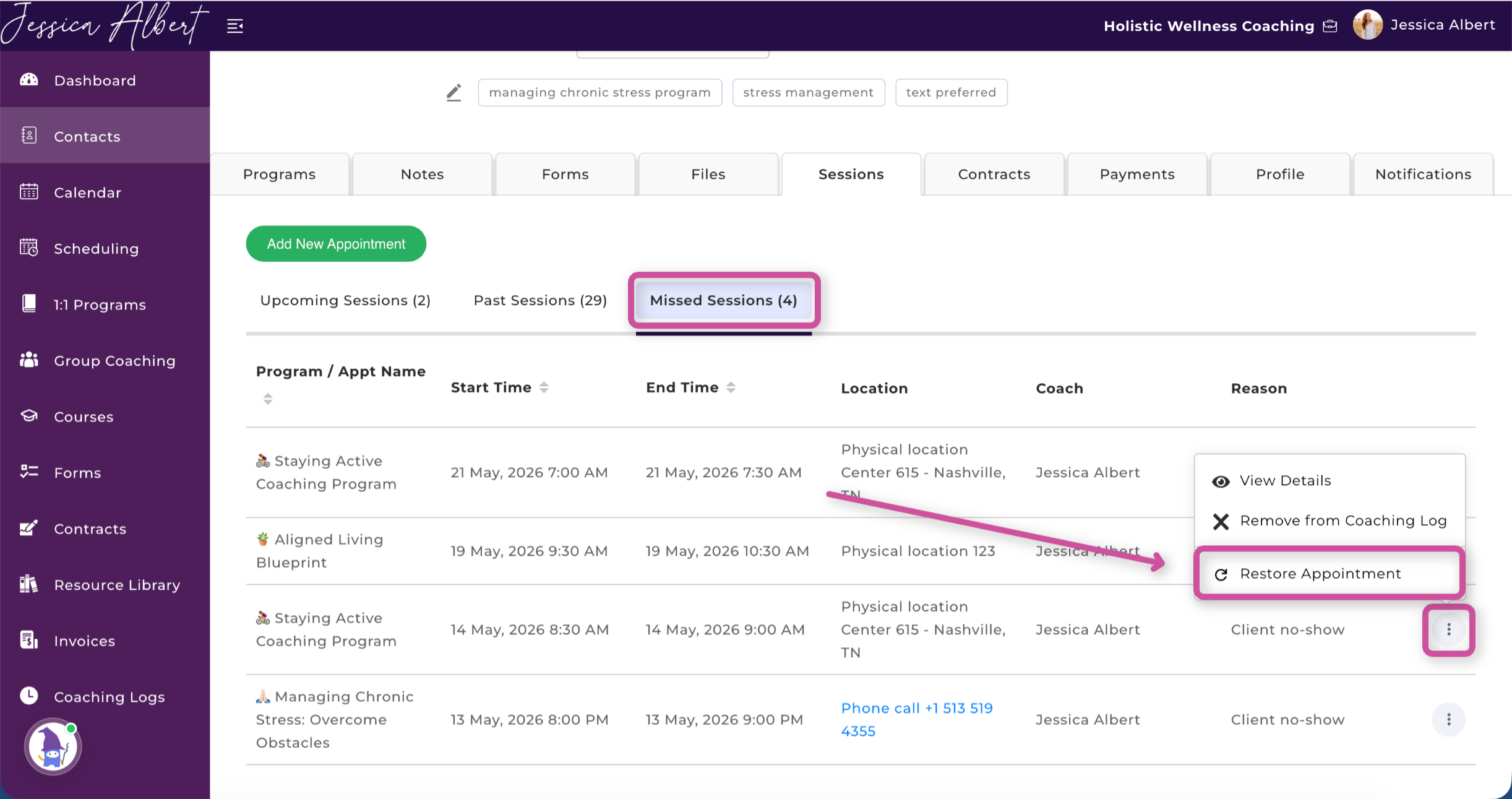
Accidents happen! If you accidentally log a session as missed, CoachVantage allows you to easily reverse the change:
- Open the client's record under Contacts, Sessions and select the Missed Sessions sub-tab.
- Locate the mistakenly marked item line and click its 3-dot menu button on the far right.
- Click Restore Appointment. The session will instantly return to its original historical standing under Past Sessions.
Managing Your Professional Coaching Log & Hours
For credentialing bodies (such as the ICF), tracking exact, direct hours accurately is critical. CoachVantage gives you full authority over whether non-attendance hours count toward your certified coaching logs.
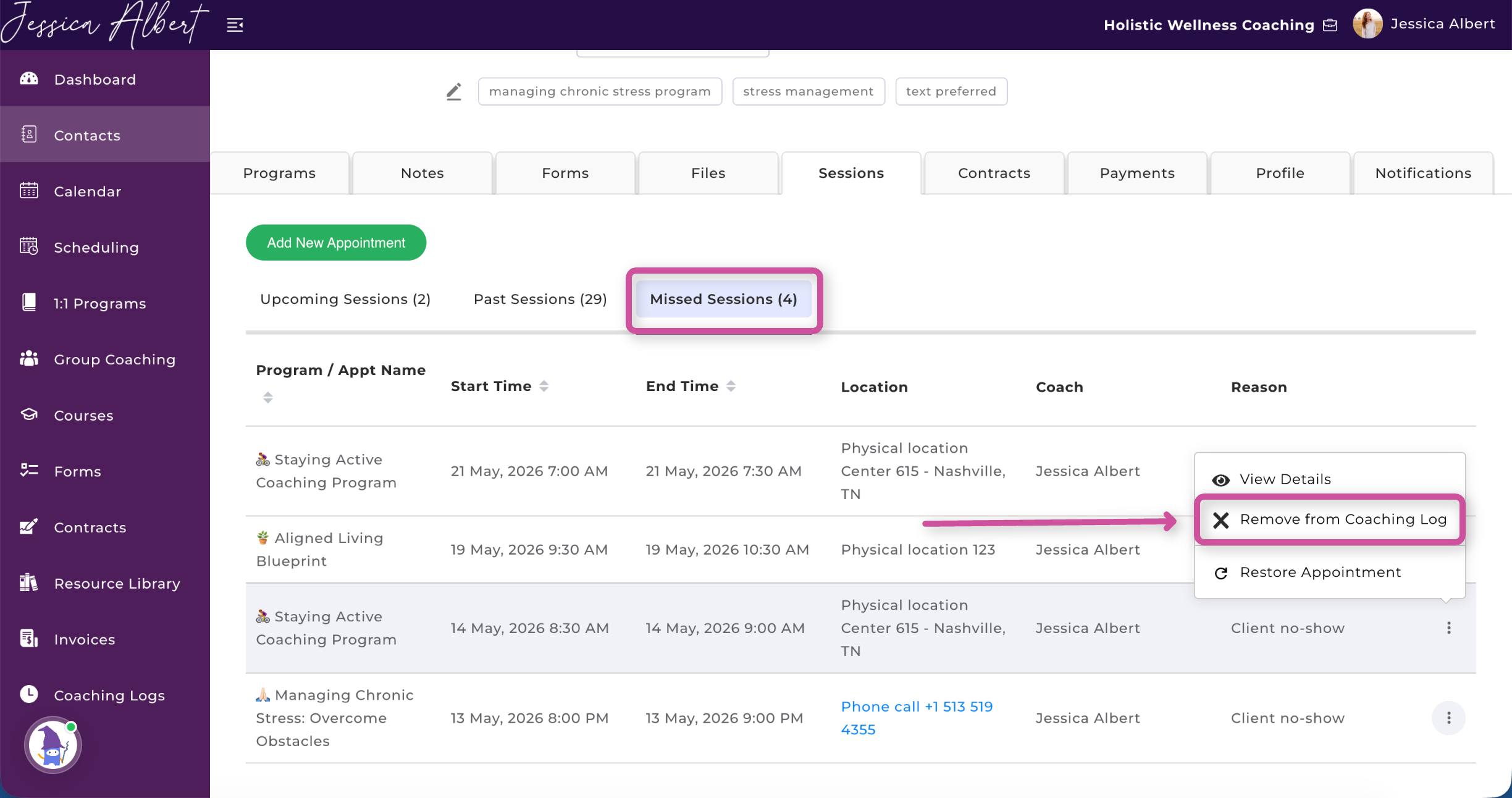
If a session was missed and you want to ensure it does not artificially inflate your verified coaching log totals, navigate to the Missed Sessions view, click the 3-dot menu button next to the appointment entry, and select Remove from Coaching Log. This keeps your official hour logs clean, accurate, and audit-compliant.
Monitoring Progress via the Program Management Page
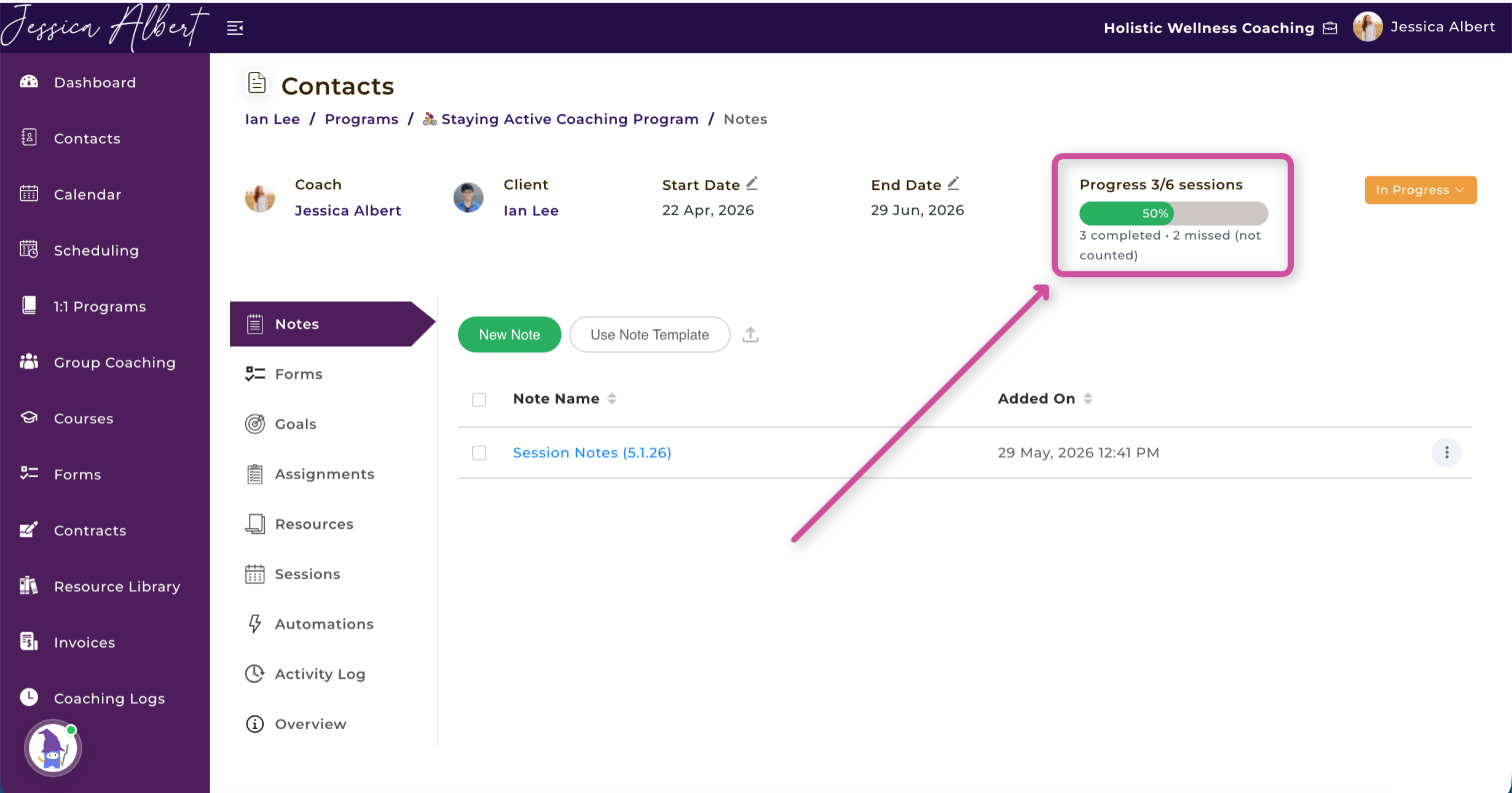
In addition to individual contact profiles, CoachVantage provides global overview access. When managing a structure from the main Program Management Page layout, coaches can view program metrics in real time:
- Progress Gauge: The primary summary metrics display explicitly tracks completion progress metrics (e.g., "Progress 3/6 sessions — 3 completed • 2 missed (not counted)"). This calculation updates automatically based on the "Count as Completed" toggle choice you selected in the setup modal.
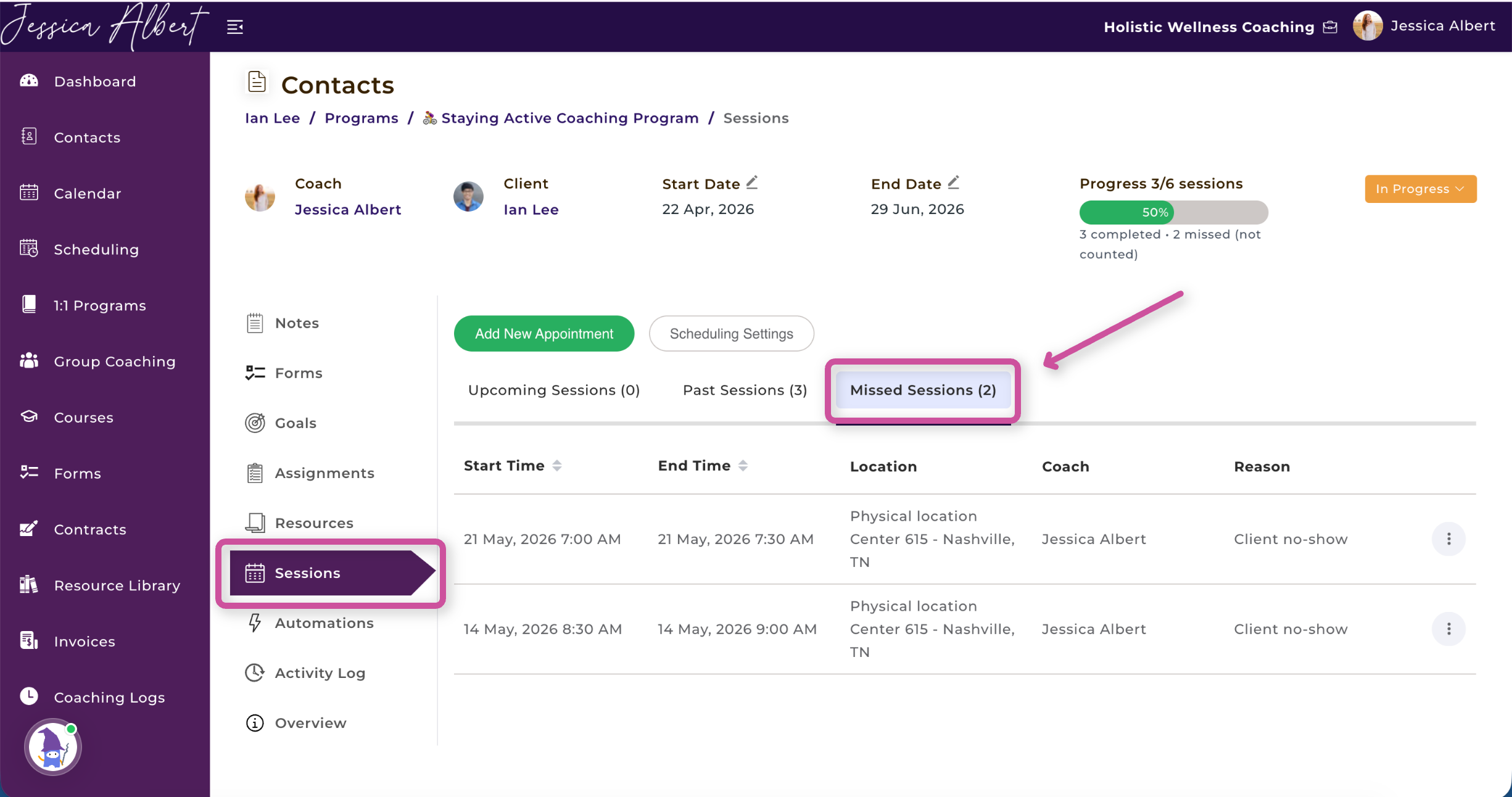
- Program-Specific Sessions Tab: Inside the specific program view, clicking on the Sessions left-hand menu element allows you to view a filtered Missed Sessions tab. This display shows only the absences specifically tied to that specific program roadmap, keeping multi-tier contracts neatly separated.
🌟 Pro-Tip for Coaches
Before deciding whether to count a missed session as completed, it's always a good idea to check your coaching agreement's cancellation policy. This ensures your tracking stays completely aligned with what you and your client originally agreed upon.