
Security in CoachVantage
Security in CoachVantage
In this article, you'll learn how automatic session expiration works, how to view your active login sessions, and how to revoke access from devices you no longer use.
🔒 Overview
To help keep your CoachVantage account secure, users automatically get logged out after 12 hours of inactivity. This security enhancement helps protect your client data and account information, especially when accessing CoachVantage from shared or public devices.
Why am I being logged out?
CoachVantage automatically ends login sessions after 12 hours of inactivity. When this happens, you'll simply be prompted to log in again.
This security measure helps:
- Protect sensitive client information
- Reduce the risk of unauthorized access
- Keep your account secure if a device is left unattended
- Align with industry best practices for online security
🔍 How to View Your Active Sessions
You can see all devices currently logged into your CoachVantage account.
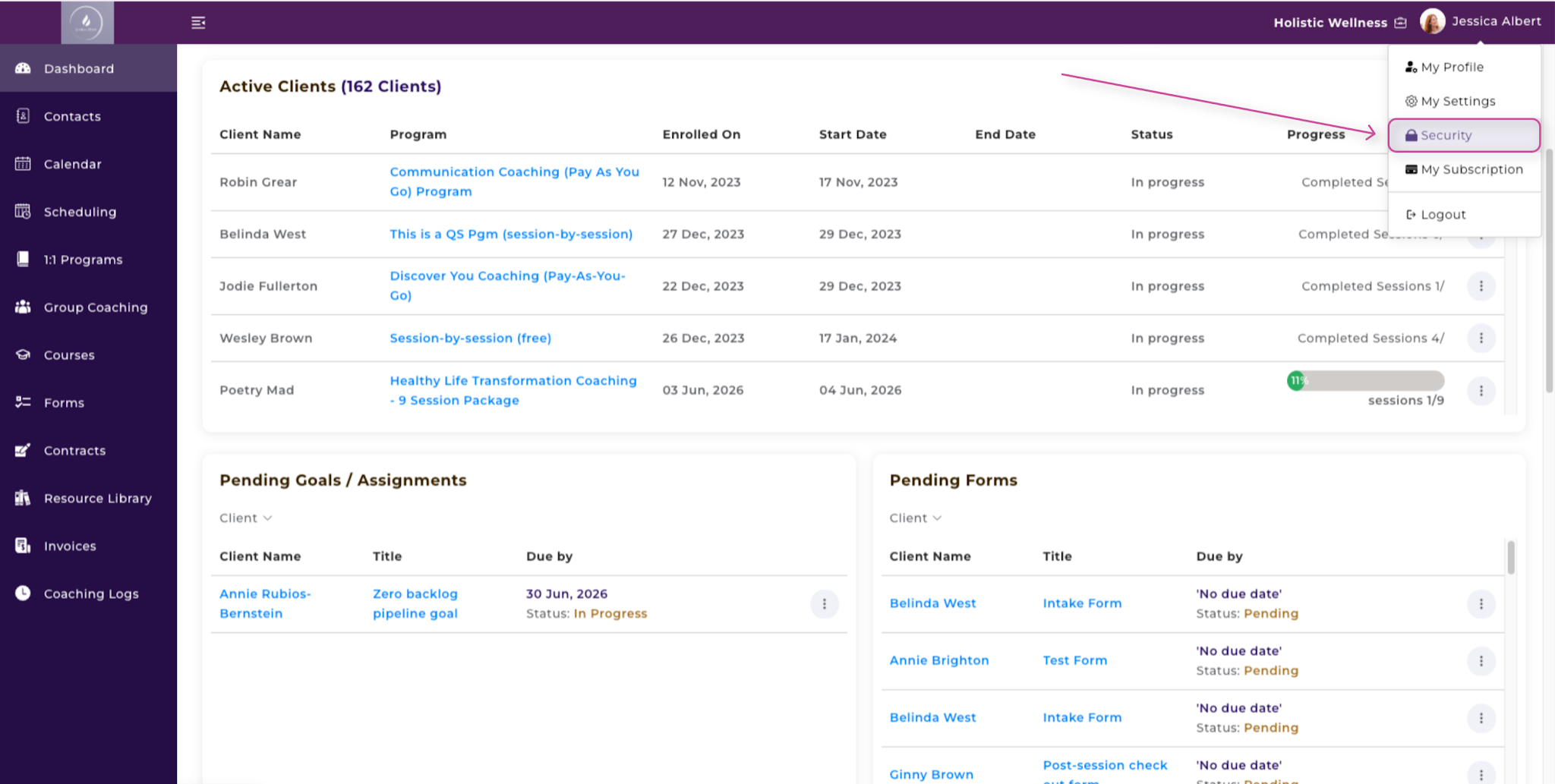
Step 1: Click Your Name
From anywhere in CoachVantage, click you name in the top-right corner of the screen.
Step 2: Select Security
Click Security from the dropdown menu.
Step 3: Review Your Active Sessions
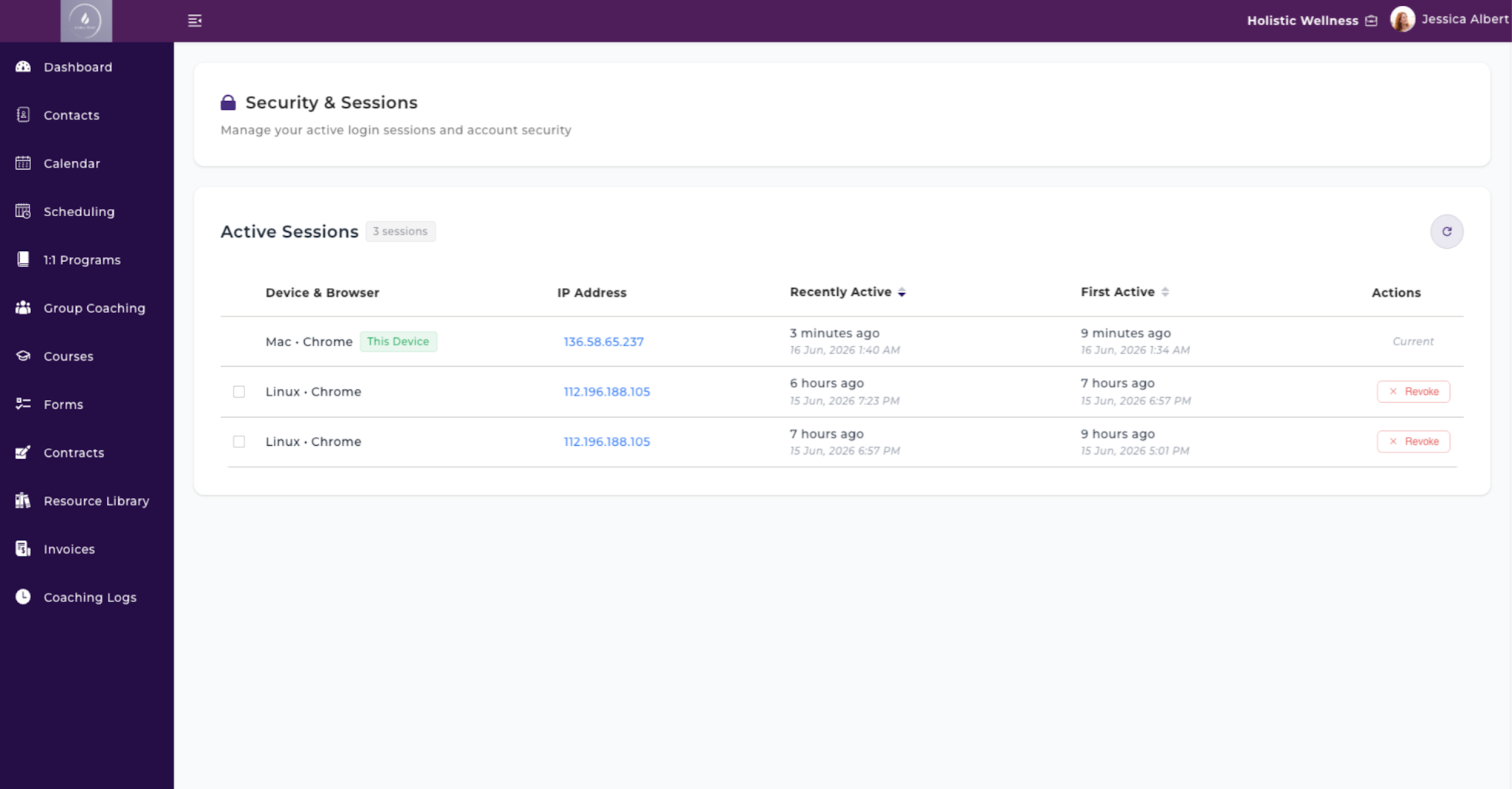
The Security & Sessions page displays all active login sessions associated with your account.
For each session, you'll see:
- Device & Browser being used
- IP Address
- To get more details about the IP location, you will direct to a third party service
- Recently Active timestamp
- First Active timestamp
- Whether the session is your Current Device
📱How to Log Out of Other Devices
If you see a device or browser session that you no longer use, you can end that session remotely.
- Navigate to Profile → Security
- Locate the session you want to remove
- Click Revoke
The selected device will be immediately logged out and will need to sign in again to regain access.
❓Frequently Asked Questions
Will I lose my work when I'm logged out?
No. Your information remains saved in CoachVantage. If your session expires after 12 hours of inactivity, simply log back in and continue where you left off.
Do I need to log out manually?
Not necessarily. CoachVantage will automatically log you out after 12 hours of inactivity. However, we still recommend logging out manually when using a shared or public computer.
Why do I see multiple sessions?
Multiple sessions can appear if you've logged into CoachVantage from different devices, browsers, or browser profiles.
For example:
- Chrome on your laptop
- Safari on your phone
- Chrome Incognito mode
- A second computer
Each will appear as a separate session.
What should I do if I see a session I don't recognize?
Immediately click Revoke on the unfamiliar session or sessions using the checkboxes to revoke all sessions in a single action. Next, consider updating your password. If you have concerns about account security, please contact the CoachVantage Support Team.
Tip: Periodically reviewing your active sessions is a great way to keep your CoachVantage account secure and ensure only devices you trust have access.